31 How to adjust your monitor
Controlling the display with Display Pilot
The provided Display Pilot software on the CD is an alternative to control the display. The
main functions include:
• Control of the OSD menus.
• Setup of rotating the display with the monitor automatically (see page 19).
For more information, go to System > Options > User Manual in Display Pilot.
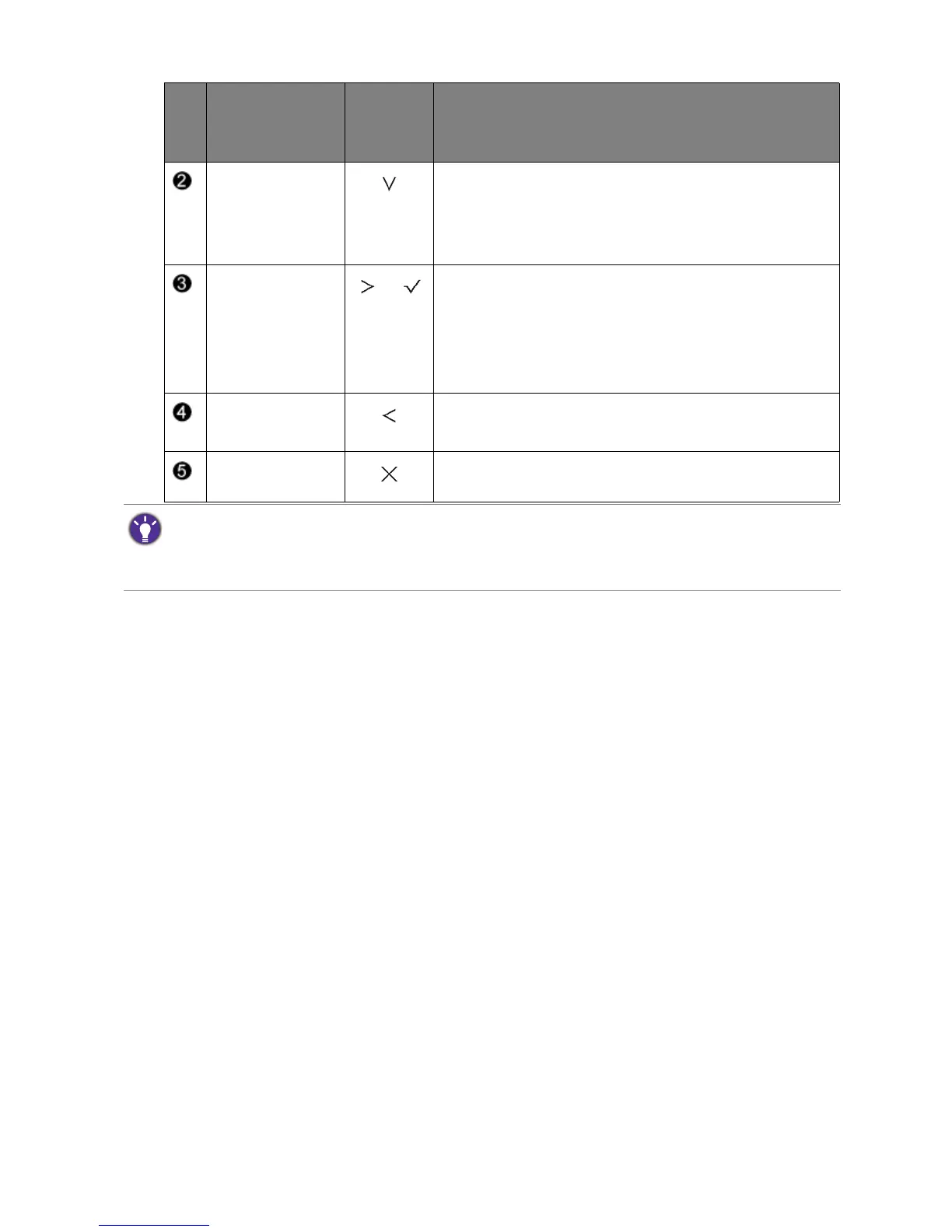
Custom Key 2 • By default, the key is the hot key for Input. To change
the default settings, see Customizing the hot keys on
page 32.
• For Down/Decrease adjustment.
Custom Key 3
/
• By default, the key is the hot key for Volume. To
change the default settings, see Customizing the hot
keys on page 32.
• Enters sub menus.
• Selects menu items.
Menu • Activates the main menu.
• Returns to the previous menu.
Exit Exits OSD menu.
No.
OSD in hot key
menu
OSD icon
in main
menu
Function
• OSD = On Screen Display.
The hot keys only operate while the main menu is not currently displaying. Hot key displays will disappear after
a few seconds of no key activity.
• To unlock the OSD controls, press and hold any key for 10 seconds.


 To Next Page