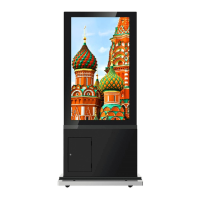
The BenQ DH551C/DH550C/DL550C is a double-sided display designed for various commercial and informational applications. Its primary function is to present visual content on two screens simultaneously, making it ideal for environments where information needs to be visible from multiple directions, such as retail spaces, lobbies, or public areas. The display is designed to be robust and user-friendly, with features that facilitate easy setup, operation, and maintenance.
Function Description
The core function of this device is to provide a double-sided visual display. This means it has two screens, one on the front and one on the back, allowing for simultaneous content presentation to audiences on either side. The display supports high-resolution content, ensuring clear and vibrant images or videos. It is equipped with HDMI inputs, allowing for connection to various media sources, including industrial PCs (IPCs). The main signal input source is HDMI 1, and users are advised to ensure this connection is established before connecting HDMI 2.
The display also integrates an internal space for an Industrial PC (IPC), which can be installed to manage and deliver content. This integration makes the display a self-contained solution for digital signage, capable of running applications and managing content directly from the embedded PC. The IPC installation process involves securing a plate metal within the display's housing using specific screw holes, ensuring a stable and secure fit. The IPC's I/O interface should be placed facing downwards during installation.
Power management is straightforward, with an AC switch and power cord connection accessible through a user door on the front side of the display. The remote controller is a key interface for operating the display, with its power function specifically designed to work when pointed at the front side. Other functions of the remote, such as menu navigation and content control, are functional from either side of the display.
Usage Features
The BenQ double-sided display is designed for ease of use from initial unpacking to daily operation.
-
Unpacking and Setup: Due to its size and weight, it is recommended that at least two people handle the display during unpacking and setup. The packaging includes a bottom carton, bottom cushion, the display unit (P55 Dual Set), a packing bag, top cushion, upper carton, and plastic grips, all secured with carton tape. The display is placed into a bottom housing, and users are advised to ensure the product label on the front side of the display faces forward during this step. The display is then secured to the bottom housing using a combination of M5x30mm and M4x8mm screws.
-
Connectivity: Connecting the LVDS (Low-Voltage Differential Signaling) and 24V power cables is a critical step in the setup process, ensuring proper communication and power delivery to the display panels. The manual provides clear visual guidance on how to correctly connect these cables, emphasizing the correct orientation for the 10-pin and 14-pin connectors. The user door on the front side provides access to the HDMI connectors and the AC power switch, making it convenient to connect media sources and power the device.
-
Stand Installation: The display can be installed on a full-size stand, which includes wheels for mobility. The stand installation involves two steps. Step 1 focuses on securing the display to the stand using M6x20mm screws, following specific arrow directions for proper alignment. Step 2 involves fixing the wheels, which include a brake mechanism, and securing the entire product to the ground using M10x100mm screws for stability, especially in public areas.
-
Remote Control Operation: The included remote controller provides comprehensive control over the display's functions. Key buttons include Power (on/off), Menu (to enter OSD settings), navigation arrows (up/down for menu navigation), and Exit (to exit menus or selections). The remote also features dedicated buttons for Photo, Music, Movie, aspect ratio (16:9/4:3), Rotate, Zoom, OSD, Back Music, and Slide Show, along with numerical inputs and volume controls. The power function of the remote is directional, working only when pointed at the front side of the display, while other functions work from either side.
-
OSD Menu Navigation: The On-Screen Display (OSD) menu allows users to adjust various display settings.
- Luminance Menu: Accessible via the MENU button, this section allows adjustment of Brightness (0-100) and Contrast (0-100).
- Color Menu: Users can select Color Temperature (6500K, 9300K, 11500K, or User Define). If "User Define" is chosen, individual Red, Green, and Blue gains and offsets can be adjusted (0-100).
- OSD Setting Menu: This menu provides options for Horizontal and Vertical positioning of the OSD (both default to 50), Transparency (default to 0), OSD Time Out (default to 50), and OSD Rotation (0°, 90°, 270°, 360°).
- Setup Menu: This menu includes Language selection (English, Spanish, French, German, Italian, Portuguese, Russian, Simplified Chinese, Japanese, Traditional Chinese), Input source selection (HDMI1/HDMI2), Display Size (Full Screen, Smart Fit, 4:3, Smart4:3), and Reset (No/Yes) options.
Maintenance Features
Proper maintenance is crucial for the longevity and optimal performance of the BenQ double-sided display.
- Environmental Protection: The display should be kept away from direct sunlight, stoves, or any other heat sources to prevent overheating. It should also be protected from dust, rain, water, or excessively moist environments to avoid electric shock or permanent damage. If the display gets wet, it should be wiped with a dry cloth immediately.
- Ventilation: The ventilation holes on the power box must not be blocked by any objects, as this can prevent proper cooling of the display's electronics.
- Cleaning: When cleaning the display, it should be unplugged. The screen can be wiped with a dry cloth when the power is off. It is important never to use organic solvents, such as alcohol or ammonia-based liquids, to clean the display, as these can cause damage.
- Power Management: When turning off the display by detaching the power cord, a 6-second wait is recommended before re-attaching it for normal operation. The power plug and outlet should always be easily accessible. Users should ensure they use an approved power cord provided by BenQ.
- Physical Handling: The display should not be subjected to severe vibration or high impact conditions during operation or transportation. Excessive pressure should not be applied to the display to prevent damage.
- Troubleshooting: The manual provides a troubleshooting guide for common issues. For example, if there is no picture, users should check the power cord connection, ensure the power switch is on, and verify the signal connection. If interference or audible noise occurs, moving the display to another location may help. Abnormal colors or distorted pictures usually indicate a problem with the signal cable connection or an input signal beyond the display's capabilities.
- After-Image Prevention: To prevent permanent after-images, users are advised not to display still images for excessive periods.
- Professional Consultation: If the display does not operate normally after following the instructions in the manual, users should consult a service technician.


 To Next Page
 General