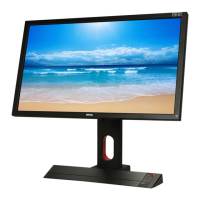
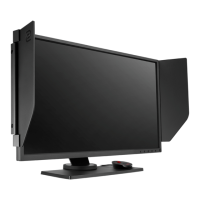
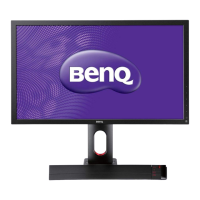
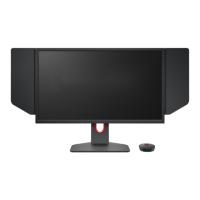
Need help?
Do you have a question about the BenQ XL2430T and is the answer not in the manual?
Identifies front-facing controls and indicators on the monitor.
Details rear-facing ports and connections on the monitor.
Step-by-step instructions for attaching the monitor stand base securely.
Guides on connecting various video cables like D-Sub, DVI, HDMI, and DisplayPort.
Instructions for connecting the S Switch accessory to the monitor base.
Details for connecting headphones and using the headphone hook feature.
Steps for connecting USB devices and the power cord for operation.
Steps to prepare the workspace and monitor before detaching the stand.
Instructions for safely removing the monitor base from the stand.
Steps to detach the monitor stand from the display unit.
Adjusting the monitor's vertical tilt angle for optimal viewing.
Adjusting the monitor's horizontal swivel angle.
Rotate the display for portrait viewing orientation.
Extend monitor and tilt before rotation for portrait mode.
Procedure for rotating the monitor 90 degrees clockwise for portrait mode.
Important safety and installation precautions for wall mounting.
Steps to remove monitor stand and back cover screws.
Guidance to follow the specific manual of the purchased wall mount bracket.
Detailed guide for installing the monitor driver on a new computer system.
Procedure for updating the monitor driver on a computer with existing software.
Specific steps for installing drivers on Windows 8 and 8.1 operating systems.
Specific steps for installing drivers on Windows 7 operating system.
Overview of the monitor's physical control keys and their functions.
Explanation of the S Switch accessory and its button functions for OSD navigation.
How to navigate and use the On-Screen Display (OSD) menus.
Optimizing picture settings for different scenarios, including game modes.
Reassigning functions to the monitor's custom control keys.
Creating and saving custom display settings for specific games.
Using Auto Game Mode to automatically select game-specific settings.
Instructions for downloading game modes via the Game Mode Loader.
Changing aspect ratios and display sizes for different content.
Resizing the display to fit needs using Smart Scaling.
Reducing input lag by activating Instant Mode for gaming.
Using Display Pilot software for enhanced monitor control and gaming features.
Configuring game-specific settings like Blur Reduction and Black eQualizer.
Adjusting brightness, contrast, sharpness, and color settings.
Input selection, display modes, and scaling options.
Language, OSD display time, and other system settings.
Answers to common user queries regarding image quality, connectivity, and display issues.
Contact information and further support resources for persistent problems.
 General
| Tiltable | yes |
|---|---|
| Webcam | no |
| OS Compatibility | windows |
| Screen Size | 24 inches |
| Aspect Ratio | 16:9 |
| Resolution | 1920 x 1080 |
| Refresh Rate | 144hz |
| Horizontal Viewing Angle | 170 degrees |
| Vertical Viewing Angle | 160 degrees |
| Response Time | 1 milliseconds |
| Brightness | 350 candela per square meter |
| Contrast Ratio | 12, 000, 000:1 |
| Power Consumption | 50 watts |
| Depth with Stand | 7.8 inches |
| Width with Stand | 22.4 inches |
| Net Weight without Stand | 15.4 pounds |

 To Next Page