24 How to adjust your monitor
Hot key mode
The monitor keys perform as hot keys to provide direct access to particular functions whenever
the menu isn't currently displaying on-screen.
Custom key 1
Custom key 2
Input hot key
Press the key to display the functions that
can be accessed by this key. Press the or
keys to change the settings if needed.
To change the default settings, see Custom key
1 on page 37 for more information.
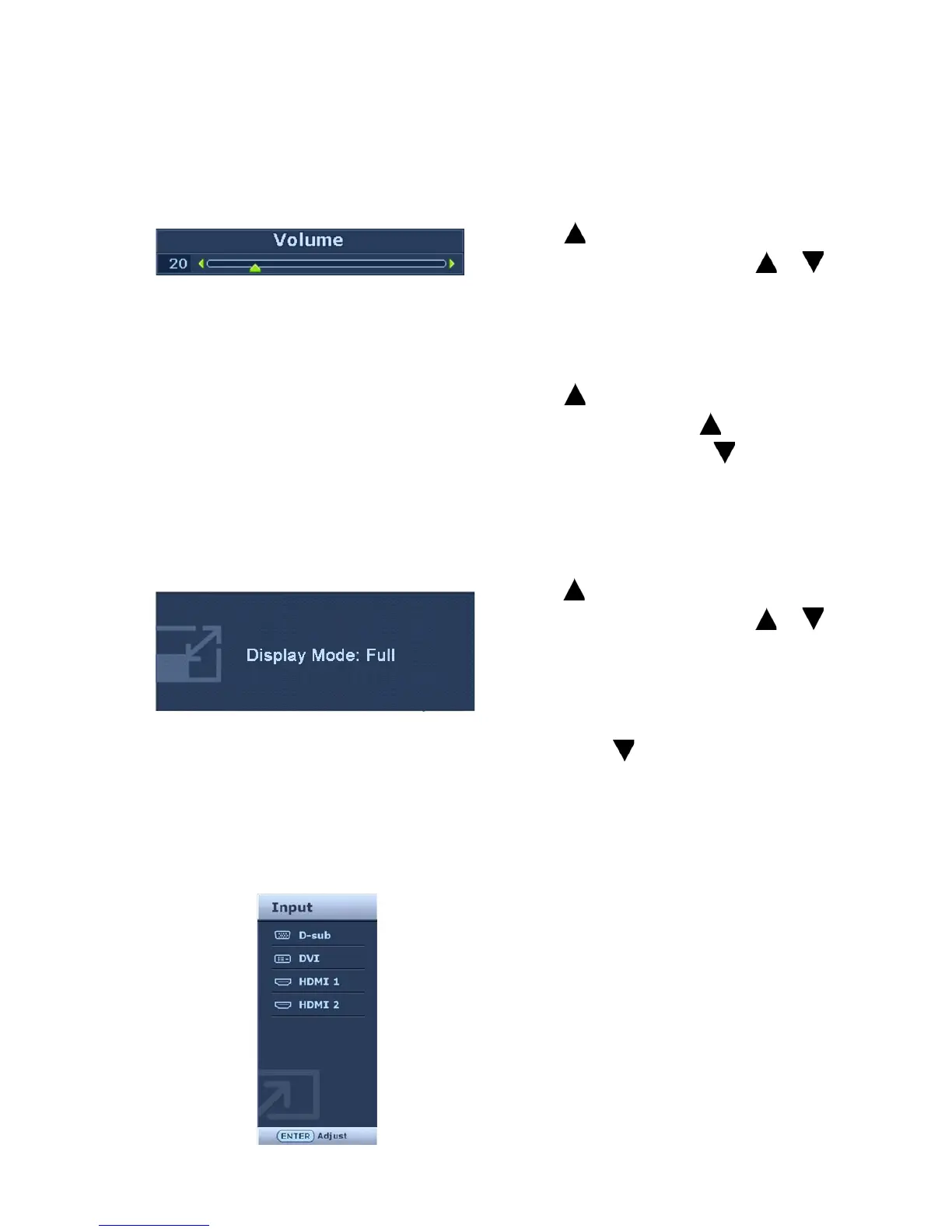
By default, the key is the hot key for Volume.
Press the key to display the Volume
indicators. Further press the key will
increase the volume, while the key will
decrease the volume.
Press the key to display the functions that
can be accessed by this key. Press the or
keys to change the settings if needed.
To change the default settings, see Custom key
2 on page 37 for more information.
By default, the key is the hot key for Display
mod
e. Press the key continually to switch
among Full and Aspect. The setting will take
effect immediately.
See also Display Mode on page 31.
Press the ENTER key to toggle between
different PC video signal inputs that may be
connected to your monitor.
The setting will take effect immediately.
See also Input on page 35.



 To Next Page