41 Upotreba (pod Launcher izvorom)
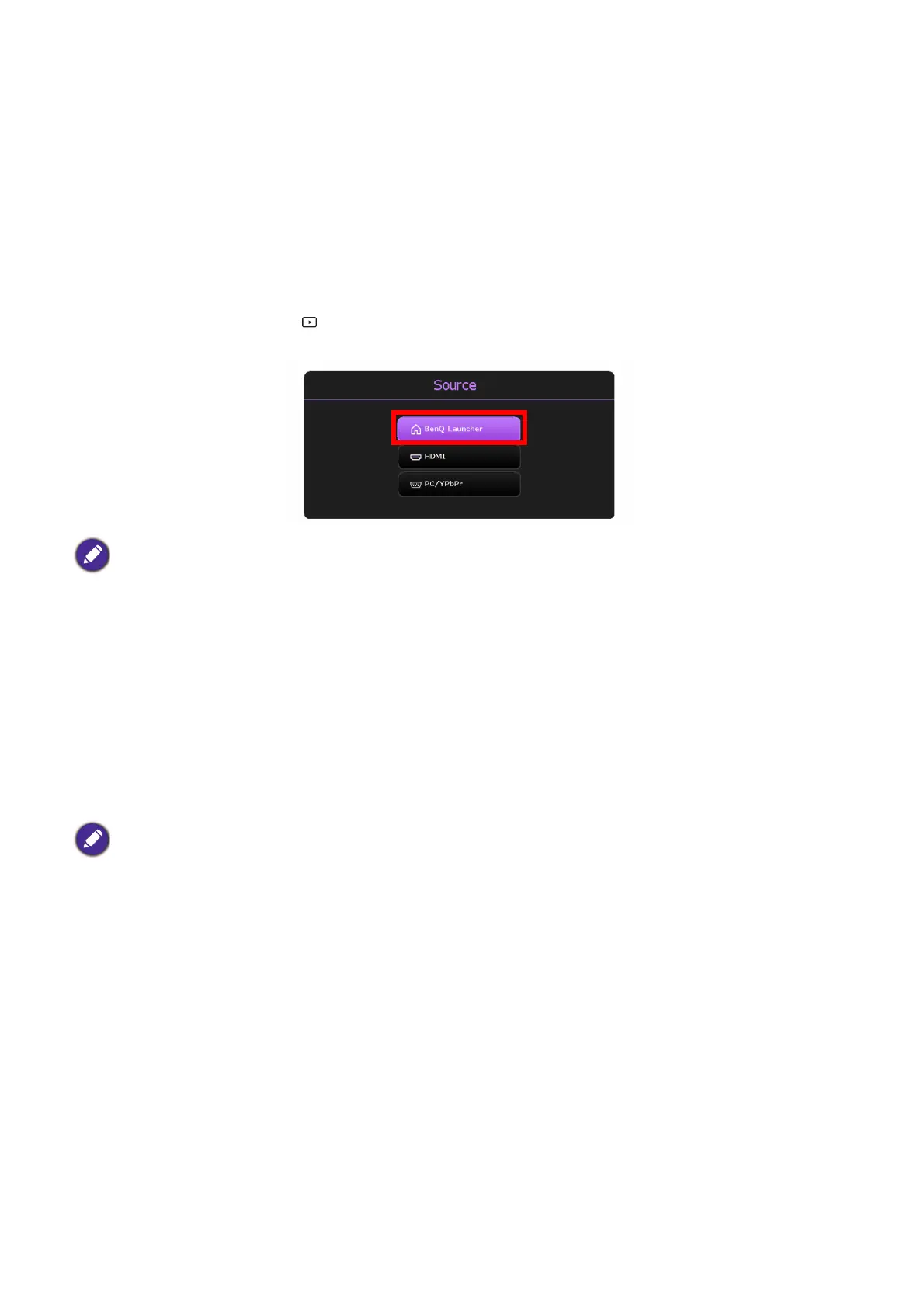
Switching to BenQ Launcher from an input source
When HDMI or PC/YPbPr is selected in the source menu, the projector will exit the BenQ
Launcher interface to project video from the input source (e.g. a Blu-Ray/DVD player, set-top
box, or PC). The projector will remain outside of the BenQ Launcher interface as long as the
HDMI or PC/YPbPr input source is selected or (depending on Auto Source settings) until the
projector is powered off and back on again.
As a result, anytime the user wants to wirelessly cast their device’s screen, view media files
stored on a flash drive, or run apps, they must return to the BenQ Launcher interface. To return
to BenQ Launcher:
1. Press the source button or the LAUNCHER button on the remote control.
2. Select BenQ Launcher in the source menu.
Wireless Connections
Connecting the projector to a wireless network
Before you can project wirelessly via the projector, you must first connect the projector to a
wireless network. To connect your projector to a wireless network, or to switch wireless
networks:
1. Install the provided wireless dongle into the wireless dongle port (see Instalacija bežičnog
hardverskog ključa on page 8).
2. Power on the projector (see Uključivanje projektora on page 22).
When the Auto Source function is enabled in the Advanced > Settings menu of the projector’s OSD
menu, the projector will display the BenQ Launcher home screen by default once it is powered on. If the
Auto Source function is disabled, the projector will detect if a signal is available from the input source that
was last used and switch to that input source if it is available, if a signal is not available or the projector was
set to BenQ Launcher during the previous session, the projector will enter the BenQ Launcher home
screen. See Postavke on page 90.
If you have already connected the projector to a wireless network during the setup wizard you may skip the
steps in this section.







 To Next Page