Operation44
Using the menus
The projector is equipped with On-Screen Display (OSD) menus for making various
adjustments and settings.
There are 17 different OSD menu languages. See "System setup: Basic menu" on page 47 for
details.
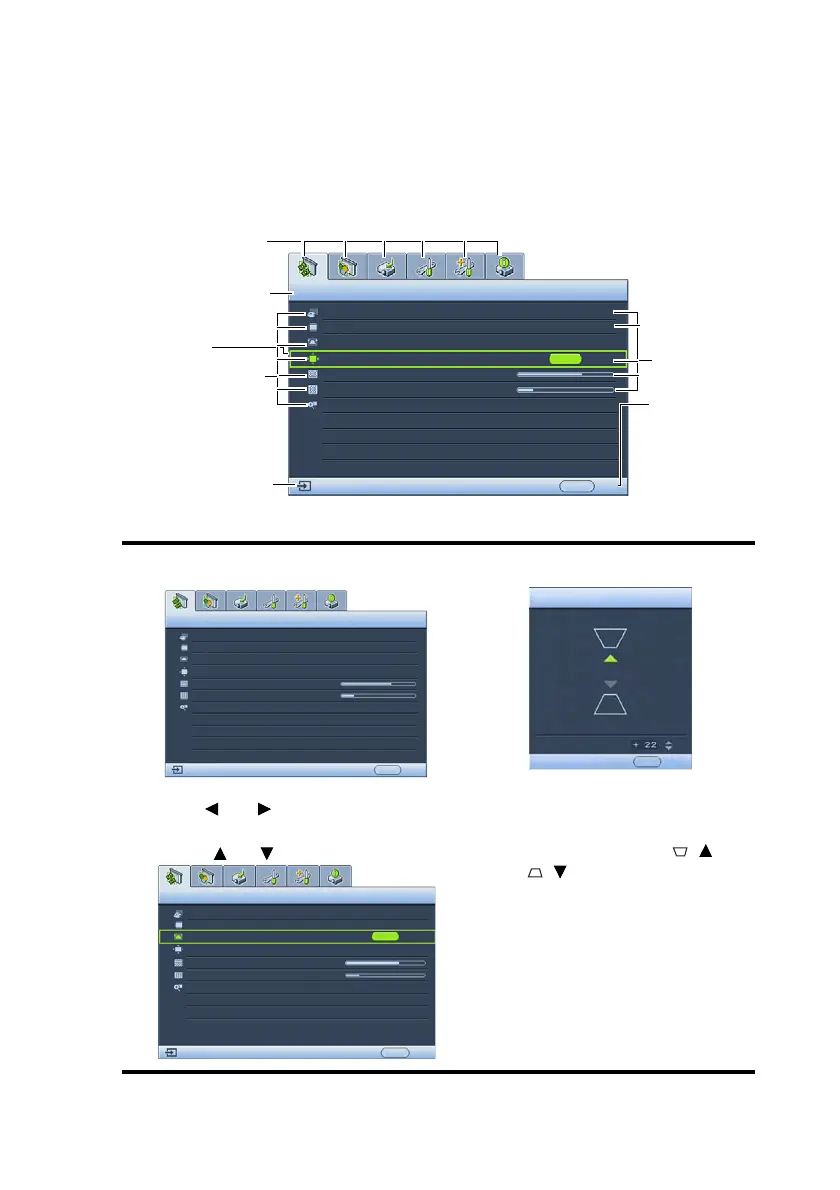
Below is the overview of the OSD menu.
The following example describes the adjustment of Keystone.
1. Press Menu/exit on the projector or
remote control to turn the OSD menu on.
4. Press Mode/enter to display the
keystone correction page.
2. Use Left/ Right to select the
DISPLAY menu.
3. Press Up/ Down to select Keystone.
5. Based on the image shape
displayed on the screen, press
the keystone buttons ( / Up,
/Down) to adjust the
image to a rectangular or square
one.
6. Press Menu/exit on the projector
or remote control to leave and
save the settings.
Current input signal
Main menu icon
Main menu
Sub-menu
Highlight
Press Menu/
exit to the
previous
page or to
exit.
Status
DISPLAY
Wall Color
Aspect Ratio
Keystone
Position
Phase
H. Size
Digital Zoom
Disable
Auto
50
50
ENTER
MENU
Exit
S-VIDEO
DISPLAY
Wall Color
Aspect Ratio
Position
Phase
H. Size
Digital Zoom
Disable
Auto
MENU
Exit
Keystone
50
50
S-VIDEO
KEYSTONE
Back
MENU
DISPLAY
Wall Color
Aspect Ratio
Keystone
Position
Phase
H. Size
Digital Zoom
Disable
Auto
ENTER
MENU
Exit
S-VIDEO



 To Next Page