Operation 31
Selecting a picture mode
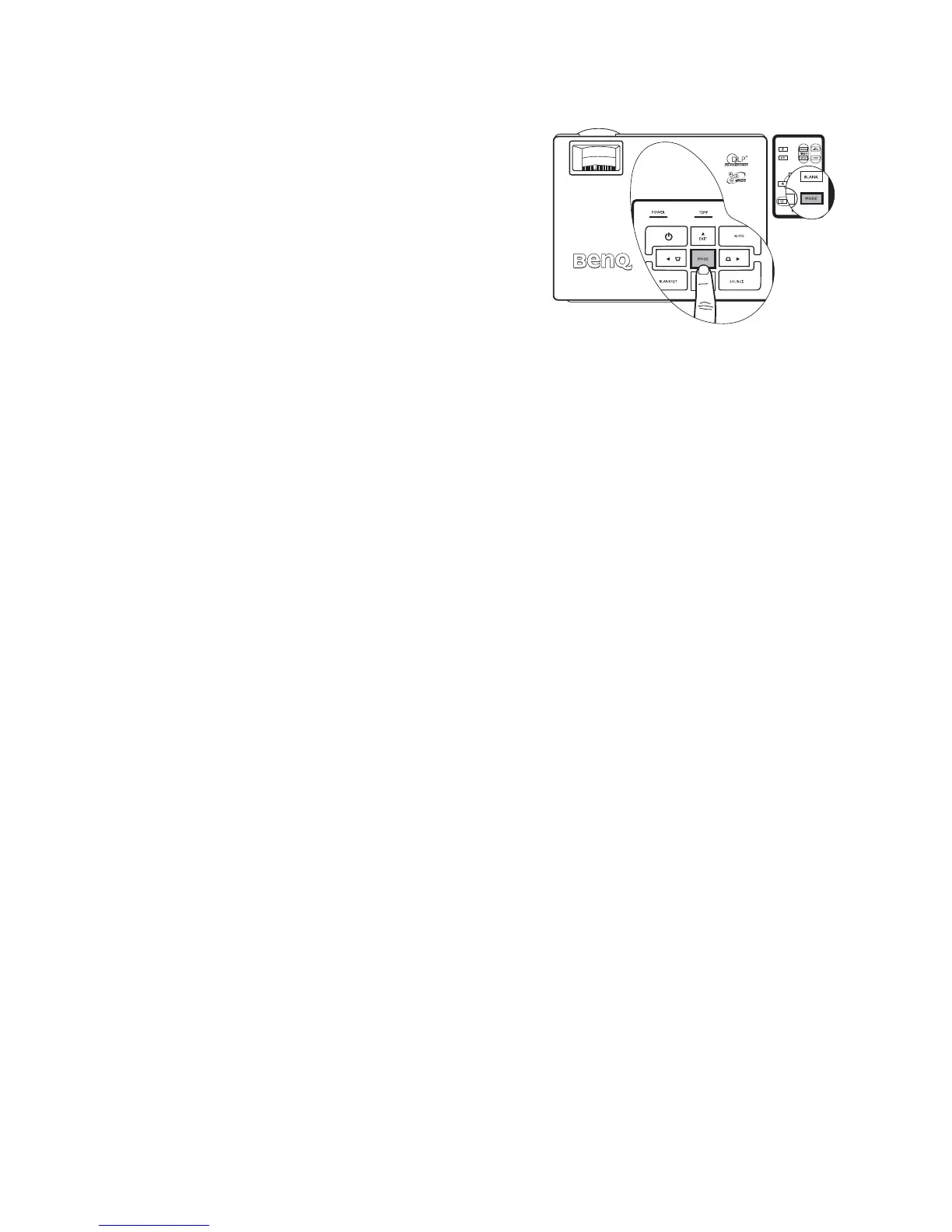
The projector is preset with several predefined
application modes so that you can choose one to
suit your operating environment and input
source picture type. To select a operation mode
that suits your need, press MODE repeatedly
until your desired mode is selected. The picture
modes available for different types of signals are
listed below.
PC Signal Input
1. Dynamic Mode (Default): Maximizes the
brightness of the projected image. This
mode is suitable for environments where extra-high brightness is required, such as
using the projector in well lit rooms.
2. Presentation Mode: Is designed for presentations. The brightness is emphasized in this
mode to match PC and notebook coloring.
3. sRGB Mode: Maximizes the purity of RGB colors to provide true-to-life images
regardless of brightness setting. It is most suitable for viewing photos taken with an
sRGB compatible and properly calibrated camera, and for viewing PC graphic and
drawing applications such as AutoCAD.
4. Cinema Mode: Is appropriate for playing colorful movies, video clips from digital
cameras or DVs through the PC input for best viewing in a blackened (little light)
environment.
5. Blackboard Mode: Is designed for educational use. Images are allowed to be projected
on a dark background, such as a blackboard instead of a normal screen. It is most
suitable for a well lit environment with a dark background for projection.
YPbPr/S-Video/Video Signal Input
1. Dynamic Mode: Is suitable for playing gamebox-based video games in a normal living
room lighting level environment.
2. Standard Mode (Default): Is appropriate for viewing colorful movies, video clips
from digital cameras or DVs.
3. Cinema Mode: Is suitable for enjoying dark movies or DVD movies best viewed in a
blackened (little light) home cinema or lounge room environment.
4. Blackboard Mode: Is designed for educational use. Images are allowed to be projected
on a dark background, such as a blackboard instead of a normal screen. It is most
suitable for a well lit environment with a dark background for projection.



 To Next Page