Operation 33
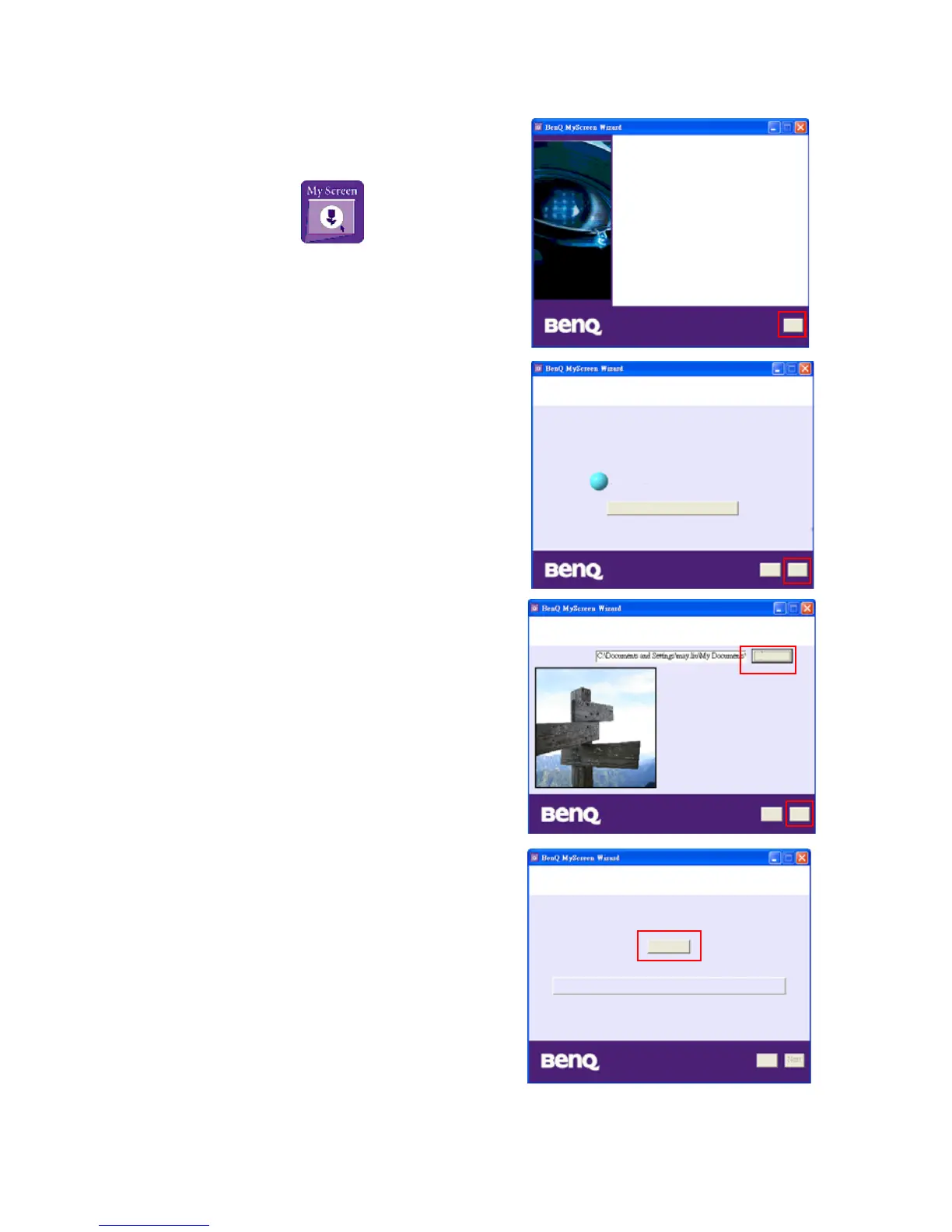
4. To execute MyScreen utility:
i. After MyScreen Wizard is
successfully installed, execute
MyScreen utility by selecting the
icon from Program Files .
ii.Click Next.
iii. Click Next
iv. Click Browse to choose your desired
image and then click Next.
v. Click MyScreen to begin download.
Welcome to MyScreen Wizard!
This wizard will guide you to have your own splash
screen in BenQ projector.
To continue, click "
Next
"
Next
Establish a connection to your BenQ projector
Please connect your BenQ projector to a serial port on your computer
and be sure the projector is in standby mode.
Found 'BenQ projector' on COM1
Confugure Serial Port Settings...
To continue, click "
Next
"
Next
Back
Back Next
Choose an image to download to your BenQ projector
Browse...
Downloading to your BenQ projector
Ready to download the new image as your splash screen?
Click "MyScreen" to begin.
Back
MyScreen



 To Next Page