Need help?
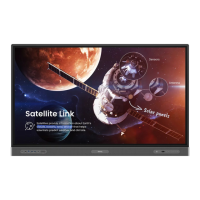
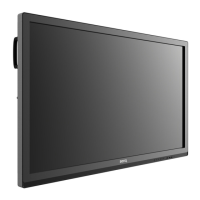
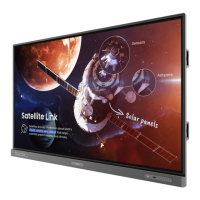
Do you have a question about the BenQ RP6501K and is the answer not in the manual?
Essential grounding procedures for safe operation of the equipment.
Instructions for safe installation, placement, ventilation, and handling to prevent injury or damage.
Key instructions for safe operation, handling, and maintenance of the display.
Guidance on display weight, lifting, and care for the LCD panel to prevent damage.
Warnings and precautions for safe use and handling of the remote control.
Guidelines for safe battery insertion, mixing, and handling to prevent leaks or explosions.
Information on BenQ's commitment to environmental design and sustainability.
Lists all items included in the sales package for the interactive flat panel.
Instructions and considerations for mounting the display on a wall or surface.
Step-by-step guide for securely mounting the display on a wall.
Identifies and describes the buttons and sensors on the front panel of the display.
Details the various ports for connecting external devices and signals.
Identifies and explains the functions of each button on the remote control.
Instructions for important notices, battery installation, pairing, and general usage tips.
Steps to connect VGA input and touch functionality using appropriate cables.
Guide for connecting digital inputs like HDMI and video output signals.
Instructions for connecting via serial port and powering the display.
Guide for turning the display on/off and performing the initial system setup.
Information on account types, user management, and logging in with NFC.
Steps for administrators to create new user accounts via the BenQ IAM web service.
How to switch input signals and utilize Eye Care solutions for visual comfort.
Instructions for downloading software, setting up internet connections, and updating firmware.
Methods for adjusting the audio volume level using the remote or front panel.
Explains how to use the touch screen and lists various gestures for navigation and control.
Provides essential instructions for cleaning and maintaining the touch screen surface.
Guides on using the one-touch menu, settings menu, and configuring input sources.
Instructions for adjusting display properties like aspect ratio, and picture settings like brightness and contrast.
Explains how to configure advanced Android system settings and general system preferences.
Details on proxy settings, startup/shutdown schedules, and other network configurations.
Overview of the main Android interface and how to navigate it.
Explains the Floating Annotation Toolbar and AMS file manager for productivity.
Guides on playing image, audio, video files and using the web browser.
How to access apps, use BenQ Suggests, and manage installed applications.
Guides on using InstaQShare for screen mirroring and InstaQPrint for printing.
Instructions for using WPS Office, Email, and understanding supported office formats.
Information on the Side Tool Bar, Blizz for conferencing, and other utility apps.
Details on hardware specifications, input/output ports, and system information.
Physical dimensions for different models and supported input signal resolutions.
Solutions for common problems like no picture, no sound, and strange image display.
Addresses issues with control panel buttons, remote control, and signal reception.
Solutions for image defects, color problems, unsupported formats, and touch function errors.
 General
| Color gamut | 65 % |
|---|---|
| Screen shape | Flat |
| Response time | 8 ms |
| Backlight type | Direct LED |
| Display diagonal | 65 \ |
| Touch technology | Multi-touch |
| Touchscreen type | Multi-user |
| Anti-glare surface | Yes |
| Display brightness | 450 cd/m² |
| Display glass type | Tempered glass |
| Display technology | LCD |
| Touchscreen technology | Infrared |
| Contrast ratio (typical) | 1200:1 |
| Number of simultaneous touchpoints | 20 |
| Product color | Black |
| Cables included | AC, HDMI, USB, VGA |
| Audio input | 1 |
| HDMI ports quantity | 4 |
| USB Touch ports quantity | 2 |
| USB Type-A downstream ports quantity | 6 |
| AC input voltage | 100 - 240 V |
| Power supply type | AC |
| Power consumption (typical) | 130 W |
| Package weight | 62000 g |
| Number of OSD languages | 25 |
| Panel mounting interface | 500 x 400 mm |
| On Screen Display (OSD) languages | CZE, DAN, DEU, DUT, ENG, ESP, FIN, FRE, GRE, HUN, ITA, JPN, KOR, NOR, PER, POL, POR, RUM, RUS, SWE, VIE |
| Placement supported | Horizontal |
| Coordinate resolution | 32767 x 32767 pixels |
| NVIDIA G-SYNC | No |
| Firmware upgradeable via | USB |
| RMS rated power | 32 W |
 Weight and Dimensions
| Depth (without stand) | 136.1 mm |
|---|---|
| Width (without stand) | 1521.1 mm |
| Height (without stand) | 967.1 mm |
| Weight (without stand) | 50000 g |

 To Next Page