EasyManua.ls Logo

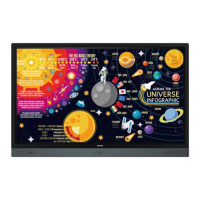
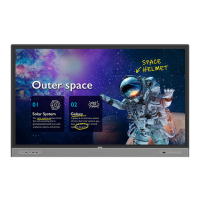
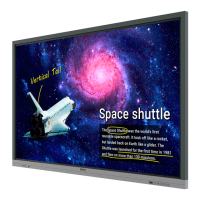
BenQ RP840G - User Manual

BenQ RP840G
86 pages
Print Icon
To Next Page IconTo Next Page
Loading...
RP552 / RP552H / RP840G
Interactive Flat Panel
User Manual

Other manuals for BenQ RP840G

Questions and Answers

  • M
    Ms. Debbie HarrisSep 5, 2025
    How to fix 'Signal out of range' on BenQ Interactive whiteboard?
    • H
      Howard ReyesSep 6, 2025
      If your BenQ Interactive whiteboard displays a 'Signal out of range' message, verify that the display settings are correct and the resolution is set to the optimal value. You can also try adjusting the line and field synchronization in the menu.
  • S
    sandersmarthaAug 25, 2025
    How to correct touch positioning on BenQ RP840G Interactive whiteboard?
    • V
      Vincent LinAug 25, 2025
      To correct the touch positioning on your BenQ Interactive whiteboard: * Check that the driver is properly installed and make the necessary corrections. * Ensure the touch pen is facing the screen.
  • M
    Matthew DeanAug 25, 2025
    Why is the touch function invalid on my BenQ RP840G?
    • R
      Robert MartinezAug 26, 2025
      If the touch function on your BenQ Interactive whiteboard isn't working, verify that the touch driver is installed and running. Also, ensure that the size of the object you're using to touch the screen is comparable to a finger.
  • C
    Connie GoodSep 13, 2025
    What to do if my BenQ Interactive whiteboard control panel buttons do not work?
    • C
      Corey RamirezSep 14, 2025
      If the control panel buttons on your BenQ Interactive whiteboard are not working, check if you have locked the control panel buttons. If so, unlock the buttons and try again.
  • D
    Debbie JohnsonSep 23, 2025
    What to do if my BenQ RP840G Interactive whiteboard has no color, color is weak or image is weak?
    • L
      Lee ReyesSep 23, 2025
      If your BenQ Interactive whiteboard displays no color, weak color, or a weak image, adjust the chromaticity and brightness or contrast in the menu. Also, ensure that the signal wire is properly connected.
  • S
    Stacy JohnsonSep 9, 2025
    Why does only one speaker have sound on my BenQ Interactive whiteboard?
    • T
      Tammy WoodsSep 9, 2025
      If only one speaker has sound on your BenQ Interactive whiteboard, adjust the sound balance in the menu. Check whether the computer sound control panel is set up for only one sound channel. Also, verify that the audio line is connected correctly.
  • S
    Stephen BarnesSep 1, 2025
    Why does my BenQ RP840G Interactive whiteboard have image but without sound?
    • M
      martinangelaSep 1, 2025
      If your BenQ Interactive whiteboard has an image but no sound, try the following: * Check if the mute button is activated. * Adjust the volume using the VOL+/VOL- buttons. * Verify that the audio line is connected correctly.
  • A
    Amy ThompsonSep 23, 2025
    What to do if my BenQ Interactive whiteboard has image but without sound?
    • T
      Thomas RoseSep 23, 2025
      If your BenQ Interactive whiteboard has an image but no sound, check if the mute button is pressed. If so, unmute. Then, adjust the volume using the VOL + / - buttons. Finally, ensure that the audio line is correctly connected.
  • N
    Nathan JacksonSep 18, 2025
    What to do if BenQ RP840G displays format that is not supported?
    • M
      Meghan SullivanSep 18, 2025
      If your BenQ Interactive whiteboard displays a format that is not supported, try selecting automatic correction in the menu. If that doesn't work, adjust the clock and phase position in the menu.
  • I
    ijonesAug 28, 2025
    Why does BenQ RP840G Interactive whiteboard machine automatically shutdown?
    • J
      James HughesAug 28, 2025
      If your BenQ Interactive whiteboard is automatically shutting down, consider the following: * Check the sleep settings. * Check for any recent power outages. * Check if the automatic shutdown feature is enabled when there is no signal.

Summary

Safety and Precautions

Important Safety Instructions

Essential safety guidelines for operation and installation of the interactive flat panel.

Remote Control and Battery Safety

Precautions for remote control use, battery handling, and disposal.

Getting Started

Package Contents and Display Setup

Lists included items and provides initial display installation guidance.

Initial Setup and Network Connection

Guides first-time setup, including language, network, and internet connection.

Hardware Overview

Display Panel and Remote Control Functions

Details front panel buttons, remote functions, and their usage across models.

Input;Output Terminals and Connections

Identifies and explains all available ports for connecting devices to the display.

Connecting Power and Devices

Instructions for connecting power sources and various input devices like VGA and USB.

Basic Operations

Power Management and Input Switching

How to power the display on/off and select input signals using menus or remote.

Touch Screen and Software Updates

Explains touch gestures and procedures for updating display software.

Menu and System Settings

Navigating Menus and Settings

Guides on accessing and adjusting display settings via menus like Audio, Screen, and System.

Android System Interface Overview

Overview of the built-in Android OS, main interface, and applications like EZWrite.

EZWrite 3.0 Application Guide

Comprehensive guide to the annotation and whiteboard application features.

Product Specifications

Model Specifications (RP552;RP840 G)

Technical details and features for RP552 and RP840G models.

Dimensions and Supported Resolutions

Physical dimensions, mounting specs, and supported video resolutions for models.

Troubleshooting Common Issues

Display and Audio Problems

Solutions for common problems like no picture, no sound, or distorted images.

Remote Control and Button Issues

Troubleshooting steps for unresponsive remote controls or panel buttons.

BenQ RP840G Specifications

General IconGeneral
Display Size84 inches
Brightness350 cd/m²
Contrast Ratio1200:1
Internal Storage32GB
Response Time8 ms
Resolution3840 x 2160
Touch TechnologyInfrared
ConnectivityHDMI, USB, VGA, RS-232, LAN
Operating SystemAndroid
MicrophoneBuilt-in
Multi-TouchYes (20-point touch)

Related product manuals