EasyManua.ls Logo

BenQ RM6503 - User Manual

BenQ RM6503
75 pages
Print Icon
To Next Page IconTo Next Page
Loading...
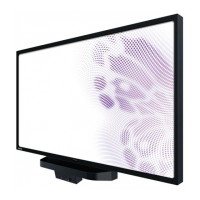
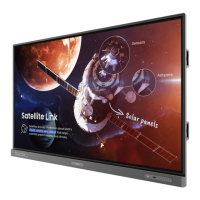
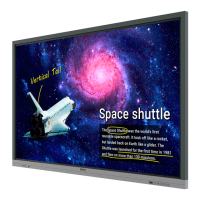
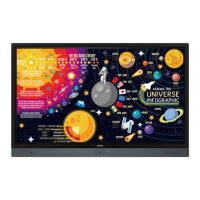
RM6503/RM7503/RM8603
Interactive Flat Panel
User Manual

Questions and Answers

  • M
    Mrs. Madison Russell MDSep 3, 2025
    How to fix signal out of range on BenQ RM6503 Interactive whiteboard?
    • D
      Dr. Hannah Lowe MDSep 4, 2025
      To resolve a 'Signal out of range' error on your BenQ Interactive whiteboard: * Check if the display settings are correct. * Verify that the resolution is set to the optimal value. * Adjust the line and field synchronization in the menu.
  • J
    Jeremy WellsSep 18, 2025
    Why do the control panel buttons not work on my BenQ RM6503 Interactive whiteboard?
    • K
      Kelly MooreSep 18, 2025
      If the control panel buttons on your BenQ Interactive whiteboard are not working, check if the control panel buttons have been locked. If so, unlock the buttons and try again.
  • R
    Rose BonillaSep 16, 2025
    Why does only one speaker have sound on my BenQ RM6503?
    • H
      Holly ClarkSep 16, 2025
      If only one speaker is producing sound on your BenQ Interactive whiteboard, adjust the sound balance in the menu. Check if the computer's sound control panel is set to only one sound channel. Also, ensure that the audio line is correctly connected.
  • D
    Donna HodgesSep 14, 2025
    How to fix BenQ RM6503 Interactive whiteboard with image but without sound?
    • D
      Donald Taylor MDSep 14, 2025
      If your BenQ Interactive whiteboard shows an image but has no sound, check if the mute button is activated. Press the VOL+ or VOL- buttons to adjust the volume. Also, ensure that the audio line is correctly connected.
  • J
    John DelgadoSep 12, 2025
    How to fix image with no color, weak color, or weak image on BenQ RM6503?
    • C
      Courtney CarrSep 12, 2025
      If your BenQ Interactive whiteboard's image has no color, weak color, or appears weak, adjust the chromaticity, brightness, or contrast in the menu. Also, ensure that the signal wire is securely connected.
  • D
    David BlankenshipSep 12, 2025
    What to do if BenQ RM6503 has horizontal or vertical stripes or image dithering?
    • J
      jamescarterSep 12, 2025
      If your BenQ Interactive whiteboard displays horizontal or vertical stripes or image dithering, ensure that the signal wire is securely connected. Also, check for any nearby electronic equipment or power tools that may be causing interference.
  • C
    Chelsea CabreraSep 9, 2025
    What to do if BenQ RM6503 displays format that is not supported?
    • K
      Karen ParkerSep 9, 2025
      If your BenQ Interactive whiteboard displays a 'Format not supported' message, select automatic correction in the menu. If the problem continues, manually adjust the clock and phase position in the menu.
  • S
    Sharon WrightSep 7, 2025
    Why is image lacking color or color incorrect on BenQ RM6503 Interactive whiteboard?
    • A
      Ashley LamSep 7, 2025
      If the image on your BenQ Interactive whiteboard lacks color or the color is incorrect, check if the VGA cable is securely connected and of good quality. Additionally, adjust the chromaticity and brightness or contrast in the menu.
  • E
    Edward FranklinSep 5, 2025
    How to fix BenQ RM6503 Interactive whiteboard when background has vertical lines or streaks?
    • V
      Victoria ReedSep 5, 2025
      To fix vertical lines or streaks in the background of your BenQ Interactive whiteboard's display, select automatic correction in the menu. If the issue persists, manually adjust the clock and phase position in the menu.
  • M
    Michelle MillerAug 20, 2025
    What to do if touch function is invalid on BenQ RM6503?
    • E
      Eric WhiteAug 21, 2025
      If the touch function is not working on your BenQ Interactive whiteboard, verify that the touch driver is installed and running. Also, ensure that the size of the touched object is comparable to the size of a finger.

Summary

Product Support

Safety Warnings and Precautions

Important Safety Instructions

Provides essential safety guidelines for product operation and handling.

Display Setup and Installation

Display Mounting and External PC Installation

Instructions for wall mounting the display and attaching external PCs.

Connectivity Options

Basic Operations

Powering On;Off and Initial Setup

Steps for powering the display, initial setup, and OSD menu navigation.

Touch Screen Usage and Care

Guide to touch screen gestures, operations, and important cleaning instructions.

Troubleshooting Guide

Picture, Sound, and Image Quality Issues

Solutions for common issues like no picture, no sound, or distorted images.

Control, Remote, and System Malfunction Solutions

Troubleshooting steps for control panel, remote, and system operation errors.

BenQ RM6503 Specifications

General IconGeneral
Color gamut72 %
Screen shapeFlat
Response time8 ms
RGB color spaceNTSC
Display diagonal65 \
Surface hardness9H
Anti-glare screenYes
Display brightness400 cd/m²
Display technology-
Maximum refresh rate- Hz
Touchscreen technologyInfrared
Contrast ratio (dynamic)30000:1
Contrast ratio (typical)1200:1
Product colorBlack, Grey
Product designInteractive flat panel
Placement supportedHorizontal
Panel mounting interface600 x 400 mm
International Protection (IP) codeIP5X
Depth (without stand)120 mm
Height (without stand)951 mm
Weight (without stand)41500 g
Ethernet LAN data rates10, 100, 1000 Mbit/s
Ethernet LAN (RJ-45) ports1
Display viewable area (HxV)1428.5 x 803.5 mm
Cables includedHDMI, USB Type-C, VGA
AC input voltage100 - 240 V
AC input frequency50 - 60 Hz
Power consumption (max)335 W
Power consumption (standby)0.5 W
Power consumption (typical)118 W
DVI portNo
DisplayPort version1.2
HDMI ports quantity4
Package depth220 mm
Package width1660 mm
Package height1160 mm
Package weight57500 g
Internal memory8 MB
Processor architectureARM Cortex-A73
RMS rated power32 W
Number of speakers2
PurposeEducation
Operating system version9
Operating system installedAndroid
Harmonized System (HS) code85285210
Weight and Dimensions IconWeight and Dimensions
Depth122.2 mm
Width (without stand)1506 mm

Related product manuals