Android system interface54
EZ Floating Tool
The EZ Floating Tool is a convenient function that allows you to quickly write or
create annotations on any screen that the display is showing.
To access the floating tool use either one of the following methods:
• In the Android interface, tap in the side tool bar.
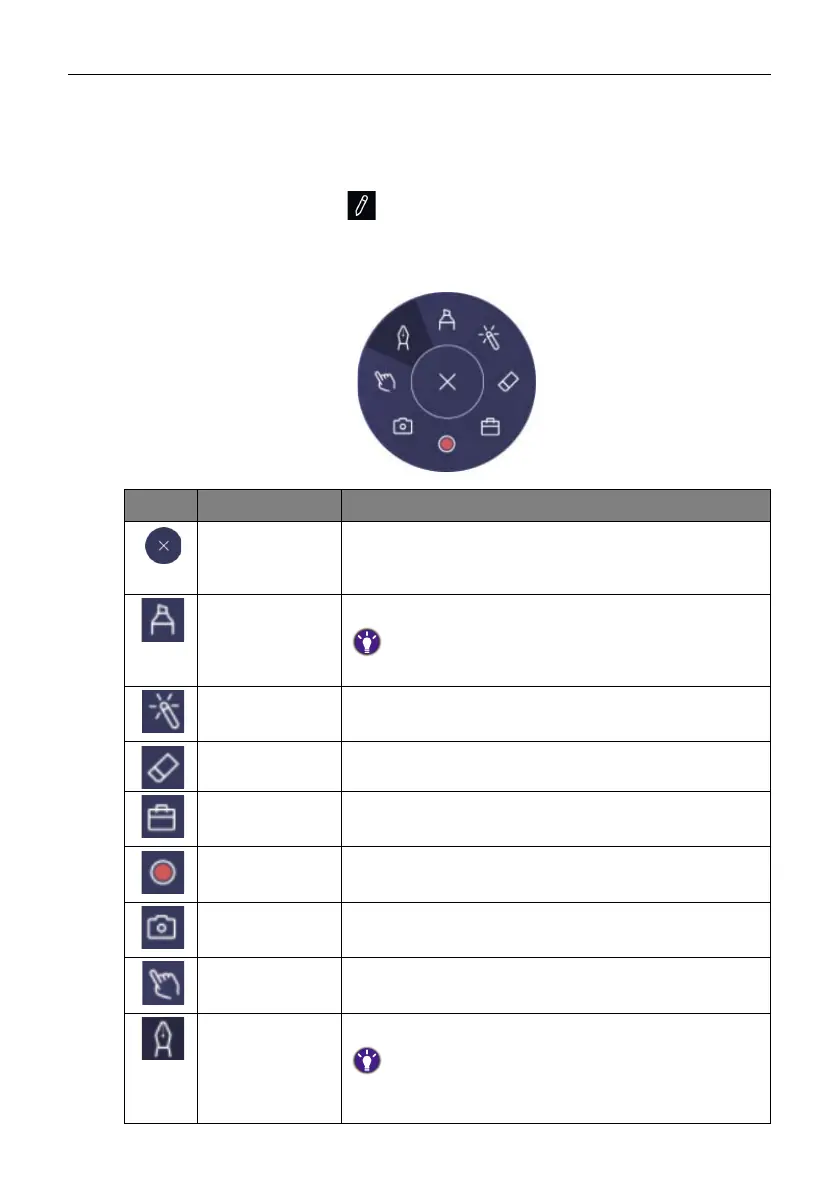
• Under any input source or in the Android interface, touch and hold two fingers spaced
about 20 – 50 mm apart on the screen for more than two seconds to launch the EZ
Floating Tool menu as shown below.
Icon Function Description
Close/Minimize • Click to close the floating tool.
• Click to minimize the floating tool bar when EZWrite
6
is in use.
Highlighter Click to enable the Highlighter tool.
The highlighter provides 5 color selections (red, yellow, green,
blue, and black) and supports thickness adjustment.
Laser Pointer Click to enable the laser point on the screen.
Eraser Click to erase annotations on the screen. You may use a
finger eraser or choose to clear all annotations.
Tool Box Click to open the tool box which includes the Calculator,
Timer, Stopwatch, Scoreboard, and Draw tools.
Recording Click to start recording the screen.
Screenshot Click to take a screenshot of the screen.
Operation Mode Click to hide all the annotations and operate the main
interface.
Pen Click to enable the Pen tool.
The pen has a round point by default. It provides 5 color
selections (red, yellow, green, blue, and black) and supports
thickness adjustment.


 To Next Page