The OSD (On-Screen Display) menu28
Picture menu
Standard
Image Noise Reduction
PC Image Mode
Middle
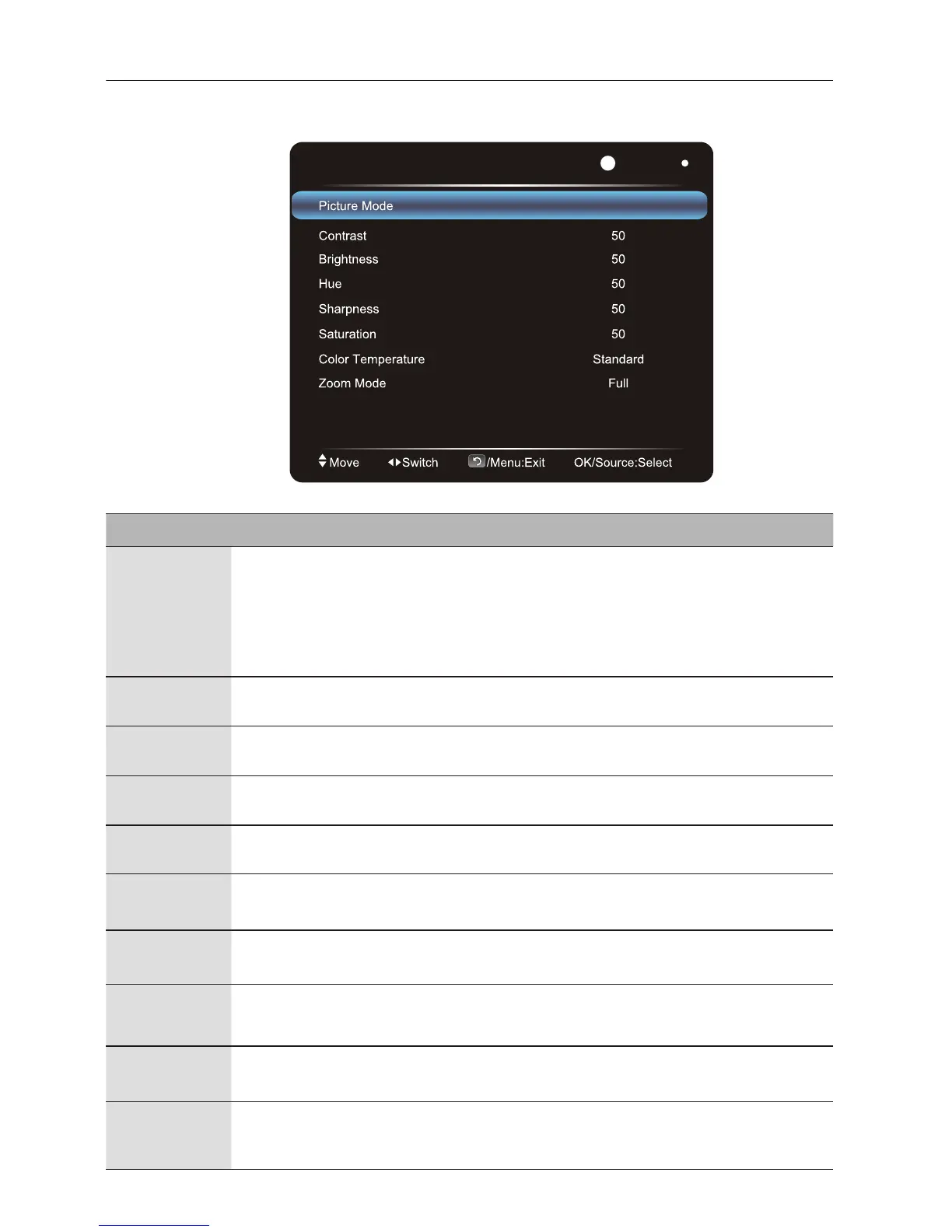
Sets the display mode. Available modes are Standard, User,
Classroom, Properties such as Contrast,
and
can be adjusted if the mode
is set to User.
NOTE: In the picture mode, the end user can find there is mode which
is called classroom mode. Under classroom mode, the low blue light
will be activated.
Name Description
Picture Mode
Contrast
Adjust the layerings of images: increase the analog value to improve
the contrast and decrease the analog value to reduce the contrast (0-100).
Brightness
Adjust the brightness of images: increase the analog value to improve
the brightness and decrease the analog value to reduce the brightness (0-100).
Hue
Adjust the hue of images: increase analog value to increases green and
decrease analog value to increases purple(0-100).
Sharpness
Adjust the sharpness of images: increase the analog value to increases the
definition and decrease the analog value to reduce the definition (0-100).
Saturation
Adjust the color depth of images: increase the analog value to improve the
depth and decrease the analog value to reduce the depth (0-100).
Color
Temperature
Adjust the color temperature of images: Standard, Warm, Cold.
Zoom Mode
Adjust the zoom mode:
Image Noise
Reduction
Set the grade of noise reduction: Middle, High, Off, Low.
PC Image
Mode
Adjust the screen aspect ratio in PC mode, which is valid in VGA signal source.
Brightness, Hue , Sharpness
Saturation
Bright
,
Zoom mode supported by each input:HDMI: PC Mode, Full, 4:3, Film, Subtitle.
VGA: Full, 4:3
Sets PC image mode to Auto Tune, or manually fine-tunes Clock, Phase,
Horizontal Position, and Vertical Position.


 To Next Page