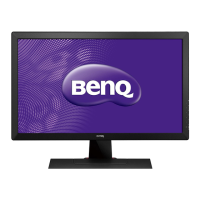
This document describes the BenQ 22" wide LCD Monitor, providing details on its functions, technical specifications, usage, and maintenance.
Function Description
The BenQ 22" wide LCD Monitor is designed for general computing use, offering a range of features to optimize the visual experience. It includes an On Screen Display (OSD) system that provides comprehensive customization tools. The monitor supports various display modes, including GENERAL, MOVIE, PICTURE, and GAME, allowing users to quickly adapt the display settings to different content types.
A key feature of this monitor is its "Monitor Life-Extension function," which is part of the Advanced Power Saving Mode. This function aims to extend the life of the backlights by gradually decreasing the electricity supplied to them when the PC enters sleeping or off mode, rather than cutting it off abruptly. This "Slow-Start-n-Delay-Off" approach minimizes the stress on the backlights caused by frequent turn-on and turn-off cycles, thereby controlling the decay of TFT-LCD backlights. While this function conflicts with EPA requirements for power consumption within the first 7 minutes of sleep mode, it is strongly recommended for its long-term benefits to monitor longevity.
The monitor also includes an "Auto Adjustment" function, which automatically optimizes image performance. For audio, it offers "Volume Control" to adjust sound levels. The "Theme Mode Menu" allows users to shift between different display modes. The "Main Menu" provides access to a wide array of settings, including brightness, contrast, input signal selection (Analog D-SUB, Digital DVI-D), OSD language, display ratio (Native, Full Screen), color temperature (Cool, Warm, User), system settings (Power Saving Mode, White Balance, Horizontal Position, Vertical Position, Phase, Clock, DDC/CI, Demo, Information), and a recall function to reset parameters to factory presets.
The DDC/CI (Display Data Channel/Command Interface) function allows for communication between the monitor and the computer, enabling automatic configuration and adjustments. The "Demo" function stimulates feature-grading effects to showcase the monitor's capabilities.
Important Technical Specifications
- Display Size: 473.8(H) x 296.1(V) mm
- Pixel Pitch: 0.282(H) x 0.282(V) mm
- Connectors: Analog (D-sub), Digital (DVI-D, optional)
- Tilt Angle: -5° to 20°
- Dimensions (W x H x D): Approximately 510 (W) x 424 (H) x 202 (D) mm
- Weight: Approximately 4.9 kg
- Power Input: AC 100-240V, 50Hz/60Hz, 1.2A
- Power Consumption: Active: <55W, Standby: <2W
- Operating Conditions:
- Temperature: 5°C to 40°C
- Humidity: 20% to 80% (No Condensation)
- Altitude: Under 10,000 fts
- Storage Conditions:
- Temperature: -20°C to 60°C
- Humidity: 5% to 80% (No Condensation)
- Altitude: Under 40,000 fts
- Interface Frequency:
- Horizontal Frequency: 30 ~ 82KHz
- Vertical Frequency: 56 ~ 76Hz
- Recommended Display Setting: WSXGA 1680*1050, 60Hz
Usage Features
- Installation: The monitor is designed for easy setup. It involves attaching the monitor neck to the base, connecting the signal cable (D-SUB or DVI-D), and plugging in the audio (if applicable) and power cables. Users are advised to ensure the display setting does not exceed 1680x1050, 60Hz for optimal performance.
- OSD Navigation: The OSD system is intuitive, with buttons corresponding to icons displayed on pop-up windows. There are three levels of architecture for settings. Users can activate the OSD main menu by pressing any function key, confirm selections with the OK button, browse options with arrow keys, and adjust values with '+' and '-' buttons. The OSD automatically disappears after 30 seconds of inactivity.
- Hotkeys: Dedicated hotkeys provide quick access to frequently used functions:
- Auto Adjustment: Press the leftmost button (AUTO) to automatically optimize image performance.
- Volume Control: Press the rightmost button to enter the volume menu and adjust sound.
- Theme Mode Menu: Press the second button from the left to shift between GENERAL, MOVIE, PICTURE, and GAME modes.
- Main Menu: Press the second button from the right to access the comprehensive OSD menu.
- Power Management: The monitor features power-saving modes. The LED indicator is green during operation and orange when dormant. The power button controls on/off status.
- Display Ratio: Users can choose between "Full Screen" (adjusts to 16:10) and "Native" (maintains input signal aspect ratio, e.g., 4:3 or 5:4) to suit their viewing preferences.
- Troubleshooting: A dedicated section helps users diagnose common issues such as no picture, LED indicator status, and "NO SIGNAL INPUT" or "INPUT SIGNAL OUT OF RANGE" messages, providing clear steps to resolve them.
Maintenance Features
- Cleaning: The cabinet and controls should be cleaned with a soft cloth lightly moistened with a mild detergent solution. Abrasive materials or solvents like alcohol or benzene should be avoided. The screen surface should not be rubbed, touched, or tapped with sharp or abrasive items to prevent scratches.
- Ventilation: Do not cover or block the ventilation ports on the rear of the monitor. Objects or liquids should not be inserted into these ports to prevent fire, electric shock, or unit failure.
- Placement: Avoid installing the monitor near heat sources, in direct sunlight, or in locations with excessive dust, mechanical vibration, or shock. The apparatus should be used between 5° tilted forward and 20° tilted backward. If the tilt angle exceeds 20°, it should be used for wall mounting or packaging only.
- Power Cord: Use the correct power cord for the local voltage and an accessible outlet. Do not allow anything to rest on the power cable, and only use the power adapter attached to the monitor. Disconnect the power cable if the monitor will not be used for an extended period, if the cable is damaged, or if the monitor has been dropped or damaged.
- Transporting: When transporting the display for repair or check, press the "round button" behind the support, remove the base, and use the original carton and packing materials to wrap the display and its accessories.
- Recycling: The product and its packaging are marked for separate disposal from ordinary household waste at the end of its life, encouraging recycling to conserve natural resources. Information for users in the European Union and United States of America regarding recycling and disposal of mercury-containing lamps is provided.
Environmental Compliance
The monitor carries the TCO'03 Displays label, indicating it meets strict quality and environmental requirements. This includes good visual ergonomics, energy-saving modes, electrical safety, and restrictions on hazardous substances like chlorinated and brominated flame retardants, polymers, cadmium, mercury, and lead. The product is prepared for recycling, and the manufacturer has a certified environmental management system.
The device also complies with Part 15 of the FCC Rules, ensuring it does not cause harmful interference and accepts any interference received. Users are advised on measures to correct interference, such as reorienting antennas, increasing separation from other equipment, and consulting professionals. Unauthorized modifications to the equipment will void the product warranty.


 To Next Page
 General