EasyManua.ls Logo

BenQ T2210HD - User Manual

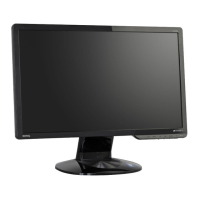
BenQ T2210HD
8 pages
Print Icon
To Next Page IconTo Next Page
Loading...
T2210HD/T2210HDA
21.5’’ Wide-Screen LCD Monitor
User Manual

Questions and Answers

  • M
    Michael ThompsonAug 6, 2025
    What to do if my BenQ T2210HD Monitor says 'No Signal Detected!'?
    • J
      James MitchellAug 6, 2025
      If you see a 'No Signal Detected!' message on your BenQ Monitor, ensure the signal cable is properly connected to both the monitor and the PC's graphics port. Also, verify that your PC is turned on.
  • R
    Robert MillerAug 11, 2025
    Why does my BenQ T2210HD Monitor have sound problems?
    • Q
      qenglishAug 11, 2025
      If you are experiencing sound problems with your BenQ Monitor, first check that the audio cable is connected to both the monitor and the PC’s audio out port. Also, ensure that the volume is not muted by checking the "Volume" and "Mute" settings in the OSD icon list section.
  • M
    Megan RangelAug 14, 2025
    How to fix a blank screen on my BenQ Monitor?
    • J
      Jonathan WestAug 15, 2025
      If you're seeing a blank screen on your BenQ Monitor, ensure the power cable is properly connected. Also, make sure that the monitor is turned on using the power switch.
  • T
    Tony DiazAug 19, 2025
    What to do if my BenQ Monitor has color problems?
    • S
      stephanie84Aug 19, 2025
      If the colors on your BenQ Monitor are off, for example, if white is not displayed correctly, you should adjust the color temperature using the "Color" settings in the OSD icon list section.
  • T
    Thomas VaughanAug 23, 2025
    Why is the image on my BenQ T2210HD Monitor blurred?
    • L
      laura81Aug 23, 2025
      If the image on your BenQ Monitor is blurred, check the brightness and contrast settings in the "Luminance" section of the OSD icon list. You should also check the sharpness setting, which can be found in the "Sharpness" section of the OSD icon list.
  • C
    Cynthia HolmesAug 28, 2025
    How to fix if image is displaced on BenQ T2210HD Monitor?
    • R
      Ralph AveryAug 28, 2025
      If the image on your BenQ Monitor appears normal but is off-center, you can adjust it using the OSD functions. See "Auto Adjust" in the OSD icon list section for more information.
  • M
    mbriggsSep 1, 2025
    Why is the power indicator light orange on my BenQ T2210HD?
    • N
      nchenSep 1, 2025
      If the power indicator light on your BenQ Monitor is orange, it might be in power saving mode. To exit this mode, press any key on your keyboard or move the mouse.

Summary

Package Contents

Included Components

Lists the LCD monitor, base, power cord, signal cables, audio cable, installation guide, and CD-ROM.

Installation

Connecting the Monitor to Your PC

Steps for connecting the monitor to the PC using signal and audio cables, and the power cable.

Adjusting Your Monitor

Button and Indicator Functions

Details the function of each button (Enter, Exit, Auto) and the indicator on the monitor.

OSD Icon List and Functions

Lists OSD icons, their functions, and descriptions for adjusting monitor settings like Auto Adjust and Input Select.

Troubleshooting

Specifications

BenQ T2210HD Specifications

General IconGeneral
Screen Size21.5 inches
Panel TypeTN
Brightness300 cd/m²
Contrast Ratio1000:1
Response Time5 ms
Aspect Ratio16:9
Viewing Angle (Horizontal)170°
Viewing Angle (Vertical)160°
ConnectivityDVI, VGA
Built-in SpeakersYes
Power Consumption45W
Resolution1920 x 1080 pixels

Related product manuals