EN-13
USB Operations
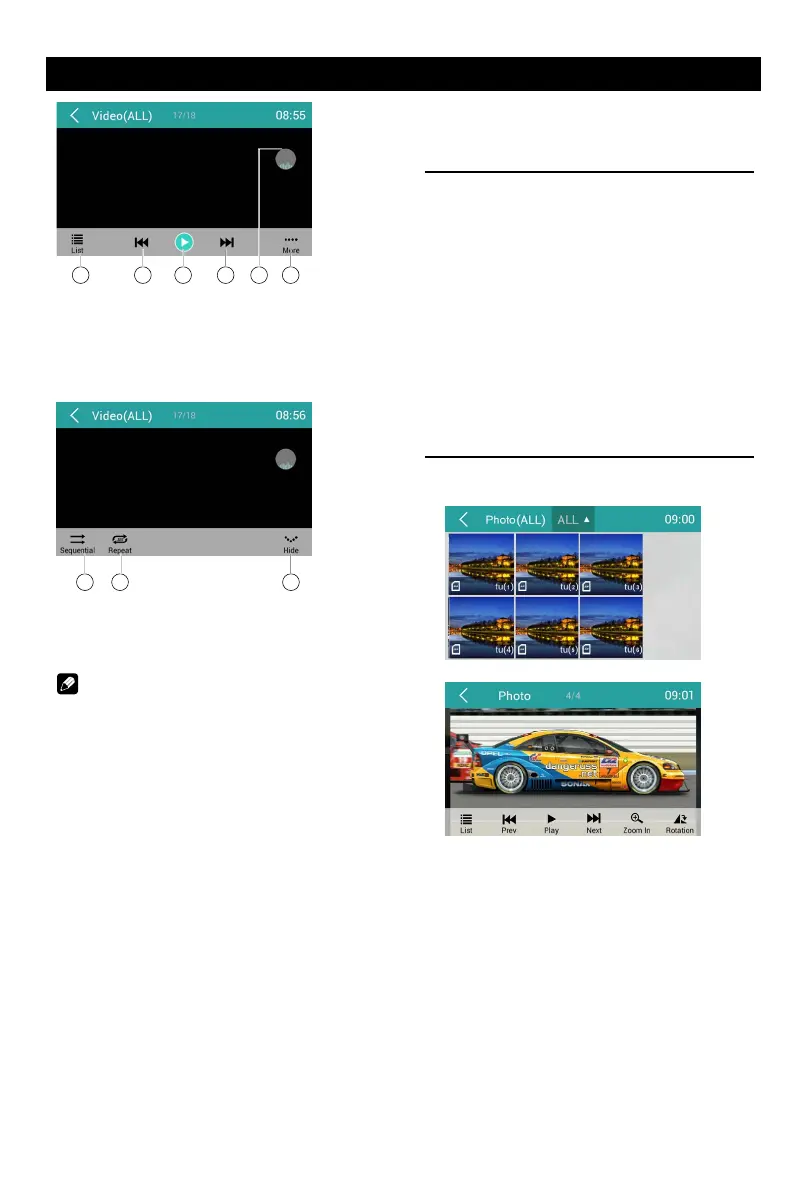
5 6 7 8 109
5. Show list menu
6. Previous chapter
7. Play/Pause
8. Next chapter
9. Enter preset EQ menu
10. Show more control buttons
11 12 13
11. Sequential play
12. Repeat play
13. Show previous page of control buttons
Notes
• DisconnectUSBstoragedevicesfromthe
unitwhennotinuse.
• UseanoptionalcabletoconnecttheUSB
audioplayer/USBmemoryasanydevice
connecteddirectly totheunitwillprotrude
outfromtheunitandmaybedangerous.
• Donotuseunauthorizedproducts.
Using an Android mobile
phone as a USB storage
device
If you want to use your Android mobile phone
as an USB storage.
1. Connect your Android mobile phone to the
unit by an USB cable.
2. Set USB connection type of your mobile
phone to “Mount SD card”.
* If you select “Charge only”, it can’t be
recognized by the unit.
3. In the setting menu of the unit, select “SD
card & device storage”, then “Mount USB
disk”.
Gallery Operations
1. Select [Photo] on the APPS menu.
2. Select one gallery to show the picture list.
3. Touch to view it.
Drag left/right to scroll.
Touch top left corner to back.



 To Next Page