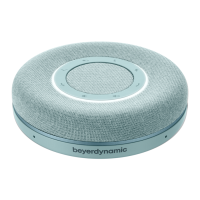
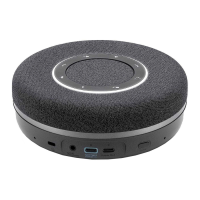
Phonum speaker phone
8
5. Operation with a smartphone
• Switch Phonum on by briefly pressing the On/Off button .
• Activate the Bluetooth feature on your smartphone.
• Activate the Bluetooth feature on Phonum by pressing the Bluetooth button .
• The Bluetooth button lights up in blue.
• Let your smartphone search for new devices.
• Select "beyerdynamic Phonum" from the available devices in the Bluetooth menu on your
smartphone and connect both devices. The two devices now connect automatically every
time you switch them on.
Alternatively, you can connect Phonum by NFC using an NFC-capable smartphone. Switch
Phonum on.
• Activate the NFC function on your smartphone so that all the necessary information is trans-
ferred to your smartphone and a connection can be established.
• Hold the smartphone over Phonum so that both NFC chips are close together.
Important:
Phonum is ready for operation as soon as a connection to your smartphone has been estab-
lished.
6. Operation with laptop/PC
• Switch on your PC.
• Connect Phonum through the USB port to the USB port on your PC/laptop using a USB
cable.
• Switch Phonum on using the On/Off button .
7. Operation
You can control operation on the device itself or by using your smartphone, if you are using
Phonum with a smartphone.



 To Next Page