Quinta Update Instructions 07/2018 12
8 Control Unit Web Server Update
The web server update requires an Ethernet connection to the Quinta CU.
a) Use an Ethernet cable to connect the Quinta CU to your network router or to your computer.
b) The factory default for DHCP is active (the router automatically assigns an IP to the Quinta CU). If
necessary, you can adapt the Quinta CU network settings according to your local network:
Connect the Quinta CU via USB or RS232.
Click on the black menu button (top left) in the Quinta software and
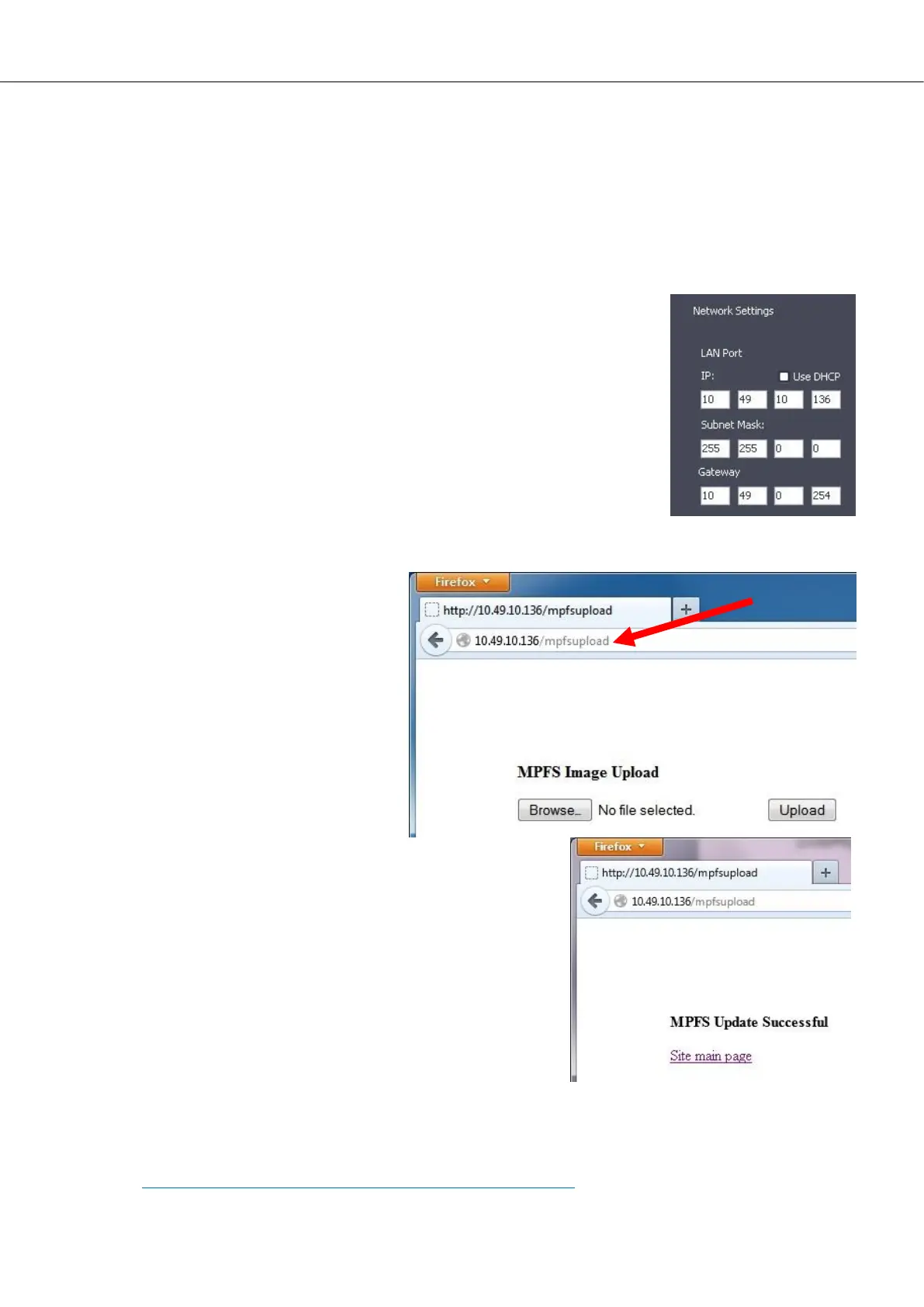
select “Network Settings” from the menu. Configure the network
settings according to your local network (example on the right). A
change of the DHCP setting will only be effective after a reboot of
the Quinta CU.
Check the Quinta CU network IP either directly on the Quinta CU
display (press and hold volume control for 3 seconds, browse to
„Ethernet Info“), or check the PC Software in the window „Network
Settings“. Please also refer to the manual in the folder:
\Quinta_System_Update_07-2018\1_PC-Software\Quinta
System Manual\Systemanleitung\ chapter 2.9.3.
c) Start an internet browser on your PC (in some cases the Microsoft Internet
Explorer is not 100% compatible, we recommend to use Mozilla Firefox).
d) Enter the following address in the
URL field of the internet browser and
press <ENTER>:
[Quinta-IP]/mpfsupload
e.g.: 10.49.10.136/mpfsupload
The following page allows you to up-
load the new web server software.
e) Click on „Browse“, open the folder:
\Quinta_System_Update_07-2018\
2_Control-Unit\CU_Web_Server\
and select the file:
FieldUpdate_Webserver_312.bin.
f) Click on „Upload“. After a few seconds the message
„MPFS Update Successful“ appears.
g) Click on „Site main page“ in order to start the Quinta web
server.
Please proceed with the Quinta system update by checking the version number of your next component.
See chapter 2: Determine Your Update Procedure, section CU DSP.




 To Next Page