CAPTURE APP
Watch a live HD video feed on your mobile screen through the DJI GO
App. The app also allows you to use the ActiveTrack, Timelapse,
Beautify Shot, or configure camera and gimbal settings in just a few
taps.
1. Enable Bluetooth and turn off portrait orientation lock on your
mobile phone to allow horizontal screen display.
2. Power on the Eyemind. Do not touch the gimbal and hold the
Eyemind still and upright while it is starting up.
3. Search the Eyemind through Bluetooth and connect.
4. Run CAPTURE APP and enter camera view. If the mobile phone is
successfully connected to the Eyemind. Camera view gives a real-
time display of what the camera is capturing.
The gimbal will stop working if you answer a call.
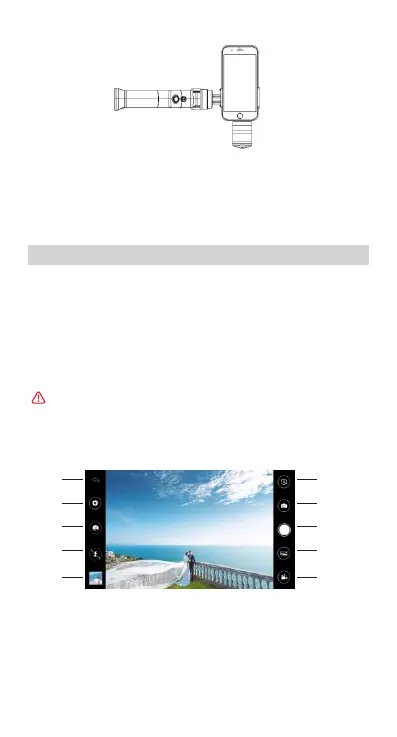
Equipment > Camera
[1] Home
[3] Back/Front Camera
[5] Album
[7] Face Recognize/Tracking
[9] Panoramas
[2] Setup
[4] Flashlight
[6] Bluetooth On/Off
[8] Shutter Button
[10] Record Button
[1]
[2]
[3]
[4]
[5]
[6]
[7]
[8]
[9]
[10]
Connecting to the CAPTURE APP
GET TO KNOW CAPTURE APP
Copyright © 2018 Beyondsky 11


 To Next Page