Installation and User Guide
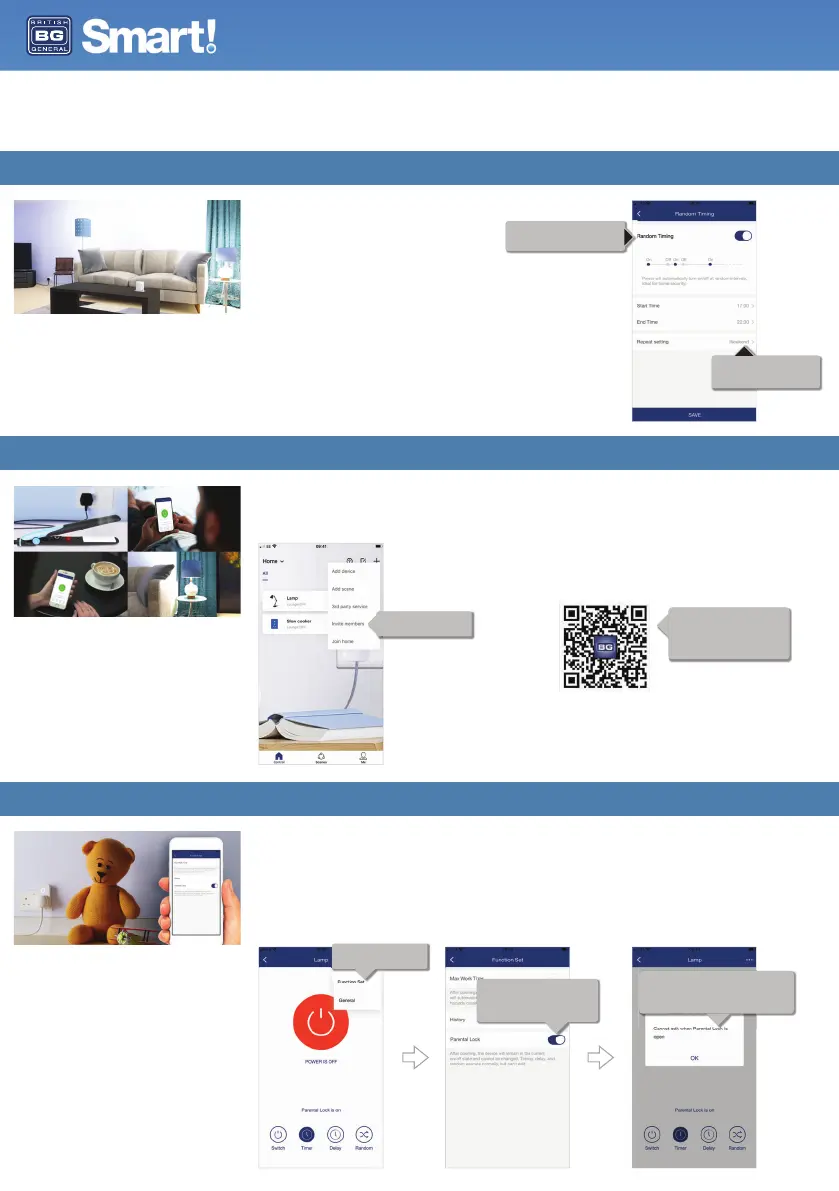
Random Function
Turn lamps on and off at random times to imitate home occupancy
when you’re away for added security.
User Guide
Invite Others to Join Your Home
Toggle on and off as required so your
setting is saved ready for when it’s
needed, even if it’s not constantly in use.
2
set a time to start and end the
random activation, and how often
you would like this to be repeated.
1
You may want other members of your household to be able to operate sockets with their own phone or
tablet. No problem! You can invite a new member from the BG App Home screen by pressing the + icon
at the top of the screen.
Set a Parental Lock
The parental lock allows you to de-activate the active buttons so these cannot be turned on or off at the
wall, and prevent members that you have invited within the app from turning sockets on or off, or
changing any of your set timers or scenes. This is ideal for sockets which you want to behave in a routine
way, and to prevent children turning devices on and off when you don’t want them to.
To turn on the parental lock, select ‘function set’ from the … menu, and toggle the parental lock on or off
as required.
Invite other members from
your household.
The App will generate a unique QR
code that will be valid for 15 minutes.
An invited member can then join your
home by scanning the QR code which
will be unique to your home.
Toggle 'parental lock' on.
This can be toggled off when you
need to change settings or re-enable
active buttons on the faceplate.
when parental lock is on, devices cannot be
operated and settings cannot be changed within
the app, and active buttons on the faceplate will
also be locked so they cannot be turned on or off.
Select 'Function Set' from
the device control screen.


 To Next Page