Thank you for purchasing this bionik
™
gaming product. Our goal is to
deliver high-quality, innovative accessories that amplify your
gaming experience. Please review this guide and store it for future
reference. Otherwise, please recycle. User guides can also be
downloaded from our website at www.bionikgaming.com.
INSTALLATION
Power on your Switch
™
and Switch
™
Lite console.
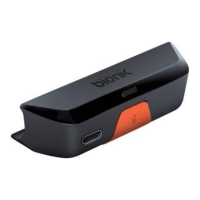
Plug in the BT Audio Sync
™
into the USB-C
™
port on the bottom of the
Switch
™
and Switch
™
Lite console (FIG. 1).
The LED on the BT Audio Sync
™
will flash to indicate that the BT Audio
Sync
™
is connected.
NOTE: May not be compatible with certain cases.
PAIRING YOUR DEVICE
Press and hold the sync button on the BT Audio Sync
™
for 3 seconds
(FIG. 2). The LED will flash rapidly to indicate that the BT Audio Sync
™
is
in discovery mode.
Place your Bluetooth
®
headphone, earbuds or other audio device
(not included) into pairing mode. Please see your device’s user guide for
instructions on how to enter pairing mode.
The BT Audio Sync
™
will automatically pair with your device.
Once the BT Audio Sync
™
is paired to your device, the LED on the BT
Audio Sync
™
will be solid orange.
NOTE: The BT Audio Sync
™
will automatically find and pair with your
device after the initial pairing.
PAIRING 2 DEVICES SIMULTANEOUSLY
Turn o your first device that is already paired to the BT Audio Sync
™
.
Follow all of the steps above in the “PAIRING YOUR DEVICE” section to
pair your second device.
Once the second device is paired, turn on your first device. It will
automatically begin to pair with the BT Audio Sync
™
.
Once both devices are paired, the LED on the BT Audio Sync
™
will be
solid white.
NOTE: Both devices must be same sampling rate or use aptX. When
using a true wireless headset, only one can be used at anytime.
CHARGING YOUR SWITCH
™
AND SWITCH
™
LITE
The BT Audio Sync
™
includes a passthrough USB-C
™
port (FIG. 3).
Connect your powered USB-C
™
cable (not included) into the USB-C
™
port on the bottom of the BT Audio Sync
™
.
Charging of your Switch
™
and Switch
™
Lite console should
begin immediately.
NOTE: Audio devices that are paired to the BT Audio Sync
™
will
momentarily lose connection when a powered USB-C
™
cable is either
plugged into or removed from the passthrough on the BT Audio Sync
™
.
The connection will be re-established automatically.
SWITCH
™
DOCK ADAPTER
Plug the female USB-C
™
end of the Switch
™
dock adapter onto the
USB-C
™
male plug on the BT Audio Sync
™
(FIG. 4).
Plug the USB-A end of the Switch
™
dock adapter into an open port on
the Switch
™
dock.
Follow the pairing instructions above in the “PAIRING YOUR DEVICE”
section to enjoy listening to the game sounds via your audio device while
playing with your Switch
™
and Switch
™
Lite on television.
CARE AND MAINTENANCE
Keep away from fire and high temperatures, never dispose of in a fire,
and always recycle all electronics.
Clean with dry cloth.
Avoid damage, knots and cuts in the cable and store the cable neatly.
Discontinue use if you suspect there is a malfunction. Please contact
customer support for assistance or additional information.
FAQ
Why can’t I get any audio devices to pair to the BT Audio Sync
™
?
Make sure that you have downloaded system version 4.0.0 or higher
on your Switch
™
and Switch
™
Lite console. This system update
provided support for wireless audio devices.
Make sure that you press and hold the BT Audio Sync
™
long enough to
enter pairing mode.
I have paired my AirPods
®
to the BT Audio Sync
™
. Why can’t I pair a
second device?
When pairing AirPods
®
or other true wireless earbuds to the BT Audio
1.
2.
3.
1.
2.
3.
4.
Q:
A:
Q:
A:
Sync
™
, it has an extra pairing step to connect to each other. As a result of
this extra pairing step, you are unable to pair a second device.
Is there a way to clear the pairings made between the audio devices and
BT Audio Sync
™
?
Press and hold the sync button on the BT Audio Sync
™
for 7 seconds to
reset all previous pairings. A light orange LED will flash 6 times to
indicate that previous pairings have been cleared.
FCC INFORMATION
Warning: Changes or modifications to this unit not expressly approved
by the party responsible for compliance could void the user’s authority to
operate the equipment.
NOTE: This equipment has been tested and found to comply with the
limits for a Class B digital device, pursuant to Part 15 of the FCC Rules.
These limits are designed to provide reasonable protection against
harmful interference in a residential installation. This equipment
generates, uses and can radiate radio frequency energy and, if not
installed and used in accordance with the instructions, may cause
harmful interference to radio communications.
However, there is no guarantee that interference will not occur in a
particular installation. If this equipment does cause harmful interference
to radio or television reception, which can be determined by turning the
equipment o and on, the user is encouraged to try to correct the
interference by one or more of the following measures:
Reorient or relocate the receiving antenna.
Increase the separation between the equipment and receiver.
Connect the equipment into an outlet on a circuit dierent from that to
which the receiver is connected.
Consult the dealer or an experienced radio/TV technician for help.
This device complies with Part 15 of the FCC Rules. Operation is subject
to the following two conditions:
This device may not cause harmful interference
This device must accept any interference received, including
interference that may cause undesired operation.
WARRANTY: All products come with a limited warranty and have been
subjected to a thorough series of tests to ensure the highest level of
dependability. If you run into any issues, visit
www.bionikgaming.com/pages/support for more information.
7


 To Next Page
 Loading...