Bitfury B8 Open Miner — Quick Start Guide
11
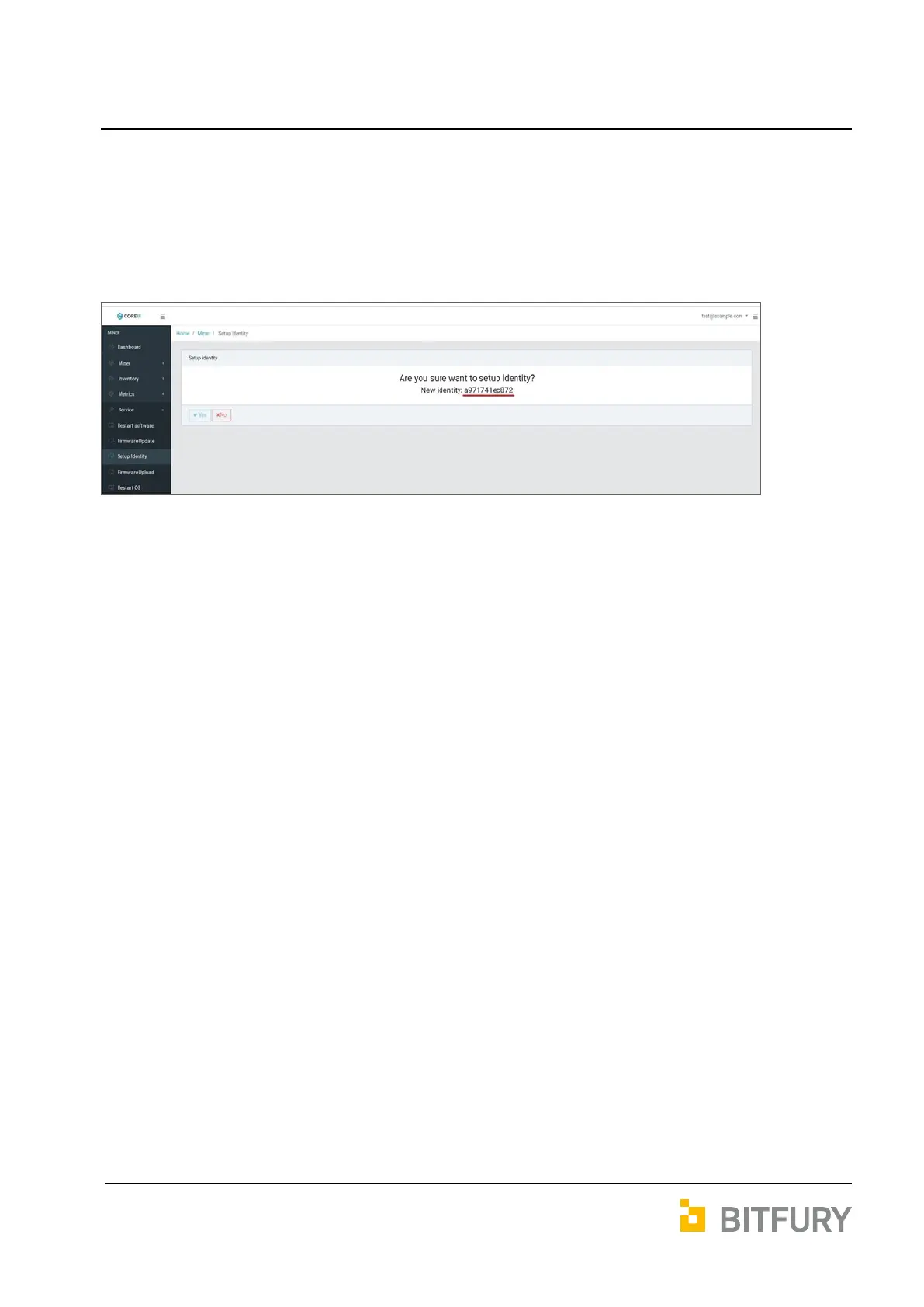
When you click [YES], a special VPN-tunnel to your Open Miner will be created and
technical support team should be able to investigate current status of your Open Miner
and download a log files.
WARNING: After you click [YES], remote access to Tardis Open Miner will be granted to
Bitfury technical support team until next restart!
When Bitfury technical support team completes diagnosing of your Open Miner, you
should proceed restart Open Miner to disable Remote Assistance feature.
ATTENTION: If you want to disable Remote Assistance feature in your Open Miner forever,
please complete following steps:
1. Establish SSH connection with Open Miner as described in Section 6
2. sudo rm -rf /root/.ssh
3. sudo systemctl disable openvpn@openminer.service
4. sudo rm -rf /etc/openvpn/openminer.conf
5. sudo rm -rf /etc/openvpn/keys/
By executing this commands you are deletes VPN configuration and keys used by
Open Miner to establish connection with Bitfury technical support team and disabling
Service → Setup Identity feature forever.


 To Next Page