EasyManua.ls Logo

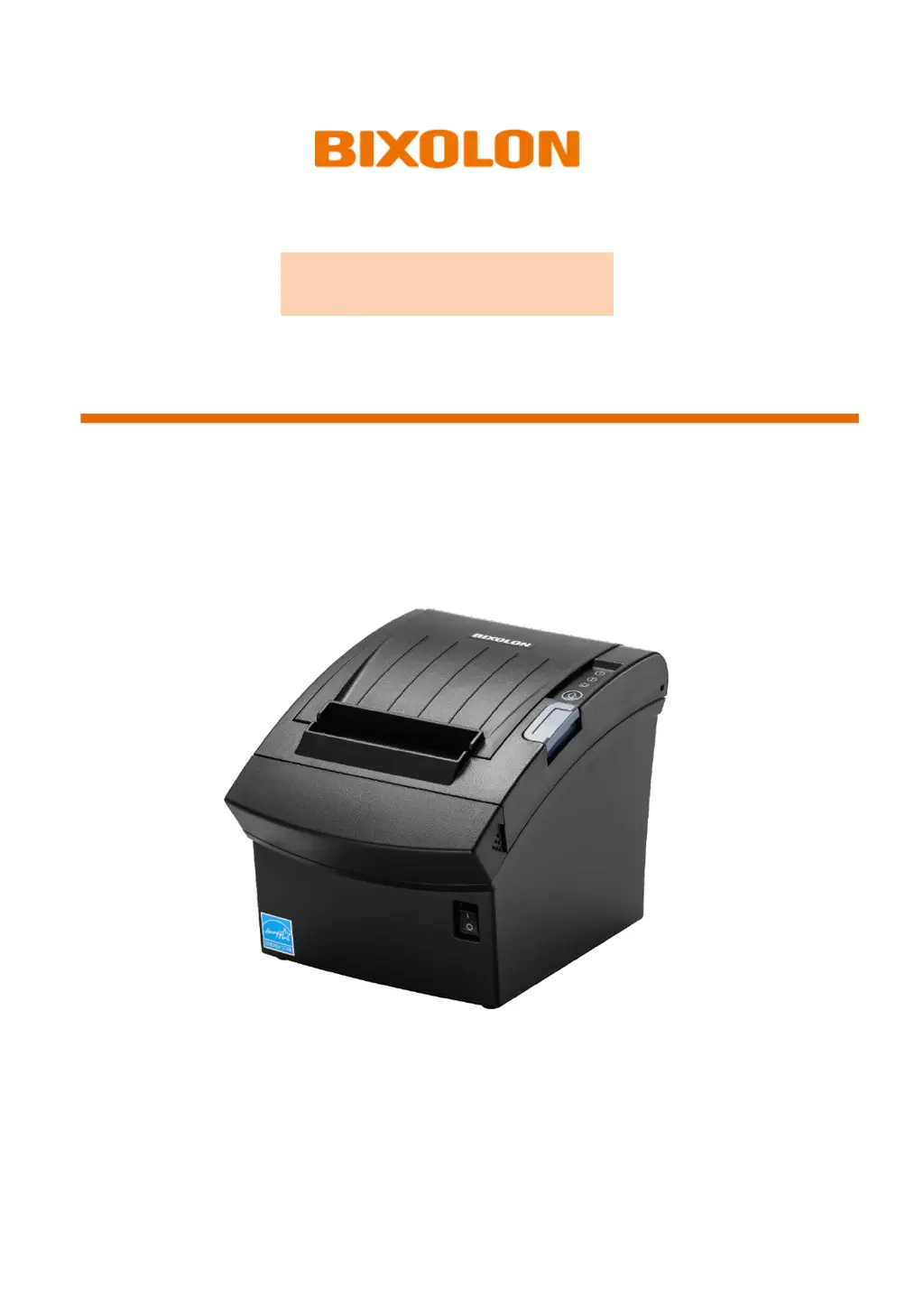
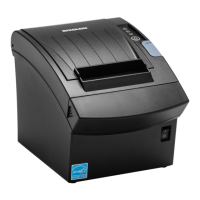
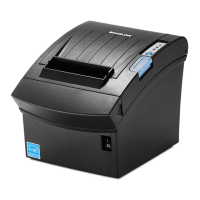
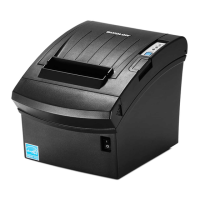
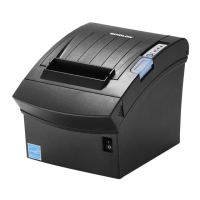
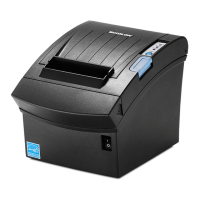
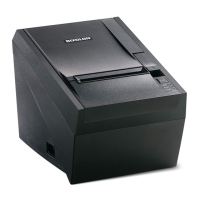
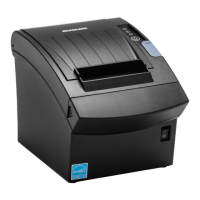
BIXOLON SRP-350V - User Manual

BIXOLON SRP-350V
41 pages
Print Icon
To Next Page IconTo Next Page
Loading...
User’s Manual
SRP-350V/352V
THERMAL RECEIPT PRINTER
Ver. 1.00
www.bixolon.co.kr

Other manuals for BIXOLON SRP-350V

Questions and Answers

  • S
    Shannon AvilaAug 10, 2025
    What to do if my BIXOLON Printer is not connecting via Ethernet?
    • R
      ricardo15Aug 10, 2025
      If your BIXOLON Printer is not connecting via Ethernet, check the following: * Confirm that the IP Address band of the printer and the AP (or wireless terminals) are the same. The first three digits of the four-digit value in the IP Address must be identical. * Verify that the subnet mask of the printer matches the one in the AP (or wireless terminal). * Ensure that the port configured in the printer and the host (PC, PDA) are the same.
  • R
    Ralph SmithAug 16, 2025
    How to check for IP address conflicts with a BIXOLON SRP-350V?
    • C
      Cassandra LopezAug 17, 2025
      To check for IP address conflicts with your BIXOLON Printer: * If manually entering an IP address without using DHCP, ensure the IP address isn't already in use by another device. * With the printer turned off, perform a Ping Test to the printer's IP address.
  • K
    Kaitlin SteinAug 22, 2025
    How do I perform a Ping Test on a BIXOLON Printer?
    • R
      richardtoddAug 23, 2025
      To perform a Ping Test on a BIXOLON Printer: 1. Turn off the printer. 2. Search for 'cmd' and open the Command Prompt. 3. Enter 'ARP –d {printer IP}' to delete the ARP table. 4. Enter 'ping {printer IP}'. 5. If you see 'Destination host unreachable', there is no collision, and the IP can be used. 6. If there is a reply, the IP is used by another network terminal and cannot be used for the printer.
  • T
    Taylor SuttonAug 28, 2025
    How to troubleshoot WLAN connection issues with my BIXOLON SRP-350V?
    • A
      Anthony ReillyAug 29, 2025
      To troubleshoot WLAN connection problems with your BIXOLON Printer, verify the following: * Check the wireless network settings of both the AP and the printer. * Ensure the SSID of the printer matches the one in the AP (or wireless terminal). * Confirm that the AP supports 802.11a, 802.11b, or 802.11g. * Verify the printer's network mode is set to “Infrastructure” for AP connection. * Make sure the IP address band of the printer and the AP (or wireless terminals) are the same; the first three digits of the IP address should match. * Confirm the subnet mask of the printer matches the one in the AP (or wireless terminal). * Check that the port configured in the printer and the host (PC, PDA) are the same.
  • K
    Kaitlin LopezSep 3, 2025
    How to check the Ethernet cable connection on a BIXOLON SRP-350V?
    • A
      April BrightSep 3, 2025
      To check the Ethernet cable connection on your BIXOLON Printer, connect the cable to other terminals or a PC to confirm it is working correctly.

BIXOLON SRP-350V Specifications

General IconGeneral
BrandBIXOLON
ModelSRP-350V
CategoryPrinter
LanguageEnglish

Related product manuals