EasyManua.ls Logo

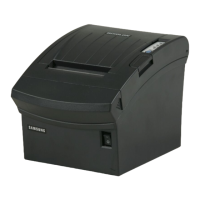
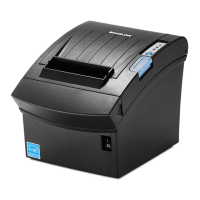
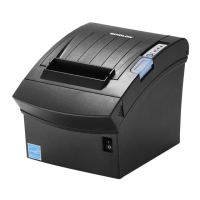
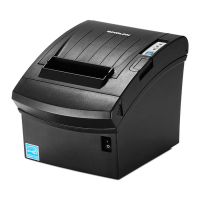
BIXOLON SRP-350plusV - User Manual

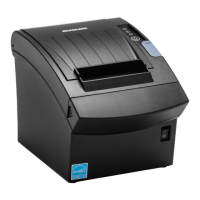
BIXOLON SRP-350plusV
37 pages
Print Icon
To Next Page IconTo Next Page
Loading...
Network Connection Manual
Thermal POS Printer
Ver. 1.00
http://www.bixolon.com

Other manuals for BIXOLON SRP-350plusV

Questions and Answers

  • J
    josebutlerAug 7, 2025
    What to do if my BIXOLON SRP-350plusV Printer is not connecting via Ethernet?
    • J
      Jennifer McintoshAug 7, 2025
      If your BIXOLON Printer is not connecting via Ethernet, check the following: * Confirm that the IP Address band of the printer and the AP (or wireless terminals) are the same. The first three digits of the four-digit value in the IP Address must be identical. * Verify that the subnet mask of the printer matches the one in the AP (or wireless terminal). * Ensure that the port configured in the printer and the host (PC, PDA) are the same.
  • K
    khillAug 12, 2025
    How to check for IP address conflicts with a BIXOLON Printer?
    • M
      Matthew JohnsonAug 12, 2025
      To check for IP address conflicts with your BIXOLON Printer: * If manually entering an IP address without using DHCP, ensure the IP address isn't already in use by another device. * With the printer turned off, perform a Ping Test to the printer's IP address.
  • S
    Stacey SimpsonAug 18, 2025
    How do I perform a Ping Test on a BIXOLON SRP-350plusV Printer?
    • H
      Harold Holden Jr.Aug 19, 2025
      To perform a Ping Test on a BIXOLON Printer: 1. Turn off the printer. 2. Search for 'cmd' and open the Command Prompt. 3. Enter 'ARP –d {printer IP}' to delete the ARP table. 4. Enter 'ping {printer IP}'. 5. If you see 'Destination host unreachable', there is no collision, and the IP can be used. 6. If there is a reply, the IP is used by another network terminal and cannot be used for the printer.
  • J
    John CurtisAug 25, 2025
    How to troubleshoot WLAN connection issues with my BIXOLON Printer?
    • G
      gregoryianAug 26, 2025
      To troubleshoot WLAN connection problems with your BIXOLON Printer, verify the following: * Check the wireless network settings of both the AP and the printer. * Ensure the SSID of the printer matches the one in the AP (or wireless terminal). * Confirm that the AP supports 802.11a, 802.11b, or 802.11g. * Verify the printer's network mode is set to “Infrastructure” for AP connection. * Make sure the IP address band of the printer and the AP (or wireless terminals) are the same; the first three digits of the IP address should match. * Confirm the subnet mask of the printer matches the one in the AP (or wireless terminal). * Check that the port configured in the printer and the host (PC, PDA) are the same.
  • R
    Ruben MayAug 30, 2025
    How to check the Ethernet cable connection on a BIXOLON SRP-350plusV?
    • K
      Kristin AdkinsAug 30, 2025
      To check the Ethernet cable connection on your BIXOLON Printer, connect the cable to other terminals or a PC to confirm it is working correctly.

Summary

Copyright and Legal Notice

Safety Precautions and Warnings

Introduction to Network Connectivity

Precautionary Guidelines for Use

Printer Network Specifications

How to Connect Printer to Network

Connecting Printer via USB and WLAN

Instructions for connecting the printer via USB cable and WLAN using Infrastructure mode.

Checking Network Settings

Steps to check network settings for the Ethernet interface card and On-Board Ethernet/WLAN using the Feed button.

Initial Wireless LAN Connection on Windows 10

Guide for establishing an initial wireless LAN connection using a Windows 10 computer.

Initial Wireless LAN Connection on Android

Procedure to connect to the printer's WLAN using an Android device in Soft AP mode.

Initial Wireless LAN Connection on iOS

Procedure to connect to the printer's WLAN using an iOS device in Soft AP mode.

Changing to Infrastructure Mode

Steps to change the printer's network mode to Infrastructure via IP address and login.

Network Configuration Settings

LAN Setting Values Overview

Details on configurable LAN settings including IP assignment, IP Address, Subnet Mask, Gateway, and DNS.

WLAN Setting Values Overview

Details on configurable WLAN settings including Network Mode, SSID, Authentication, and Encryption.

Testing Ethernet and WLAN Connectivity

Printer Factory Reset Procedures

Initializing Ethernet Interface Settings

Procedure to reset Ethernet LAN settings to factory defaults using the function key.

Initializing WLAN Settings

Procedure to reset WLAN settings to factory defaults using the FEED button.

Troubleshooting Network Issues

Network Setting Verification

Guide to checking network settings for Ethernet and WLAN, covering IP, Subnet, Port, SSID, and modes.

PING Check for IP Address Collisions

Procedure to check for IP address collisions using ping and ARP commands for network connectivity.

Cable and Inactivity Time Troubleshooting

Troubleshooting Ethernet cable issues and recommended inactivity time settings for multi-device printer usage.

Document Revision History

BIXOLON SRP-350plusV Specifications

General IconGeneral
TypePOS printer
ColorNo
Print technologyDirect thermal
Maximum resolution180 x 180 DPI
Product colorBlack
AC input voltage100 - 240 V
Power source typeAC
AC input frequency50 / 60 Hz
Maximum roll diameter79.5 mm
Storage temperature (T-T)-20 - 60 °C
Operating temperature (T-T)0 - 40 °C
Storage relative humidity (H-H)10 - 90 %
Operating relative humidity (H-H)10 - 80 %
Mobile operating systems supportedAndroid, iOS
Windows operating systems supportedYes
Serial interface-
Optional connectivityBluetooth, Ethernet, USB 2.0, Wireless LAN
USB 2.0 ports quantity1
Connectivity technologyWired
Internal memory- MB
Autocutter durability2 million cuts
Weight and Dimensions IconWeight and Dimensions
Depth200 mm
Width145 mm
Height146 mm

Related product manuals