Presettings
Operating instructions GLP
3 -- 107
6.562.98.5.01.18
Presetting operating
modes
[ ] --
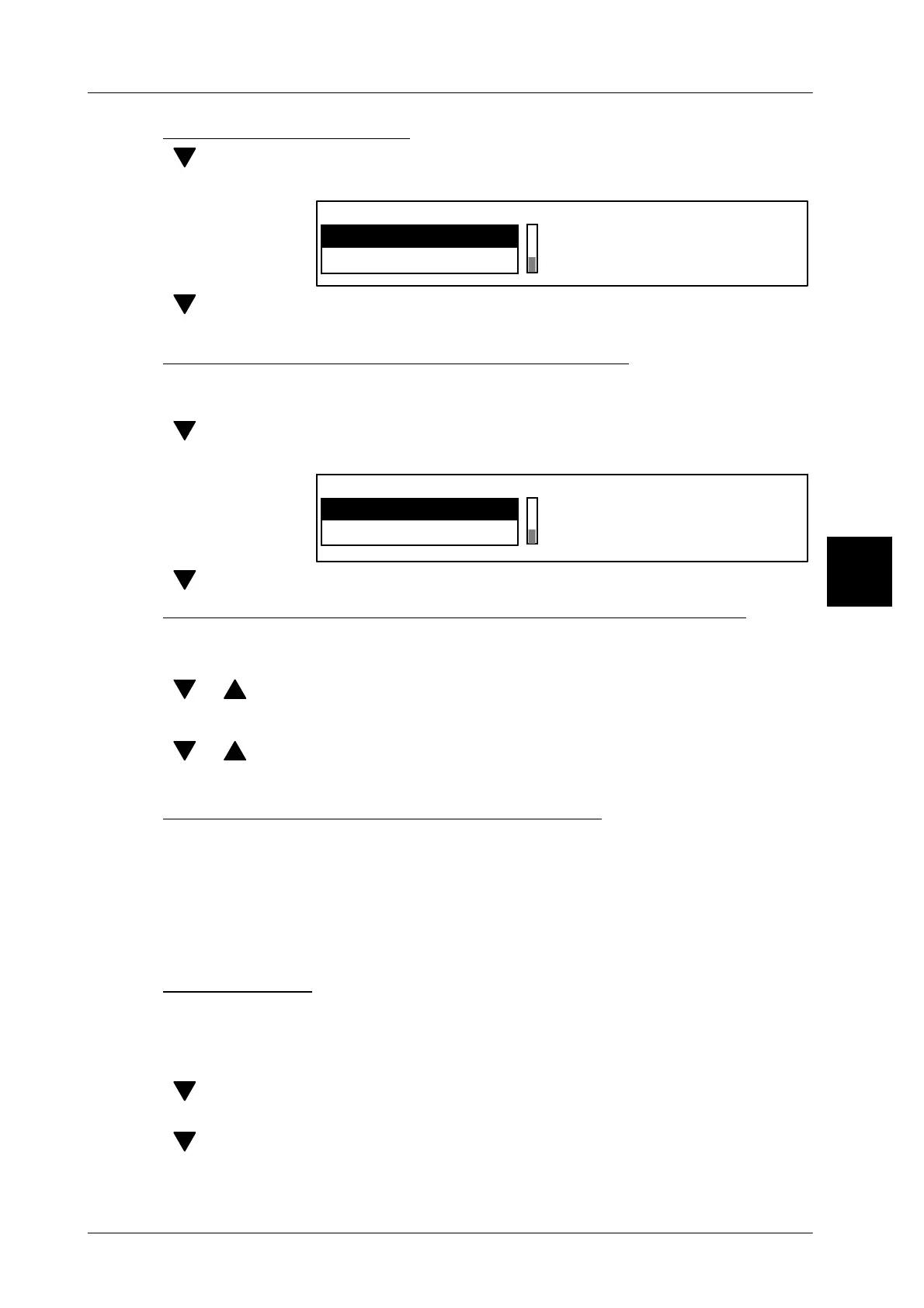
Move the scroll bar in the value column to ”Operating mode”.
[SELECT] -- Open the selection menu ”Operating mode”.
Operating mode
PLU change after *
Passive
[ ] [ENTER] --
Select the desired operating mode and acknowledge. Depending
on the selection, further presettings might become necessary.
Presetting the PLU change at an accumulated total x
With the unit set to the operating mode ”PLU change after *” or ”lock after *,” the
total at which a PLU change is to take place must be preset here.
[ ] --
Move the cursor to ”Execute if”.
[SELECT] -- Open the selection menu ”Execute if”.
Execute if
*2 reached
*1 reached
[ ] [ENTER] -- Select the relevant total and acknowledge.
Entering the PLU number and, if applicable, the customer number
Enter the PLU number of the article or, if applicable, the customer number of the
article which is to be labeled next.
[ ] [ ] -- Move the scroll bar to ”PLU No.”
xxx [ENTER] -- Enter the PLU number and acknowledge.
[ ] [ ] -- If necessary move the scroll bar to ”Customer no.”
xxx [ENTER] -- If necessary, enter the customer number and acknowledge.
Description of the display of the operational state
The current operational state is displayed in the table field to the right of ”State”.
This display must not be changed by the operator.
PLU ready for change: neither the selected total nor the PLU have been
changed.
PLU changed: the displayed PLU has been changed and a new num-
ber should be entered.
Save presettings
[ENTER] -- Close and save after all data is entered.
Then, in the following selection menu, select:
[ENTER] -- acknowledge ”yes” if you want to save the data.
[ ] [ENTER] -- or select ”no” and acknowledge if you want to exit the editor
without saving the data
[ ] [ENTER] -- or select ”Return” if you want to return to the editor.
3



 To Next Page