Presettings
Operating instructions GLP
3 -- 109
6.562.98.5.01.18
Entering or selecting texts
For the input or the selection of texts, the following input or selection modes may
be preset in the template individually for each text cell (see also the programming
instructions, section 2.1, “Processing templates“).
Simple text: with ”Simple text” preset and after activation, the relevant input
line is presented in inverse mode. A simple one--line text in
lower case or upper case letters may be entered without char-
acter sizes and text attributes preset. The maximum number
of characters that can be entered may be limited.
Text: with ”Text” preset and after activation, a text editor is called up.
Any desired multiple line text with different character sizes and
text attributes may then be entered. The text input by means
of the text editor is described in section 2.2 of the programming
instructions. The maximum number of characters that can be
entered may be limited.
Text selection list: with this presetting, the selection symbol is displayed in
the relevant value field. After activation, a text selection list ap-
pears from which the text to be inserted may be selected and
inserted directly in the text cell.
Entering text
[ ] , [ ] -- Select the text line using the cursor keys.
[SELECT] -- Activate the text input.
Entering simple text ...
xxxx [ENTER] -- Enter the text as described above and acknowledge.
Entering text via the text editor
xxxxxxx -- Enter the text as described in section 2.2 of the programming
instructions.
-- After completion of the text input, return to the template with
the function “Terminate” where the entered text is stored in the
relevant line together with the selected character size.
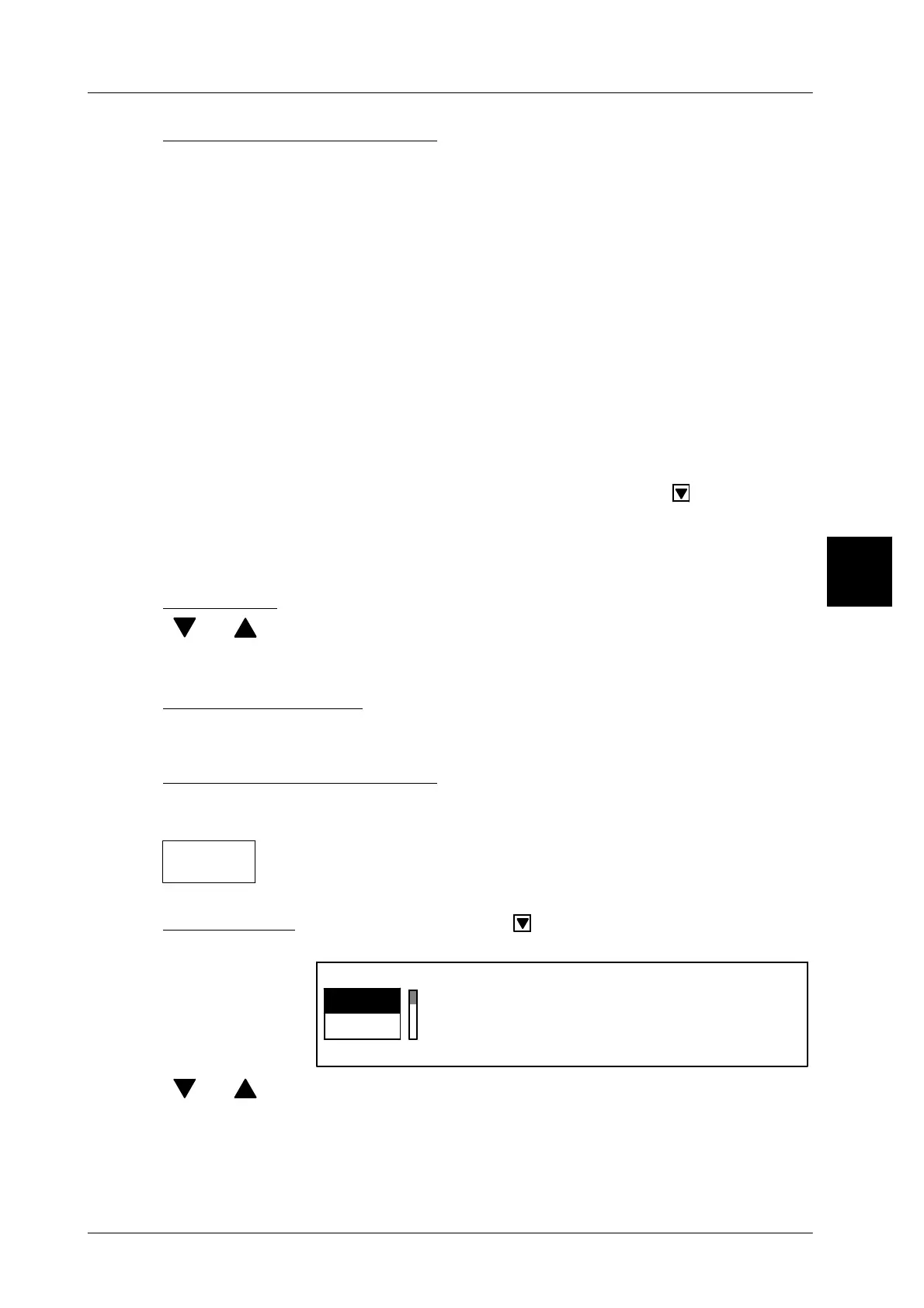
Selecting text If the selection symbol appears in the value field, a text
selection list will be displayed after activation.
Text 1
Text1
Text2
[ ] , [ ] -- Select the desired text using the cursor keys.
[ENTER] -- Acknowledge the selection. The selected text is inserted in the
value column.
3
Terminate


 To Next Page
 Loading...