Presettings
Operating instructions GLP
3 -- 129
6.562.98.5.01.18
3.7.1.2 Customer labels*
Customer--specific label layouts must first be created on a PC with the aid of the
CWS or the Labelmaker software. Names or numbers must be assigned to them
and stored in the labeler via the serial interface or the memory card (max. 99).
Before changing a program or clearing the RAM, it is important that the customer
labels are backed up on a data medium, such as a memory card or a PC.
If “Simple texts“ are to be printed on customer labels (see page 3 -- 41),
the relevant font size is to be preset in the layout specification of the cu-
stomer labels.
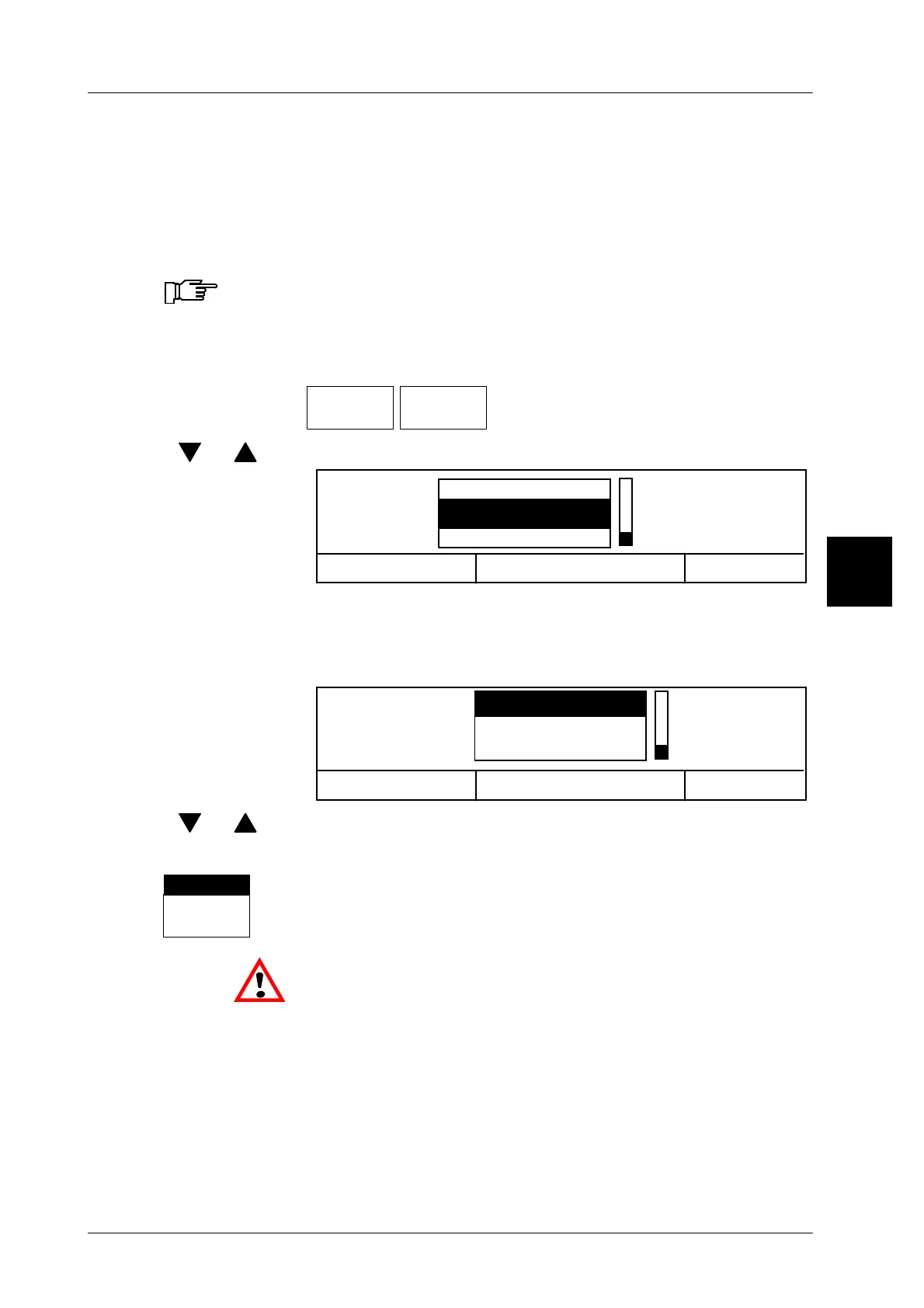
Operating sequence: Description
------------------------------------------------------------------------------------------------------------------------------------------------------
[MODE] 2 [ETC]
Labels Label
type
-- Call up the selection menu.
[ ] , [ ] -- Using the cursor keys, select ”Customer labels”.
Cancel <ESC>
OK <ENTER>
Special labels
Label type
Customer labels
Standard labels
[ENTER] -- Acknowledge the ”Customer labels” selection.
The system advances automatically to label selection.
The label numbers of the customer labels stored in the labeler
are displayed.
Cancel <ESC>
OK <ENTER>
Customer labels
300: EDEKA
100: LIDL
200: REAL
[ ] , [ ] -- Using the cursor keys, select the label number.
[ENTER] -- Store the presetting.
Label
types
1: REAL
The selected label is displayed above the softkey.
Insert the respective label roll into the labeler.
3



 To Next Page