Display and operation
Operating instructions GLP
1 -- 38
6.562.98.5.01.18
1.4.6 Operating terminal GT--CT
1.4.6.1 General
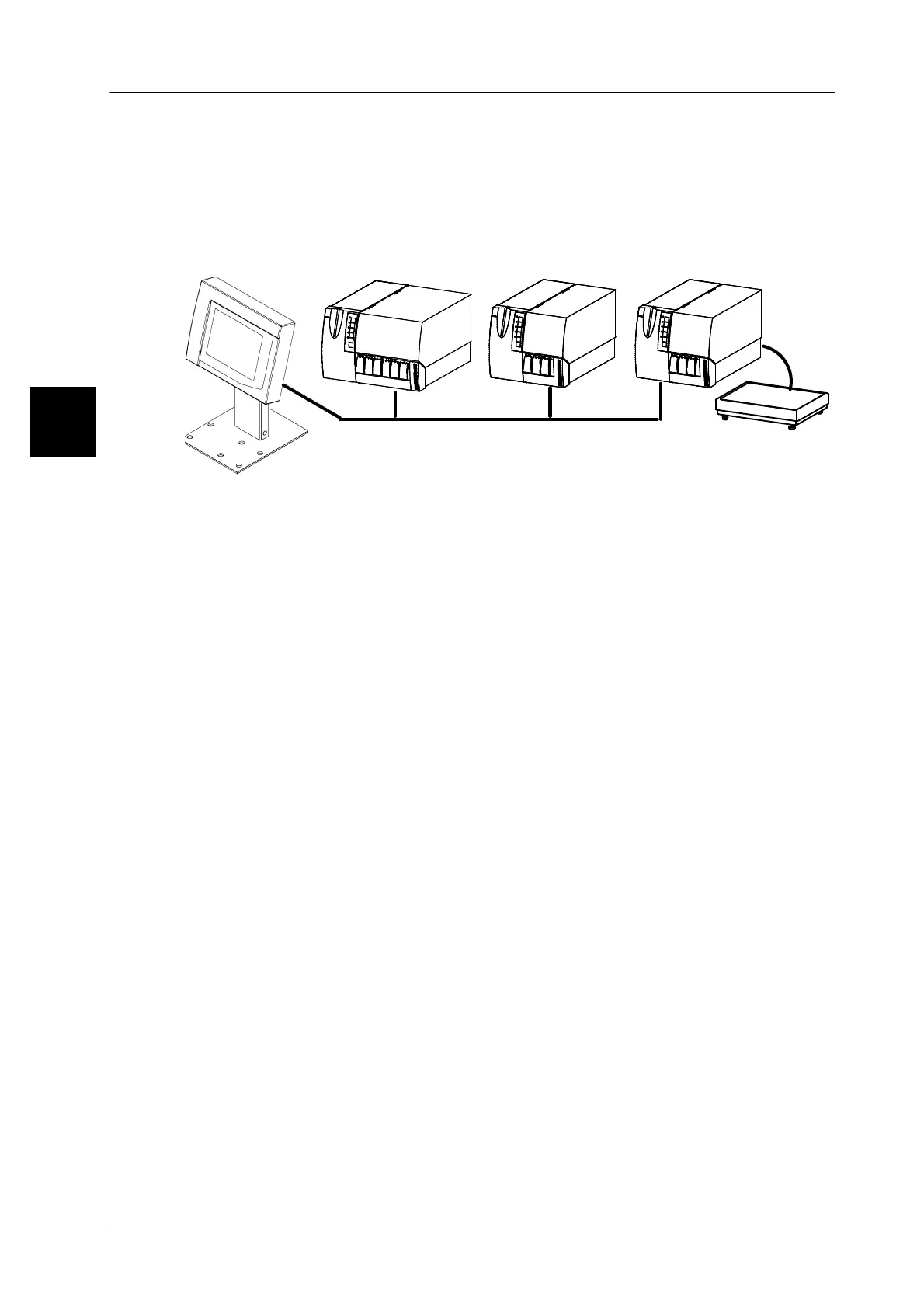
As an option the operating terminal GT--CT may be connected to labeler GLP. Via
this terminal one or more devices may be operated and programmed.
GT--CT
System bus
GLP 160
GLP 80
GLP --W 80
Depending on the function, keys are shown in the lower half of the display of the
GT--CT terminal. When calling up the function, the relevant functions keys and,
where appropriate, the 10--digit keypad for value inputs or the alpha--keypad for
password and text inputs are displayed.
The following groups of keys are available:
Softkeys: softkeys to call up functions, inputs and presettings
Function keys: keys to call up functions (function--depending)
For overview of all function keys, see page 1 -- 40 and et al.
10--digit keyboard: display after call of a numeric input
(see section 1.4.6.7 on page 1 -- 43)
Alphanum. keyboard: display after call of a password or text input
(see section 1.4.6.8 on page 1 -- 43)
A touch screen is activated by touching the relevant softkey. The activated key
is briefly indicated in grey and an audible signal is output. Depending on the func-
tion, all other softkeys, function keys or the 10--digit keypad, or the alpha--keypad
are indicated.
The function keys shown on the left of the key block may be replaced by other keys
via the [Layer] key. Touching the key for a second time permits to return to the
basic display (see section 1.4.6.4 on page 1 -- 42).
If the [LIST] --key is displayed after a table or text editor is called, then you can
call separate function keys with it for the editor content to be printed (see
Chap. 1.4.6.5 on page 1 -- 42).
1.4



 To Next Page