Display and operation
Operating instructions GLP
1 -- 57
6.562.98.5.01.18
1.4.9.3
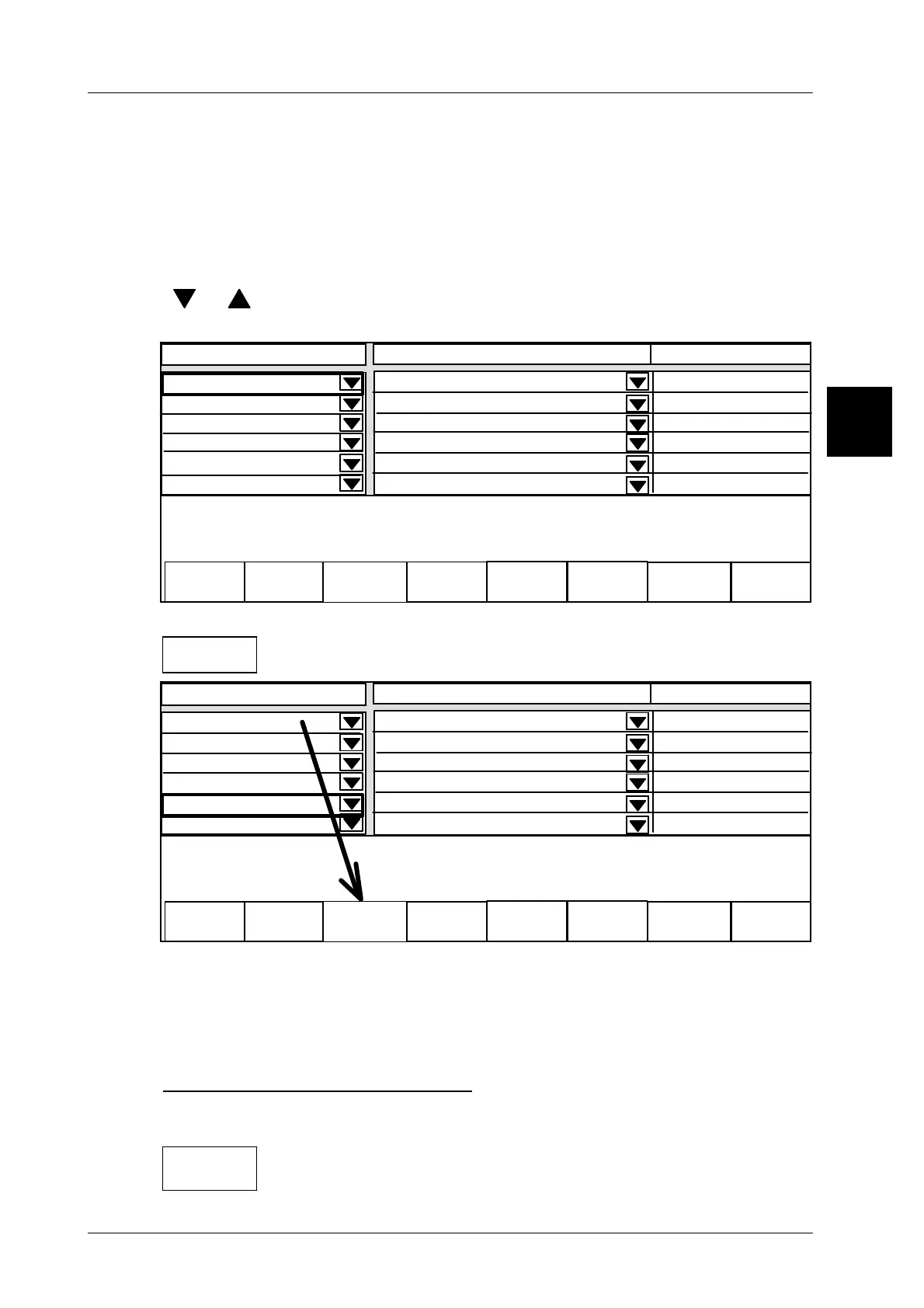
Copy display connection to softkey
To call up the new devices quickly, their display connection can also be copied
to a free softkey in the softkey bar.
Operating sequence: Description
------------------------------------------------------------------------------------------------------------------------------------------------------
[SECOND] [MODE] -- Call up the connection table
[SELECT] -- Call up device selection menu
[ ], [ ]
-- Select specific device, e.g. 4 GLP3.
[ENTER] -- Confirm selection
Status
----------------------------------
0
2 Operation3 Operation4 Operation 5 Operation
GT--CT
4 GLP3
Displ. connection fr. 20 to
Contents
Operation
not connected
0
0
0
0
----------------------------------
----------------------------------
xxx--------xxxxxxxxxxxx
----------------------------------
----------------------------------
not connected
not connected
not connected
not connected
GLP1 GLP2 GLP3
[SHIFT] -- Operate SHIFT--key
-- Operate the free softkey to be assigned. The device
connection in question is copied on to the softkey.
Status
----------------------------------
0
2 Operation3 Operation4 Operation 5 Operation
Displ. connection fr. 20 to
Contents
Operation
not connected
GLP1 GLP2
GLP3
GT--CT
----------------------------------
----------------------------------
xxx--------xxxxxxxxxxxx
----------------------------------
----------------------------------
not connected
not connected
not connected
not connected
4 GLP3
The system bus address, the name of the device and the status ”Operation” are
displayed in the softkey.
[ENTER] -- Save connection table
Subsequently, the device can simply be called up via the softkey concerned after
calling the connection table (see also page 1 -- 54).
Clear assigned softkey once more:
An assigned softkey can be cleared again at any time:
[SECOND] -- operate SECOND--key
-- Operate softkey to be cleared. The softkey is cleared.
1.4



 To Next Page