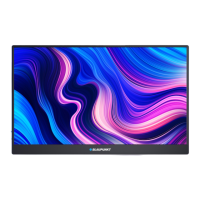
This document serves as an instruction manual for the Blaupunkt 23.8" Full HD Monitor, model BP24M60. It provides comprehensive guidance on the safe installation, operation, and maintenance of the monitor, ensuring users can maximize its features and longevity.
Function Description
The Blaupunkt BP24M60 is a 23.8-inch Full HD monitor designed to display video and audio signals from external devices. It functions as a visual output device for computers, gaming consoles, and other compatible multimedia sources. The monitor supports a Full HD resolution, providing clear and detailed images for various applications, from office work to entertainment. It features multiple input options, including HDMI and VGA, allowing for versatile connectivity with different systems. The integrated audio input port enables the monitor to process audio signals, which can then be outputted through connected speakers or headphones, although the manual does not explicitly state the presence of built-in speakers. The monitor is designed for both desktop use with its included stand and wall-mounting, offering flexibility in placement.
Usage Features
The monitor offers a user-friendly interface for adjusting various display and audio settings through its on-screen menu (OSD). The control buttons, located on the monitor, allow for intuitive navigation and selection of menu options.
Controls and Navigation:
The monitor features several control buttons:
- AUTO Button: Automatically adjusts the image quality, simplifying setup for optimal viewing. It also functions as a "Previous" or "Back" button within the OSD.
- MENU Button: Opens the on-screen menu, allows selection of items, and exits the screen menu.
- -(Negative) Button: Used to move backward through OSD items or decrease setting levels.
- +(PLUS) Button: Used to move forward through OSD items or increase setting levels.
- POWER Button: Turns the monitor on or off.
- Indicator Light: Displays the monitor's status, typically blue for normal mode and red for sleep mode.
Connectivity:
The monitor provides essential input ports for connecting to external devices:
- HDMI Input: A digital interface for transmitting uncompressed video images and audio signals simultaneously from an external device to the monitor. This is ideal for modern computers, gaming consoles, and media players.
- VGA Input: An analog connector for connecting the monitor to older system units or devices that use VGA output.
- Audio IN Port: An audio input port for receiving audio signals from external sources, which can be particularly useful when using the VGA input, as VGA does not carry audio.
- DC IN Port: The power cable connector, supplying power to the monitor.
The OSD provides a comprehensive suite of settings categorized for easy access and adjustment:
-
PICTURE Settings:
- Backlight: Adjusts the intensity of the monitor's backlight, affecting overall brightness.
- Brightness: Controls the general brightness level of the display.
- Contrast: Adjusts the difference between the lightest and darkest areas of the image.
- Sharpness: Enhances or softens the edges of objects in the image.
-
DISPLAY Settings:
- Auto Adjust screen position: Automatically optimizes the screen position.
- Adjust Horizontal (width) position: Manually adjusts the horizontal placement of the image.
- Adjust Vertical (height) position: Manually adjusts the vertical placement of the image.
- Adjust the Clock: Synchronizes the display timing.
-
COLOUR Settings:
- Temperature Colour: Adjusts the color temperature (e.g., warm, cool, user-defined) to suit preferences or environmental lighting.
- Gamma adjustment: Modifies the gamma curve, influencing the brightness and contrast of mid-tones.
- Color Effect: Applies various color filters or modes to the display.
- Demo Mode: Likely showcases different display enhancements or settings.
-
ADVANCE Settings:
- Aspect Ratio Adjustment: Changes the aspect ratio of the display (e.g., 16:9, 4:3) to match the input source or preference.
- DDCCI: Enables or disables Display Data Channel Command Interface, allowing software control of monitor settings.
- Ultra Vivid Function: Enhances color and contrast for a more vibrant viewing experience.
- Active Contrast Function: Dynamically adjusts contrast based on the content being displayed.
-
INPUT Menu:
- Auto Select Input: Automatically detects and switches to an active input source.
- VGA Input: Manually selects the VGA input.
- HDMI Input: Manually selects the HDMI input.
-
AUDIO Settings:
- Volume level adjustment: Controls the output volume of the audio.
- Mute on/off: Toggles the audio output on or off.
-
OTHER Settings:
- Reset Monitor Settings: Resets all monitor settings to their factory defaults (NOT RECOMMENDED unless necessary).
- Menu Time adjustment: Sets the duration for which the OSD remains visible.
- OSD Horizontal Position: Adjusts the horizontal position of the on-screen display menu.
- OSD Vertical Position: Adjusts the vertical position of the on-screen display menu.
-
INFORMATION:
- MONITOR INFORMATION/DISPLAY: Provides details about the current display mode, such as resolution, refresh rate, and pixel clock frequency.
Installation:
The manual provides clear instructions for installing the monitor stand and preparing for wall mounting. The stand assembly involves attaching the stand base to the monitor using provided screws, ensuring a stable setup. For wall mounting, the monitor adheres to the VESA pattern of 75 (w) x 75 (h) mm, and it is strongly recommended to use a professional installer to avoid damage or injury.
Maintenance Features
The manual emphasizes several important safety and maintenance guidelines to ensure the monitor's safe and prolonged operation:
General Safety and Handling:
- Environmental Protection: Do not expose the monitor to rain, moisture, splashing water, or direct sunlight. Keep it away from heat sources like radiators, stoves, or other heat-producing appliances. Ensure the installation location is well-ventilated and free from excessive dust or grease.
- Power Cord Management: Use only the provided power cord and ensure it is not damaged, bent, twisted, or kinked. Do not allow anything to rest on or roll over the power cord. Avoid running the power cord near heat-producing appliances. Always unplug the monitor during lightning storms or when it will be unused for long periods.
- Ventilation: Do not cover the ventilation openings with items like newspapers, tablecloths, or curtains, as this can lead to overheating and fire. Do not insert objects into the monitor's slots.
- Cleaning: To maintain the product, use only a dry cloth to wipe down marks or dust. Always unplug the product from the power socket before cleaning. Avoid using chemical or wet cleaning agents.
- Handling: Always carry the monitor from its sides, not from the middle, to prevent damage.
- Troubleshooting: If unusual odors or smoke are noticed, immediately disconnect the unit from the outlet and contact the service center.
- Professional Service: The monitor should only be serviced by qualified service personnel. Do not attempt to tamper with, change, or modify the product in any way.
Installation Safety:
- Stable Placement: Ensure the monitor is positioned in a sufficiently stable location to prevent falling, which can cause injury, especially to children.
- Furniture Compatibility: Use cabinets or stands recommended by the manufacturer. Ensure the furniture can safely support the monitor and that the product is not overhanging the edge. Avoid placing the monitor on high furniture without securing both the furniture and the product to a stable support.
- Child Safety: Warn children about the dangers of climbing on furniture to reach the monitor or its controls.
By following these instructions, users can ensure the safe and effective operation of their Blaupunkt BP24M60 monitor, extending its lifespan and maintaining optimal performance.

 Need help?
 General

 To Next Page