4
SETTING UP THE PROJECTOR
WIFI APP PAIRING
Sky Lite Cloud can be paired with our BlissHome app (availble for free from the App
Store or Google Play Store). The app allows users to control device settings from a phone
or tablet, and provides extra features such as custom nebula color modes, speed control,
and many other features. You can also set up Google Home or Alexa voice control through
the app.
SCAN TO DOWNLOAD APP
Before operating your nebula projector, please read the “Before you Begin” section and
“Notice” section of this user’s guide.
1. Remove any protective lm stickers from aperture.
2. Insert the USB power cord into a powered USB port or use the included wall adapter
to connect to an available electrical outlet. It is best practice for users to connect the
power adapter to the wall before connecting the device to the power adapter.
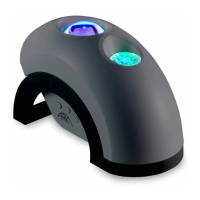
3. Place the BlissLights® Cloud in its included base on a at solid surface and aim toward
desired ceiling/wall.
4. Press the power button located on the power cord. The nebula will gradually
illuminate and begin moving by default.
5. Press the button again to cycle through default eects, and any custom eects created
in the BlissHome app. To pair with the BlissHome app or a smart device, press and hold
the button until it begins ashing.
6. To turn o the light, cycle through the power eect modes until the unit turns o
completely. Remove the power plug from electrical outlet.



 To Next Page