24 25
5
7
9
13
11
15
16
18
1
2
6
8
10
14
12
17
3
4
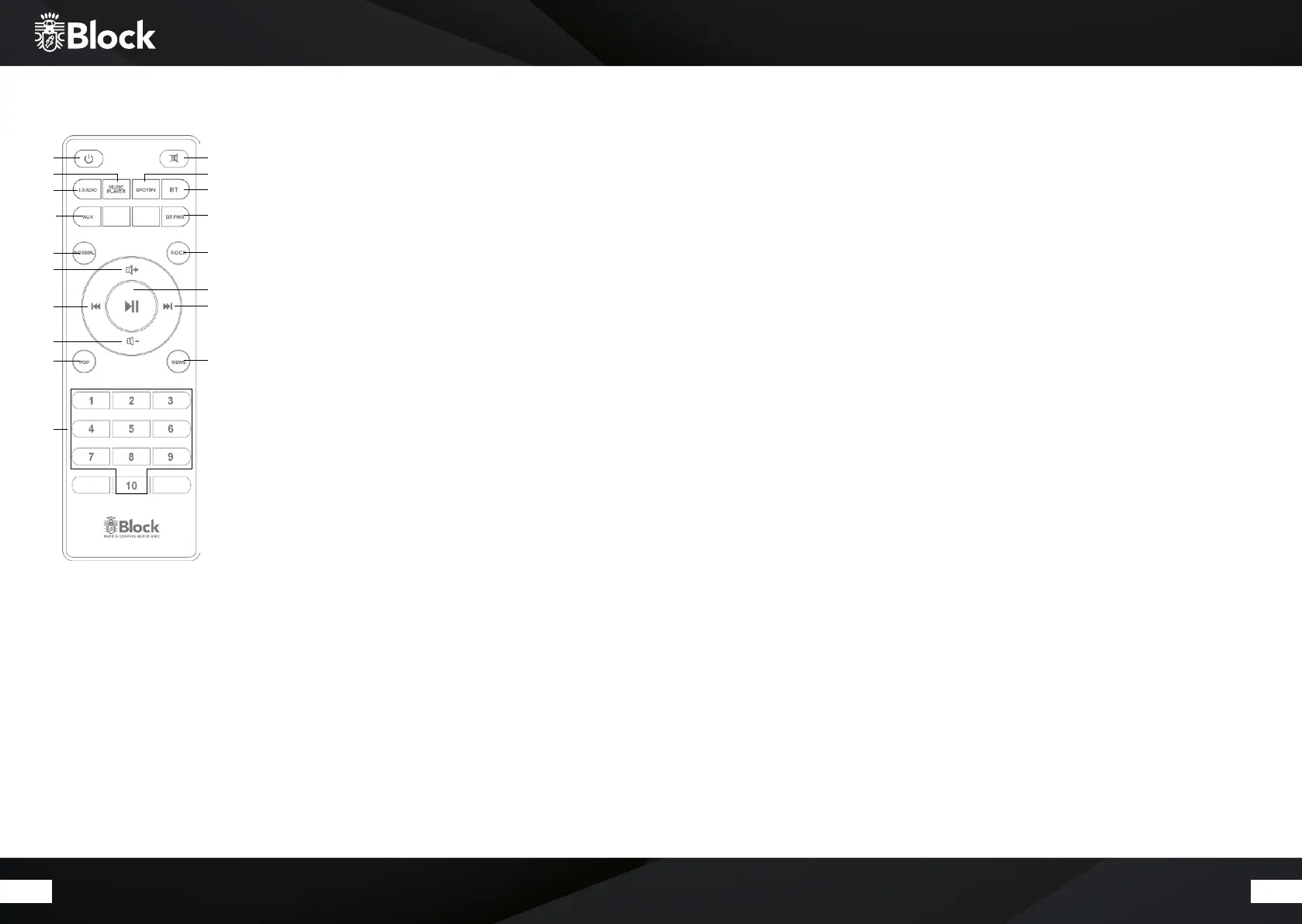
1. Standby button: Switches the device to network standby. Long
press of this button „Standby“ turns the device on Standby without
Network connection. In this case the equipment can be turned on
only by pressing the button
2. “Mute” button: turns the sound o.
3. „Music Player” button: switches the Block B to the operating mode
4. “Spotify” button: switches the Block B to the operating mode
“Spotify Connect”.
5. “I Radio” button: switches the Block B to the operating mode
„Internet radio“.
6. “BT” button: switches the Block B to the operating mode „Bluetooth“.
7. “AUX” button: switches the Block B to the operating mode „AUX“.
8. “BT PAIR” button: Turns Block B into pairing mode. In this mode you
can connect the. Block B to a Bluetooth-enabled device.
9. “Normal” button: adjusts the equalizer mode „Normal“
10. “Rock” button: sets the Equalizer mode „Rock“
11. “Vol +” button: increases the volume.
12. “Play/ Pause” button.
13. “Back” button: on music player mode, the device will change to the
previous track.
14. „Forward“ button: on music player mode, the device will change to
the next track.
15. „Vol -“ button: Reduces the volume.
16. „Pop“ button: Sets the equalizer mode „Pop“
17. „News“ button: Sets the „News“ equalizer mode
18. Buttons „1 - 10“: on radio mode, recall the stored stations.
Structure of the Block B
1. Unpack all components.
2. Connect the cable of the supplied AC adapter to the Block B. Plug the Plug-in power supply in a socket.
Putting the Block B into operation
1. Aer powering up, Block B should be in setup mode (Blue + White LED blinking). If this is not the case or
you want to make a new configuration, press the reset button on the back (about 5 seconds) until the
device returns to factory settings and wait until the blue LED on the front panel starts flashing
2. Configuration Install the free app „UNDOK ™“ on your smartphone or tablet. This is available in the
respective stores for iOS and Android.
3. Open the Wi-Fi settings of your smartphone or tablet and connect it to the Block B (not with your home
Wi-Fi).
4. Follow the instructions of the attached operating instructions for the „UNDOK ™“ app
remote control


 To Next Page
 Loading...