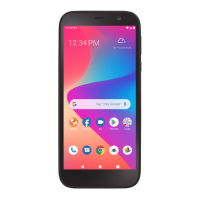
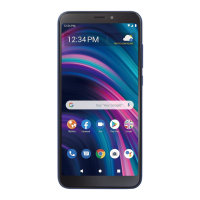
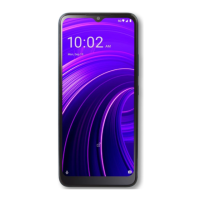
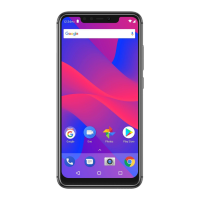
Note: You may place a camera shortcut icon on any of the screens
Taking a Picture
» Aim at the object or scene that the picture will be taken.
» Click the Shutter button on the screen to capture the image.
» After taking the picture all files will be saved in the cameras gallery folder.
» You can view the photos by clicking the preview box button.
Recording a Video
» Aim at the object or scene that the video will be taken.
»
Click the Video button to start recording.
» Click on the Video button to stop recording.
You may adjust various settings for the camera by pressing Menu while in the camera interface. When in
the standard camera mode, you can switch to video to record or click the gallery preview box.


 To Next Page