Need help?
Do you have a question about the Blu VIEW 2 and is the answer not in the manual?
Manage your Google account for cloud storage, backup, and access to Google services like Assistant and Play Store.
Capture, edit, and manage photos and videos using various camera modes and editing tools.
Enhance device security with various lock types including swipe, pattern, numeric PIN, or password.
Locate and protect your device remotely using your Google account, including ring, lock, and erase functions.
This document describes the BLU View 2, a smartphone with advanced features designed to enhance user experience. The manual covers various aspects of the device, from basic functions and accessibility features to advanced settings, applications, and safety information.
The BLU View 2 is a mobile phone that allows users to make calls, send messages, and access a wide range of applications and services. It is designed for personal use, offering features that cater to communication, entertainment, productivity, and personal organization. The device runs on the Android operating system, providing a familiar and intuitive interface for most users.
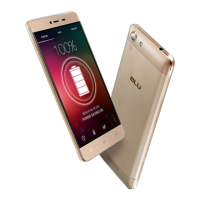
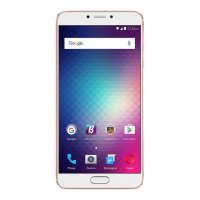
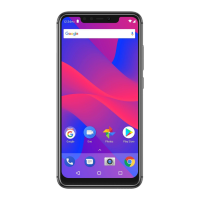
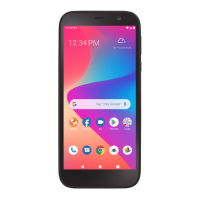
The BLU View 2 includes essential hardware components and controls. The headset jack allows for audio output, while the Home button provides access to the main screen and can be held to open Google Assistant. The Back button facilitates navigation, returning to the previous screen, menu, or option. Volume controls allow users to adjust audio levels and toggle vibrate mode. The Power/Lock button is used to wake up, lock the screen, or access additional options such as emergency calls, power off, and restart. Recent Apps functionality enables users to view and manage recently used applications, including a split-screen view for multitasking. The charger/USB dock is used for charging the device and connecting it to other devices via USB.
The BLU View 2 offers a variety of advanced features to personalize and enhance the user experience.
A Google (Gmail) account is central to using the BLU View 2, providing access to Google cloud services and other phone features. Users can create an account during setup or at any time via google.com/gmail. A Google account provides 15GB of storage, with options to purchase more. Key features accessible through a Google account include Google Drive cloud storage, Google Assistant, Google Play Store, and Find My Device.
Google One is a file storage and synchronization solution that allows users to store files in the Google cloud, accessible from any device or location. It facilitates collaboration on documents and sharing of photos and files, helping to save memory space on the device. Privacy settings can be adjusted to control who can view shared files.
The device supports Google backup, encrypting backups to the Google cloud using the user's Google Account password. Backup options include syncing contacts, calendar, and other apps; backing up device content to Google Drive; and restoring information from apps like Contacts and Calendar. A Google account also enables device protection features, downloading apps from Google Play, backing up apps, and syncing Google services across devices. Content that can be backed up and restored includes apps and app data, call history, contacts, calendar, device settings, photos, SMS texts, and Wi-Fi passwords.
The Google Assistant is built into the device, accessible by signing into a Google (Gmail) account. It can be launched by pressing and holding the Home button or by saying "OK Google" or "Hey Google." The Assistant can launch apps, make plans, answer questions, and perform tasks with voice commands. It can recognize up to six voices, customizing search results, calendar access, music, and other requests for each user.
The BLU View 2 includes special features and enhancements to make the device easier to use for individuals with physical, sensory, or cognitive disabilities. These features can be turned ON/OFF as needed.
Real Time Text Visibility (RTT) is an alternative to external TTY devices, allowing users to communicate via text during voice calls.
The Apps home screen displays all preloaded and downloaded applications. Some apps offer quick-access shortcuts via touch and hold, and some provide usage information. Users can uninstall, disable, or hide apps, though preloaded apps cannot be uninstalled. Disabled apps are turned OFF and hidden.
Users can create and name folders to organize app shortcuts on the Apps list. Deleting a folder returns the app shortcuts to the Apps list. To create a folder, touch and hold an app shortcut, drag it onto another app shortcut until a highlighted circle appears, then release.
The Play Store is the app store for Android devices, offering games, books, movies, TV programs, and more. Applications can be free or paid. Users can organize app widgets and folders on the Home screen based on preferences.
Google Apps are a suite of web-based messaging, collaboration, and productivity applications provided as a service. These apps can be used for personal and business needs, including document creation, image storage, and calendar management. Files are securely stored on Google servers and accessible from any device. Pre-installed Google Apps found in the Google folder include Google search engine, Gmail, YouTube, Google Play Movies & TV Shows, Settings, Messages, Google Chrome, Google Maps, Google Drive, Photos, and Calendar.
The Calendar app allows users to create and schedule goals, reminders, or events for specific dates. It offers various views (schedule, 1-day, 3-day, week, one-month grid) and allows adding notes, comments, and editing entries. Maps can be added to calendar entries for convenience. Events from Gmail, such as flight or restaurant reservations, are automatically added and can be managed in Settings. The calendar can be shared with others and automatically syncs with Google Calendar when saved to a Google account.
The device features a rear camera (13MP) and a front camera (8MP), with video recording at 1080p@30fps. Pictures and high-quality videos are saved to the phone's Photos by default, or to an optional memory card (up to 128GB microSD) to save device memory.
Pictures can be taken by tapping the capture icon or by pressing the Volume up or down key, which is useful for selfies.
When taking a picture or video, users view the subject on screen and tap the capture/record icon. The camera automatically adjusts focus and lighting. Manual adjustments can be made by tapping the main-focus area and adjusting zoom levels.
Users can select camera modes to suit their imaging needs. Tapping the mode name at the bottom of the screen allows the camera to determine ideal settings or for manual adjustments.
The Photos folder displays all visual images stored on the device. Images backed up to Google Photos can be organized into albums. Users can add an image to a contact or set it as wallpaper.
Users can view and manage photos and videos saved on the device. Tapping an image or video and selecting the edit icon provides various editing options, though some formats may not be supported. Editing options include sharing, cropping/rotating, adjusting brightness, applying filters, and writing/drawing on the photo.
Google Lens uses image recognition to identify and explore objects. It provides information about landmarks, plants, animals, products, QR codes, labels, and business cards. To use it, select a picture from Photos and tap the Google Lens icon. Google Assistant identifies the image and offers information, actions, or similar products. Google Lens can also scan and auto-translate text, get definitions, and facilitate smart text selection for copying/pasting.
Users can create, import, and manage contacts, syncing them across devices. Groups can be created for emergency contacts, favorites, and other frequently used contacts. Contacts can be backed up to OneDrive or Google Drive with a Google (Gmail) account, or manually to a memory card. Groups can be edited or modified.
To create a contact widget, press and hold an empty spot on the home screen, tap Widgets, then press and hold the Contacts widget. Drag it to the home screen and select the desired contact.
The device allows monitoring and managing data usage. Options include turning Mobile Data On or Off, turning Data Saver On or Off, setting unrestricted data access for up to two apps, setting or removing limits to mobile data usage, monitoring mobile data usage, and checking Wi-Fi data usage. When connecting to Wi-Fi, it is important to use known, secure networks with passwords.
This feature allows users to monitor and manage digital habits, providing a daily view of digital usage on the Dashboard. It also enables supervision of children's digital life.
Google's Family Link app allows supervision of children's digital life, including choosing apps, setting content filters, monitoring screen time, and setting screen time limits.
The device supports multiple users, each with their own profile, allowing customization of apps, wallpaper, accessibility features, and other settings. All users can update apps and adjust shared settings like Wi-Fi, with updates and settings for shared functions applying to all user profiles.
This platform enables reliable and easy sharing of pictures, files, links, and other content across compatible devices from different manufacturers. Content is shared via the fastest method (Bluetooth, Bluetooth Low Energy, WebRTC, or peer-to-peer Wi-Fi), allowing Nearby Share to work offline. For added protection, users can set visibility preferences (All Contacts, Some Contacts, or Hidden) to avoid unwanted file transfers.
The device can connect to compatible Bluetooth printers (not included) to print images and documents. Additional print service drivers can be installed from the Play Store by tapping "Add service."
The Split screen function allows two apps to be used simultaneously, appearing in top and bottom windows. This feature supports making calls, browsing the web, or sending text messages. It may not work with all apps. To activate, go to Recent apps, tap the widget of the first app, select Split screen, then tap the second app.
A virtual private network (VPN) connects remote users or regional offices to a company's private, internal network via public wires (usually the Internet). Users need connection information from their VPN administrator and must set a secured screen lock before setting up a VPN. The VPN settings menu allows adding, editing, or deleting VPN connections.
When a screenshot is captured, a Screenshots album is automatically created in Photos. To capture an image of the screen, quickly press the Power key and Volume down key simultaneously.
It is recommended to secure the device with a Screen lock to prevent unauthorized access to personal data, apps, and email accounts. Various screen lock types are available, including swipe, pattern, numeric PIN, or password. Smart Lock can be set to automatically unlock the device when it's on the user, in a trusted location, or when trusted devices are detected.
Google Play Protect performs safety checks on apps from the Play Store before download. It can be configured to regularly check installed apps for security risks and threats. App updates are checked automatically, and notifications are received if threats are detected (default setting is ON).
Find My Device helps locate the device and protect data. It requires a Google (Gmail) account and Google location service ON. If the phone is lost, users can log into their Gmail account to remotely perform functions like making the phone ring, sending its last location, locking/unlocking, erasing data, setting a screen message, and setting guardians (default mode is ON).
The SIM card contains information like phone number and voice/data plans, which can be compromised if the SIM card is placed into another device. A SIM card PIN can be created to lock access to the SIM for protection.
App pinning allows users to pin an app to the screen, blocking usage of all other phone functions (calling, texting, etc.). This is useful for lending the phone to another user, such as a child, ensuring they only use the pinned app (e.g., YouTube). To return to regular usage mode, hold the Back and Recent Apps buttons simultaneously for a few seconds. Unpinning an app may require the authorized user's security PIN, pattern, or password.
The Permission manager allows users to control app access to device features like the camera, microphone, or location services, even when apps are running in the background. Users can grant or deny access to each app and set the device to notify them when access is requested for each category.
Wi-Fi provides wireless high-speed internet and network connections without using allocated data. When Wi-Fi is ON, the device scans for available networks. Users may need to enter a password to connect. Public/unprotected networks connect automatically, but it's important to connect to known, secure networks with passwords to protect personal data.
Wi-Fi Direct uses Wi-Fi capability to share data between two or more Android devices, even from different manufacturers, without needing a Wi-Fi network connection.
The manual provides guidelines for battery safety and general device maintenance. It recommends fully charging the battery before first use and notes that optimum performance is achieved after two or three charge cycles. Overcharging should be avoided to preserve long-term battery life. The battery should be kept out of reach of children while charging, stored in a cool, dry place away from direct sunlight and water, and not exposed to extreme temperatures. If the battery produces an odor, cracks, leaks, overheats, or distorts, usage should be stopped immediately. Chargers should not be used near liquids.
The device is not waterproof and should be kept away from water or liquids. Cleaning should be done with a soft, dry cloth, avoiding alcohol, thinner, benzene, or other solvents.
The manual also includes information on hazardous waste and battery disposal, emphasizing that batteries should not be disposed of with household trash due to potential harm to human health and the environment. Users are advised to follow environmental laws and guidelines for proper waste disposal.
 General
| Display Size | 5.5 inches |
|---|---|
| Resolution | 480 x 960 pixels |
| RAM | 2 GB |
| Internal Storage | 32 GB |
| Operating System | Android 10 |
| SIM | Nano-SIM |
| Colors | Black |
| Battery Capacity | 2500 mAh |
| Expandable Storage | microSD |
| Processor | 1.5 GHz Quad-Core |

 To Next Page