6 7
Audio Settings
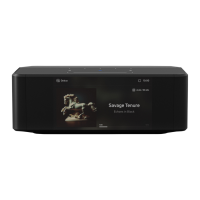
TONE CONTROL Enable to adjust your NODE ICON’s Treble and Bass output levels.
Note: When enabled, the total volume of your Player is reduced by 6dB to allow adjustment of the bass and treble outputs from -6dB to 6dB. Tone
Control is disabled and not displayed when Digital Passthrough is enabled.
SUBWOOFER Enable subwoofer to get access to the crossover slider, and adjust the crossover frequency between your NODE ICON and the
attached subwoofer.
REPLAY GAIN Select any of the following to configure consistent volume levels between tracks in the play queue:
• Track gain – To use the track gain value from the song’s metadata to have the current track’s volume be more consistent with other tracks.
• Album gain – To use the album gain value from the metadata to provide a consistent volume level between all audio tracks on a particular
album.
• Smart gain – To allow the BluOS to automatically choose between track gain and album gain values to provide the best replay gain option
for your current listening.
Note: BluOS uses the metadata of the selected audio track to configure consistent volume levels between tracks.
OUTPUT MODE Select any of the following to configure the channel output on the NODE ICON:
• Left/Right – Outputs only the Left or Right audio channel.
• Mono – Outputs single-channel audio out.
• Stereo – Outputs both Left and Right audio channels.
DIGITAL PASSTHROUGH When Digital Passthrough is turned ON, BluOS sends the original audio stream directly to an external DAC, bypassing
BluOS’s internal MQA decoder.
Note: To enable Digital Passthrough, you should enable the Output level fixed and disable – Tone Controls and Replay Gain. Learn more
OUTPUT LEVEL FIXED Enable to set and fix the volume of the NODE ICON at the maximum level. This allows you to control the volume using the
external device connected to the NODE ICON instead of the BluOS Controller App.
Note: Fixed volume should only be activated if the volume can be controlled on the product the NODE ICON is connected to.
AUDIO CLOCK TRIM Enable to reduce jitter and increase audio clock timing precision when using an external DAC.
Note: Not all DACs can handle this. If audible clippings or dropouts occur, disable Audio Clock Trim to avoid BluOS’s accuracy setting from
interfering with the external DAC’s firmware.
Settings
IR REMOTE Setup an IR Remote, either by teaching your NODE ICON to work with one of your old remotes or by using the Bluesound RC1 remote
which works out-of-box.
• BluOS Remote: Enable/Disable the Bluesound RC1 Remote if you have multiple Bluesound Players in the same room, and only want the
remote to control one of them. If you have multiple remotes, you can change the IR Channel for each Player. Learn more
• IR Learning: Program your own remote to work with your NODE ICON. Learn more
INDICATOR LIGHT Adjust the brightness of the light on your NODE ICON
• Normal – Default brightness
• Dim – Lower the brightness
• Off – Turns off the light
Note: If Proximity is turned off, the Indicator Light OFF function gets disabled.
PROXIMITY Turn the proximity ON or OFF for the top panel user-interface. Adjust the timeout timing when proximity is ON.
CUSTOMIZE SOURCES Most inputs can be adjusted from this menu. It is possible to change the name, icon of the individual input.
BLUETOOTH: Settings for Bluetooth visibility and functionality.
• Manual – This mode allows you to manually switch between Bluetooth as a local source in the Inputs section of the Music Tab.
• Automatic – (Default mode) This mode automatically switches to the Bluetooth source when a Bluetooth-connected device starts playing
audio.
• Guest – This mode switches the Bluesound player to the Bluetooth source when your connected Bluetooth device starts playing audio.
However, switching sources disconnects the Bluetooth connection. The Bluetooth source is not displayed under the Inputs section
of the Music tab. This configuration is ideal for streaming audio from multiple Bluetooth-enabled devices.
• Disabled – This mode turns off the Bluetooth receiver on the player.
Analog Input/Optical Input/HDMI ARC/USB C
• Name - Change the name of the input.
• Icon - Change the icon of the input.
• Auto Sense – Turn it ON if you want the input to override other inputs whenever it receives a signal. Turn it OFF if you want to change
input yourself or encounter issues with specific inputs.
• A/V mode – Enable A/V mode when using the NODE ICON with real-time audio sources such as a TV signal. Disable it when using audio-
only sources like a turntable or CD player to prioritize quality over speed.
• Compressed Grouped Audio – Enable this when using inputs with grouped players to help reduce network load and increase the reliability.
• Hide Source – Toggle if you don’t want to see the input listed in the Music tab.
SERVER MODE To make your USB library accessible in the BluOS Controller app, plug the USB drive (in NTFS or FAT32 file format) into the USB
port at the back of the NODE ICON and follow the onscreen prompts on the BluOS Controller app.
• [Yes] Server Mode enabled - USB drive is shared with other players on the network from the local Library.
• [No] Server Mode disabled - USB drive access is restricted to the USB-connected Player.
Note: After the connection, the NODE ICON’s Status Indicator LED turns white, indicating that it is indexing the connected library. Depending on the
size of your music library, the indexing process may take some time to complete. The indexing process is complete when the Status Indicator LED
returns to solid Blue. Learn more
Display Settings
DARK MODE Switches between a dark background and a lighter background with a blurred version of the album art. Dark mode can help provide a
bigger contrast for better readability.
LCD BRIGHTNESS Use the slider to adjust the light output from the display.
CLOCK VIEW IN NETWORK STANDBY Turn the Display ON or OFF in Network Standby. When ON the NODE ICON will show the chosen Clock
View on the Display while in Network Standby.
Note: Power consumption is higher with Clock View ON.
24-HOUR TIME Switch between 12-hour and 24-hour clock format.
CLOCK VIEW Switch between different clock designs for the display to show when in standby or if ‘Clock’ is chosen as the Now Playing View.
• Digital
• Analog 1
• Analog 2
NOW PLAYING VIEW switch between different display layouts while playing Music.
• Text
• Cover
• Cover + Meta
• Clock


 To Next Page
 Loading...