4 5
PRESETS The NODE ICON has 5 programmable preset buttons. These are configured using the Presets menu in the BluOS App.
PREVIOUS TRACK/NEXT TRACK These buttons can be used to go back to the previous track or skip to the next track in your current play
queue.
STATUS INDICATOR Below is a table of the LED blink codes and their corresponding descriptions
LED BLINK CODE DESCRIPTION
Short blue flash, then red Powering up rebooting the unit
Solid green Hotspot Mode
Flashing green Connecting to Network
White pulse Software update available
Solid red Upgrade Mode
Alternate flashing red and green Upgrading
Flashing blue Mute Mode
Solid white Indexing
Solid blue Connected to Network - ready to use with BluOS App
Flashing red Factory Reset in process
Solid Purple Hotspot Mode timed out
PLAY/PAUSE BUTTON This button has multiple functions – a visual indicator of network connectivity and a PLAY/PAUSE
button. For a full listing of LED Blink Codes, please see #3 – Status Indicator. For an ungrouped Player, press the button to Play
or Pause the stream. If listening to an internet radio stream, the Pause- function will work for 30 seconds. At this point, the buffer
is full and the stream will Stop. When a Player is grouped, pressing the PLAY/PAUSE button will Mute the Player while other
Players continue the stream. The Player’s LED will flash blue when muted. This button is also used for Factory Rest functions.
See steps for Factory Reset later in the manual.
VOLUME SLIDER/TAP Use the LED slider to vary volume level. Tap the • buttons at either end of the slider to vary the volume
level in 1db intervals, or tap the slider in the direction you wish to adjust to vary the level by 3db intervals. These volume tap
methods allow you to fine-tune your volume setting.
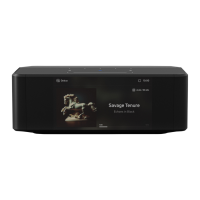
DISPLAY The 5” non-touch display shows relevant information about playback including Album Artwork, Metadata, Quality
Indicator, Track position, Volume Levels and Time. [Read about Display Options in Settings].
HEADPHONE JACK A 6.3mm headphone jack is located on each side of the NODE ICON. Both sockets have an input detector.
It is possible to use both outputs simultaneously, though best performance is to be expected with only one pair of headphones
connected at a time.
OPTICAL IN Using a digital optical cable (not provided), connect one end to the OPTICAL IN of the NODE ICON and the other end
to the corresponding optical output of other compatible devices. The source will show as an Optical Input in the BluOS App.
COAX OUT Using a coax cable (not provided), connect one end to the COAX OUT of the NODE ICON and the other end to the
corresponding coax input of a compatible devices such as receivers, digital-to-analog converters or other digital processors.
Connecting via the COAX OUT will bypass the NODE ICON’s internal DAC.
ANALOG IN Using an RCA Stereo Audio Cable (not provided), connect one end to the ANALOG IN of the NODE ICON and the
other end to the corresponding analog output of other compatible devices. The source will show as an Analog Input in the BluOS
App.
AUDIO OUT Connect to the corresponding analog audio input of an amplifier, receiver, stereo system or active speakers.
Connecting via the AUDIO OUT will use the NODE ICON’s internal DAC.
BALANCED XLR OUT Connect to the corresponding BALANCED XLR input of an amplifier, receiver, stereo system or active
speakers. Connecting via the BALANCED XLR will use the NODE ICON’s internal DAC and provide the best possible sound
quality.
SUBW (SUBWOOFER) OUT CA subwoofer can be connected directly to the NODE ICON. Connect SUBW OUT to a powered
(“active”) subwoofer. Alternatively, you can connect the NODE ICON wirelessly to a Bluesound subwoofer over the network.
OPTICAL OUT Using a digital optical cable (not provided), connect one end to the OPTICAL OUT of the NODE ICON and the
other end to the corresponding optical input of a compatible devices such as receivers, digital-to-analog converters or other
digital processors. Connecting via the OPTICAL OUT will bypass the NODE ICON’s internal DAC.
USB INPUT (TYPE A) The NODE ICON can transfer digital audio (USB Audio 2.0) through to an external DAC via the USB
Type A slot. Using a USB cable (not provided), connect one end to the USB output of the NODE ICON and the other end to the
corresponding USB input on a separate DAC device. Select your USB DAC from the NODE ICON’s Audio settings page in the
BluOS App to bypass the NODE ICON’s internal DAC via USB audio out. Note: When USB Output is selected, all other outputs
(Analog and Digital) are dormant.
USB OUTPUT (TYPE A) The NODE ICON can transfer digital audio (USB Audio 2.0) through to an external DAC via the USB
Type A slot. Using a USB cable (not provided), connect one end to the USB output of the NODE ICON and the other end to the
corresponding USB input on a separate DAC device. Select your USB DAC from the NODE ICON’s Audio settings page in the
BluOS App to bypass the NODE ICON’s internal DAC via USB audio out. Note: When USB Output is selected, all other outputs
(Analog and Digital) are dormant.
HDMI eARC Using an HDMI cable (not provided), connect one end to the eARC input of the NODE ICON and the other end to an
ARC/eARC-enabled HDMI output on your television. You may be required to enable ARC/eARC in your TV settings. Consult your
TV user manual for more information. The source will appear as HDMI ARC or eARC in the BluOS App.
TRIGGER OUT A 12V DC signal is available using the TRIGGER OUT. The 12V DC signal can be used to control or activate other
external devices equipped with a corresponding 12V trigger input using a 3.5mm mono audio cable.
IR IN An infrared extender can be connected to allow for programmable learning remotes to control volume and source selection
when a NODE ICON is stored in a way that the front panel IR sensor is not visible.
AC MAINS IN The NODE ICON comes supplied with two separate AC power cords. Select the AC power cord appropriate for
your region. Before connecting the plug to the wall outlet, connect firmly the other end of the AC power cord to NODE ICON’s AC
Mains input socket. Never force the plug into a wall outlet. An adaptor may be necessary in certain regions. Always disconnect
the plug from the wall outlet first, before disconnecting the cable from the NODE ICON’s AC Mains input socket.
USB INPUT (TYPE C) Connect a PC or Mac to the USB C input, to start streaming content from the computer. You may need to
select NODE ICON in the audio settings menu from your computer.
LAN PORT The LAN PORT connection can be used with the Ethernet cable provided. This is an optional connection since the
NODE ICON can be connected to the network through a Wi-Fi connection to your router. To setup the NODE ICON using the
LAN Port a Wired Ethernet connection is required. Connect one end of the Ethernet cable to the LAN port of your wired Ethernet
Broadband router and the other end to the NODE ICON’s LAN port.
1
2
3
4
5
6
7
8
9
10
11
12
14
15
16
17
18
19
20
21
22
NETWORK
The NODE ICON is a network audio player and relies on a well-implemented local area network to operate correctly. Internet
access is required for software updates and to use many of the player’s features, like cloud-based music streaming. Learn more
Once the NODE ICON is connected to your equipment and AC power, you need to add it to your network. Watch for the top panel
LED to turn Solid Green, indicating it is ready for network connection in ‘Hotspot’ mode. You can add your player to the network
via wired Ethernet, or wirelessly via Wi-Fi. If using Ethernet, simply plug in an Ethernet cable to the NODE ICON’s LAN Port.
The LED will turn Solid Blue, indicating network connection. If using Wi-Fi, open the BluOS App on a phone or tablet, and use
the ‘Add A Player’ wizard to guide you through the steps. Whether connecting via Ethernet or Wi-Fi, you must finalize setup by
initializing your NODE ICON within the BluOS App.
PRESETS
You can set presets for your favorite radio stations, music streams or playlists using the BluOS Controller app. Presets can
be recalled from the five preset buttons on the NODE ICON or from an IR Remote, including the Bluesound RC1 remote (sold
separately). Learn more.
13


 To Next Page
 Loading...