XDK110 BCDS
© Bosch Connected Devices and Solutions GmbH reserves all rights even in the event of industrial property rights. We reserve all rights of disposal such as
copying and passing on to third parties. BOSCH and the symbol are registered trademarks of Robert Bosch GmbH, Germany.
Note: Specifications within this document are subject to change without notice.
1. XDK Workbench Startup
1.1 Opening the XDK Workbench
Start the XDK Workbench by clicking on the XDK icon on your desktop. The default path of the application is
located in C:\XDK-Workbench\XDK-Workbench.exe. During the startup a splash screen appears. The
welcome screen will be shown afterwards.
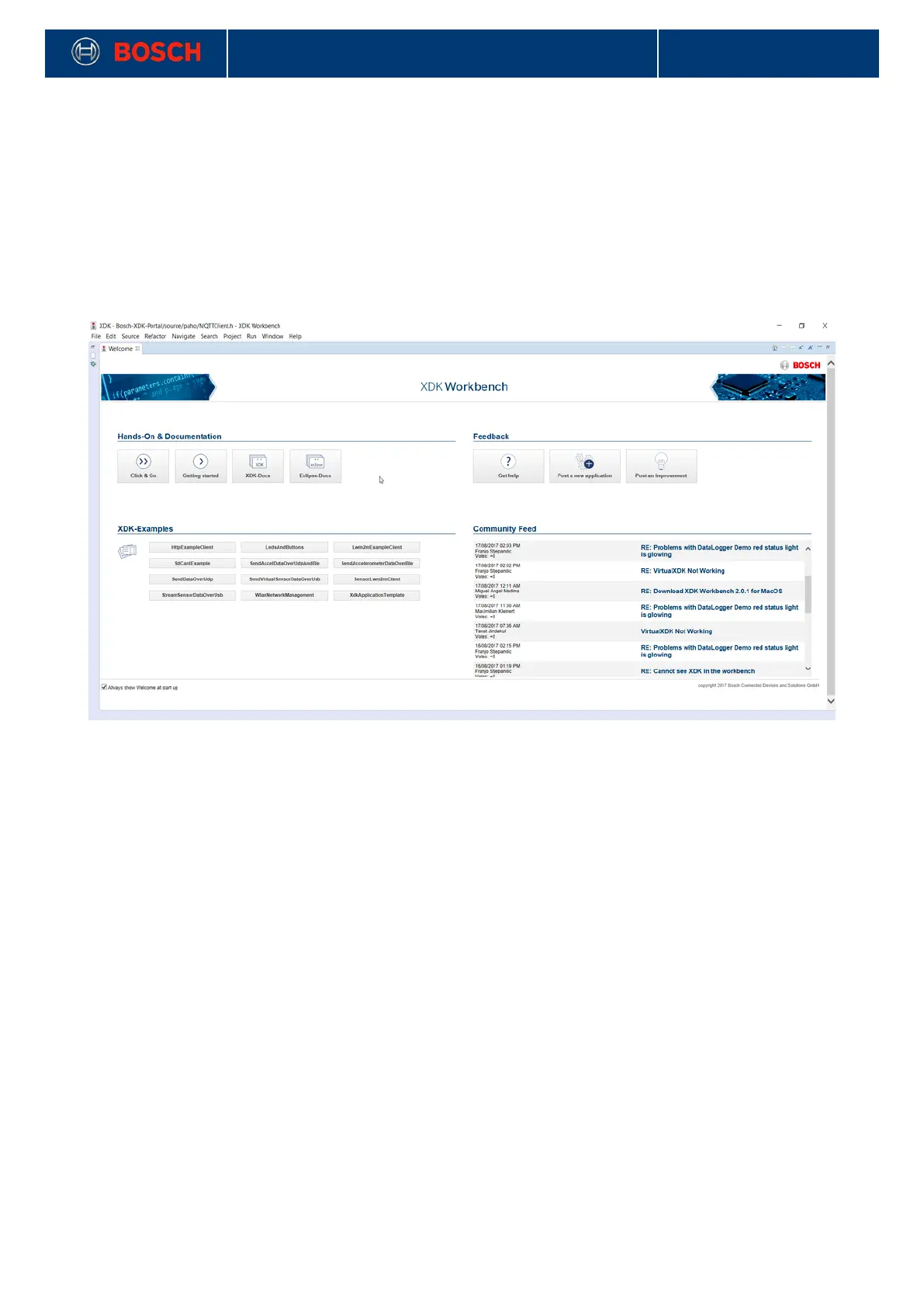
Picture 1: Welcome Screen of the XDK Workbench
The welcome screen is sectioned in three parts:
Hands-On & Documentation (upper left), Feedback (upper right) and the XDK-Examples (lower left).
1.1.1 Hands On & Documentation
This section contains four buttons.
• Click&Go: Access the workspace set up for a quick start
• Getting Started: The shortcut to the XDK Forum for community interaction
• XDK Docs: This button will open the documentation
• Eclipse Docs: This button will open the Eclipse help (XDK Workbench ist based on Eclipse)
1.1.2 Feedback
Clicking the respective button will take you to the matching XDK community forum section to get help, to post
a new application or to post an improvement. Inside the community you will find hints, tips and tricks and you
can get in touch with other developers.
1.1.3 XDK Examples - Basics
The XDK comes with a variety of application examples. Choose one example and click on it. The chosen
example will be imported into the workspace. The following examples are currently included:


 To Next Page