Workbench First Steps Guide XDK110
XDK110 BCDS
© Bosch Connected Devices and Solutions GmbH reserves all rights even in the event of industrial property rights. We reserve all rights of disposal such as
copying and passing on to third parties. BOSCH and the symbol are registered trademarks of Robert Bosch GmbH, Germany.
Note: Specifications within this document are subject to change without notice.
1.2 XDK Workbench – Workspace (XDK View)
Let’s get started with the workspace view.
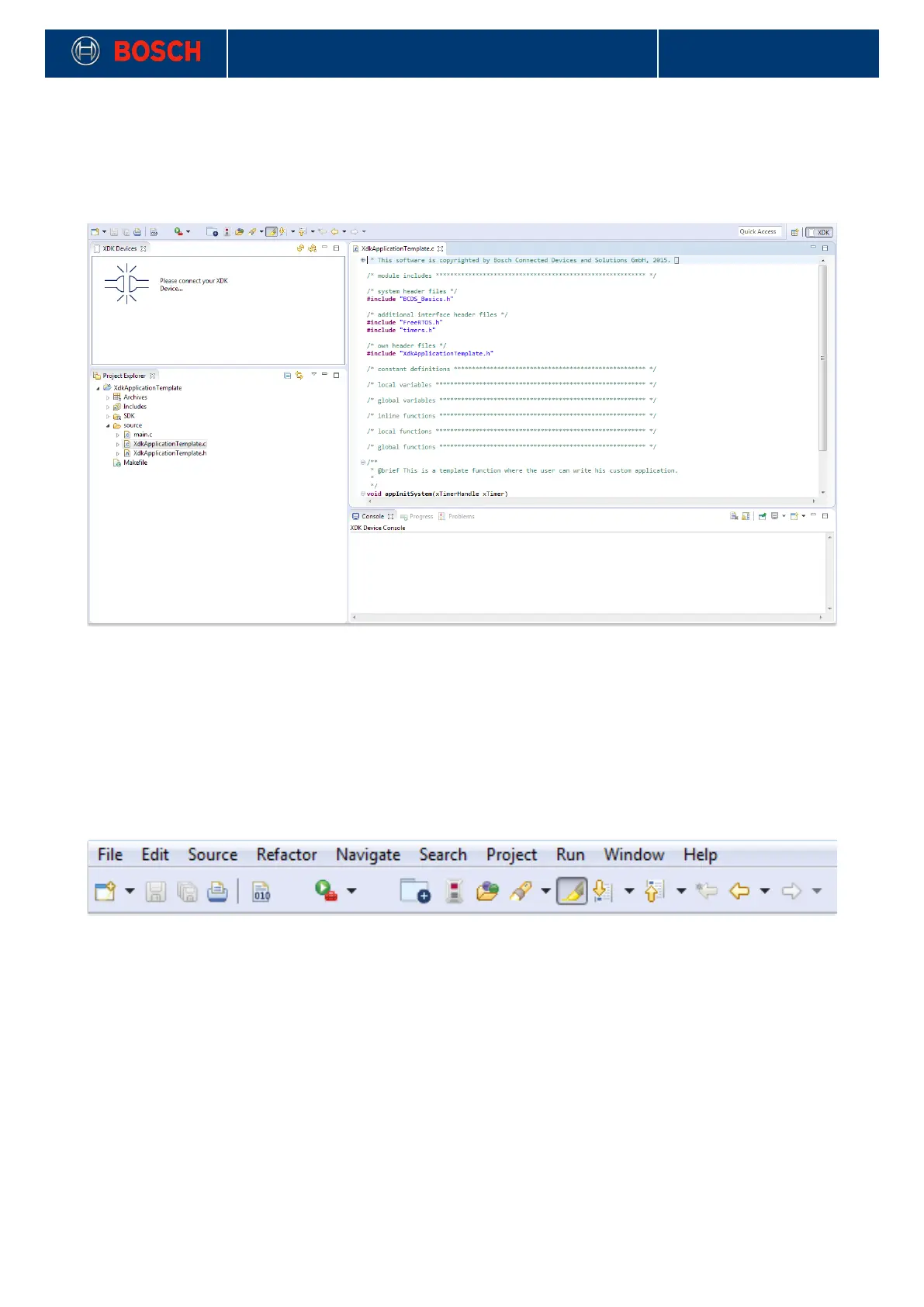
Picture 2: XDK workspace window
The default Workbench setup is split into four main tiles per default: XDK Devices (upper left), Project
Explorer (lower left), Editor (upper right) and Console (lower right). The menu bar is located at the top of the
window as usual.
Each tile can be maximized or minimized by clicking on the respective symbol on the tile. Resizing is
possible by changing the position of the tile borders.
You can change the perspective by clicking on the “Open perspective” button (see 1.1.1).
1.2.1 The menu bar
Picture 3: The menu bar
The menu bar contains all necessary functions of the XDK workbench. There is a classic menu structure and
a symbols bar. Some entries are available only in a suitable context (e.g. Refractor). The symbols are only
active highlighted if a matching context exists.


 To Next Page