XDK110 BCDS
© Bosch Connected Devices and Solutions GmbH reserves all rights even in the event of industrial property rights. We reserve all rights of disposal such as
copying and passing on to third parties. BOSCH and the symbol are registered trademarks of Robert Bosch GmbH, Germany.
Note: Specifications within this document are subject to change without notice.
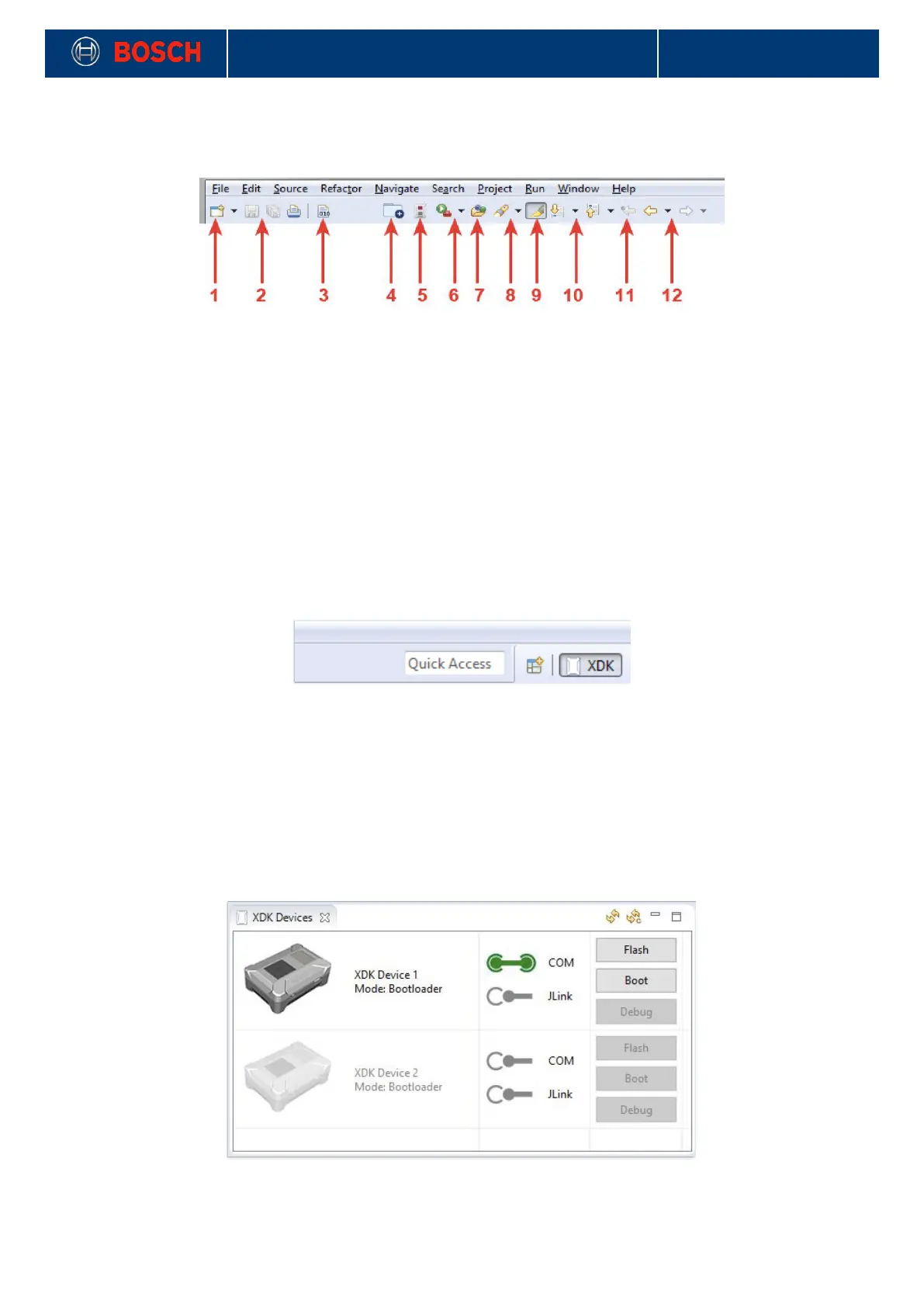
Symbol buttons of the menu bar
Picture 4: Symbol buttons
!
1. Project/Other same as File\New, opens the Project Wizard (see picture 11)
2. Save/Save all saves (all) files shown in the editor.
3. Build all compiles all files.
4. Opens C Project Wizard; shows all examples per default.
5. Opens the welcome page.
6. External Tools: click on the black arrow for more options. Same structure as in the “Run”
menu above.
7. Open Element opens the element menu.
8. Search opens the File/C++ search menu, can also be reached via “Search” above.
9. Toggle Mark Occurrences: marks occurrences in the editor.
10. Next/Previous Annotation; jumps to the next/previous annotation. Choose the annotation
type by clicking on the black arrow.
11. Last Edit Location sets the cursor to the last edited position in the editor.
12. Forward…/Back to… switches between the register cards in the editor.
Picture 5: Quick access bar
!
1. Quick Access; shows the possibilities of the Workbench by simply typing in characters or numbers sorted
by categories.
2. Open perspective; changes the Workbench view according to the chosen perspective.
3. After choosing a different perspective the matching symbol appears right from the “Open perspective”
button for faster access. The buttons disappear with right-click/close.
1.2.2 XDK Devices
Picture 6: XDK devices list
!


 To Next Page