EasyManua.ls Logo

Boss Audio Systems BR-800 - User Manual

Boss Audio Systems BR-800
164 pages
Print Icon
To Next Page IconTo Next Page
Loading...

Table of Contents

Questions and Answers

  • I
    itaylorAug 17, 2025
    How to fix Boss Audio Systems Recording Equipment when the power won't turn on?
    • G
      Gregory GrantAug 17, 2025
      If the Boss Audio Systems Recording Equipment isn't turning on, ensure the power switch is set to “USB” when using USB bus power, or to “ON” if using the AC adapter or batteries. Also, if you're using a notebook computer running on battery, connect an AC adapter to the computer. Check the power management settings of your computer and consider using a self-powered hub.
  • H
    Hunter RamosAug 20, 2025
    What to do if my Boss Audio Systems Recording Equipment has no sound?
    • D
      dmartinezAug 20, 2025
      If you're not getting any sound from your Boss Audio Systems Recording Equipment, check the following: Ensure the BR-800 and all connected equipment are powered on. Verify that the PHONES LEVEL isn't set to 0. Make sure the audio cables are correctly connected and not broken. Check the volume on connected amps or mixers. Ensure the [MASTER] fader isn't lowered. Confirm that a supported SD card is inserted and that you're not trying to play back a phrase shorter than 1.0 seconds. Finally, ensure DIR MONITOR is not turned “OFF”.
  • S
    shannon17Aug 22, 2025
    Why does my Boss Audio Systems Recording Equipment recorded sound contain noise or distortion?
    • B
      Bruce WrightAug 23, 2025
      If your Boss Audio Systems Recording Equipment is producing recorded sound with noise or distortion, adjust the input sensitivity so the PEAK indicator briefly lights when the loudest passages occur. If you are using a microphone with high output impedance connected directly to the BR-800, consider using a commercially available microphone preamp before recording, as the INPUT 1–4 jacks are designed for low input impedance.
  • M
    merrittmanuelAug 25, 2025
    Why can't I record on my Boss Audio Systems Recording Equipment?
    • C
      christophersharpAug 26, 2025
      If you can't record on your Boss Audio Systems Recording Equipment, check if the song is protected. Ensure an SD card is inserted and has sufficient free space and is not locked. Also, verify that you are not using the Phrase Trainer or scrub playback. Recording is disabled in control surface mode, so ensure that mode is not active.
  • K
    Kristin Jordan PhDAug 27, 2025
    How to stop oscillation on Boss Audio Systems BR-800 Recording Equipment?
    • R
      Robin WallerAug 27, 2025
      If your Boss Audio Systems Recording Equipment is oscillating, and INPUT SELECT is set to “USB,” the settings of your software may be looping the audio signal. Stop playback in your software, turn off the Soft Thru function, turn off the audio input of your software, or change INPUT SELECT to a setting other than “USB.”
  • J
    Joshua GuzmanAug 30, 2025
    How do I turn off the reverb on my Boss Audio Systems BR-800?
    • K
      kristophergonzalezAug 30, 2025
      To turn off the reverb on your Boss Audio Systems Recording Equipment, check the reverb send level amounts for the loop effect. Set each track’s send level amount to “0,” as reverb is applied by default as a loop effect.
  • C
    Caroline GomezSep 1, 2025
    Why is control surface mode not working correctly on my Boss Audio Systems BR-800 Recording Equipment?
    • S
      stewartamberSep 1, 2025
      If the control surface mode on your Boss Audio Systems Recording Equipment isn't working correctly, make sure you didn't start your DAW software before setting the BR-800 to control surface mode. Also, verify that you've made the correct settings in your DAW software, ensuring the control surface setting is set to “Mackie control.”
  • C
    christopher55Sep 4, 2025
    What to do if data on the SD card was damaged in Boss Audio Systems Recording Equipment?
    • S
      sromanSep 4, 2025
      If the SD card data was damaged on your Boss Audio Systems Recording Equipment, format the SD card.
  • R
    Ruth KleinSep 6, 2025
    Why does the idling screen not appear on my Boss Audio Systems Recording Equipment?
    • J
      Joseph WolfeSep 6, 2025
      If the idling screen does not appear on your Boss Audio Systems Recording Equipment, check if the USB cable is correctly connected. Also, verify that your computer’s operating system supports the BR-800.
  • V
    vargasdanielSep 9, 2025
    Why is the button response poor or unresponsive on my Boss Audio Systems Recording Equipment?
    • C
      Cynthia ClarkSep 9, 2025
      If the button response on your Boss Audio Systems Recording Equipment is poor or unresponsive, ensure you are not operating the buttons while wearing gloves or with an object other than your finger. Also, check for water droplets or objects resting on the BR-800; if present, turn off the power, remove the obstructions, and turn it back on. Avoid pressing two or more buttons simultaneously (except for Scrub operation) and move the BR-800 away from fluorescent lights.

Summary

Recording Flow on the BR-800

Preparations for Recording

Steps to connect and prepare the BR-800 for recording.

Record;Playback Process

Basic steps for recording and playing back audio on the BR-800.

Editing and Mastering Your Song

Operations for editing recorded tracks and finalizing songs.

USING THE UNIT SAFELY

General Safety Precautions

Key safety guidelines for operating the unit to prevent damage or injury.

Additional Safety Precautions

Further safety guidelines covering handling, environment, and usage.

IMPORTANT NOTES

Main Features of the BR-800

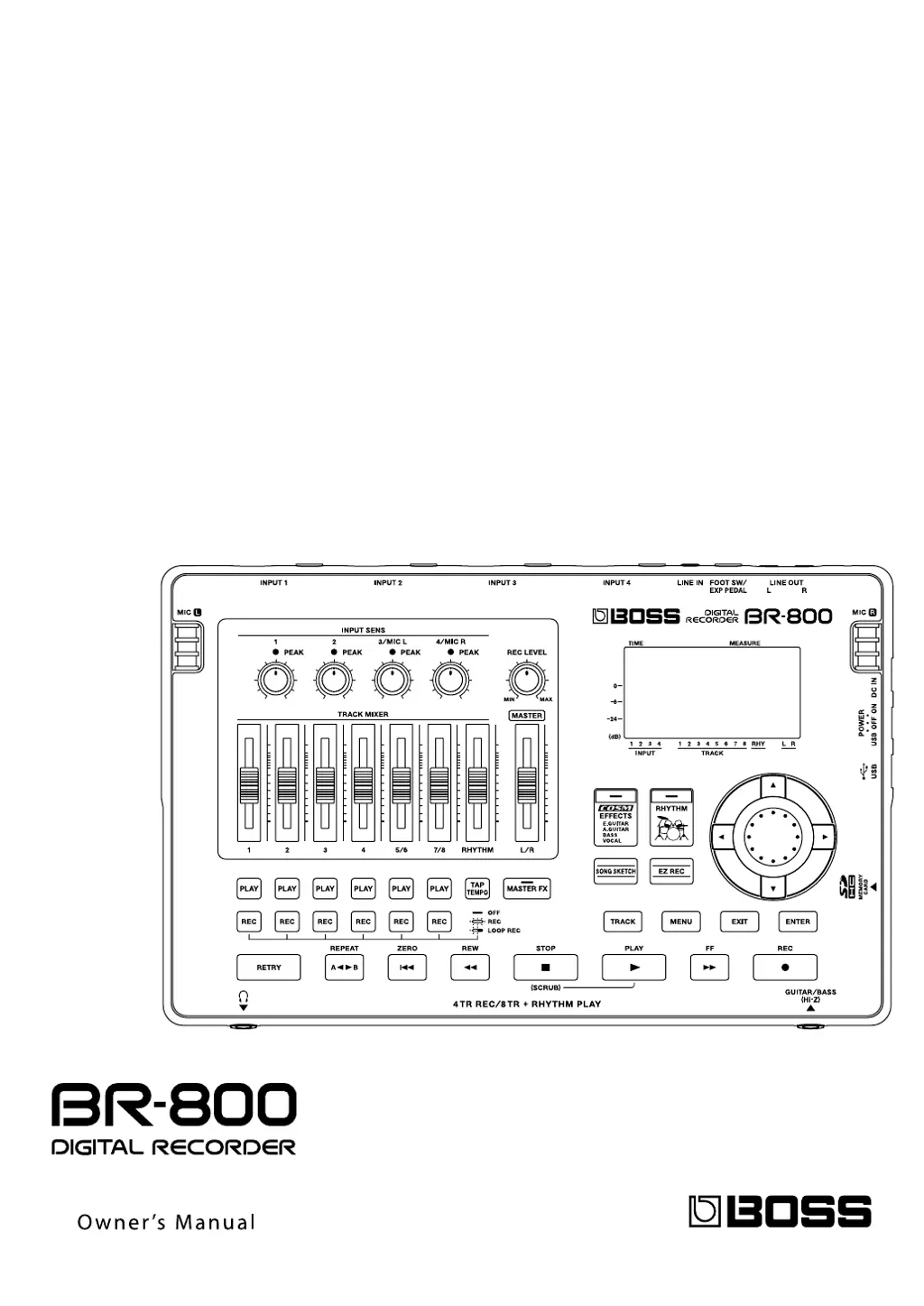
Panel Descriptions

Top Panel Overview

Detailed breakdown of the BR-800's top panel controls and indicators.

Input Sensitivity and Recording Level

Explanation of input sensitivity knobs and REC LEVEL knob.

Display Screen Elements

Explanation of song name, time, frame, measure, and indicators.

Front Panel Connections

Description of PHONES and GUITAR/BASS jacks.

Rear Panel Connections

Explanation of LINE OUT, FOOT SW/EXP PEDAL, LINE IN, and INPUT jacks.

Side Panel Ports and Power Switch

SD card slot, USB connector, POWER switch, and DC IN jack.

Installing Batteries

Step-by-step guide for installing AA batteries.

Quick Start Guide

Powering the Unit On and Off

Correct procedure for turning the BR-800 and connected equipment on/off.

Recording with the EZ Recording Function

Setting Up Recording Parameters

Selecting input source and musical category for EZ Recording.

Adjusting Recording Levels

Setting input levels using REC LEVEL knob and faders.

Initiating and Stopping Recording

Steps to start and stop the recording process in EZ mode.

EZ Recording Parameter List

Getting Ready to Record

Making Connections for Recording

Diagrams showing necessary external connections for the BR-800.

Turning the Power On and Off

Safe procedures for powering the unit on and off.

Recording and Playback

Recording Process Overview

Steps to create a new song or select an existing one for recording.

Selecting Input Source and Sensitivity

Choosing input sources and adjusting sensitivity for recording.

Adjusting Recording Level and Tracks

Setting recording levels and selecting tracks for recording.

Recording Additional Performances (Overdubbing)

How to record new parts onto separate tracks while listening to existing ones.

Re-Recording Over Mistakes (Punch-In;Out)

Using manual punch-in/out to re-record specific sections.

Performing Auto Punch-In;Out Recording

Executing recording with pre-defined punch-in/out points.

Adjusting the Tone of Each Track

Editing Track EQ Parameters

Adjusting the three-band equalizer for individual tracks.

Using Rhythm Functions

Creating Original Arrangements

Sequencing patterns using steps to build a song arrangement.

Editing Operations

Track Editing: Copying Data

Copying audio data from one track to another.

Saving Song Data and Memory

Saving current song state and managing SD card memory.

Mastering Process

Using Mastering in Song Creation

Explains the purpose of mastering for optimal song volume and balance.

Mastering Workflow Steps

Steps to mix down tracks and apply mastering effects.

Using USB Connectivity

Using BR-800 as Audio Interface

Recording computer audio to BR-800 and hearing computer audio via BR-800.

Using BR-800 as Control Surface

Connecting and enabling control surface mode for DAW software.

Saving and Recovering Data (Backup;Recover)

Steps to back up BR-800 data to a computer and recover it.

Convenient Functions

Using Foot Switch;Expression Pedal

Assigning functions to foot switches and using expression pedals.

Tuning Your Instrument (TUNER)

Using the built-in tuner for guitars and basses.

Restoring Factory Settings (FACTORY RESET)

Resetting the BR-800 to its original factory state.

Initializing SD Card (FORMAT)

Steps to format an SD card for use with the BR-800.

Using Condenser Microphone (PHANTOM POWER)

Providing +48V phantom power to condenser microphones.

Appendixes

Troubleshooting Common Issues

Solutions for power, sound, SD card, and button problems.

Error Message List

Explanation of common error messages and required actions.

Boss Audio Systems BR-800 Specifications

General IconGeneral
TypeDigital Recorder
Channels8
Recording FormatWAV
Sample Rate44.1 kHz
Phantom PowerYes
StorageSD card (up to 32GB)
USBUSB 2.0
EffectsReverb
CompatibilityWindows, Mac
Inputs4 x XLR/TRS combo jacks
Outputs1/4" headphone output

Related product manuals