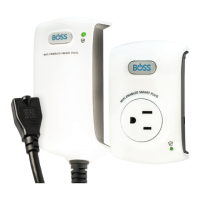
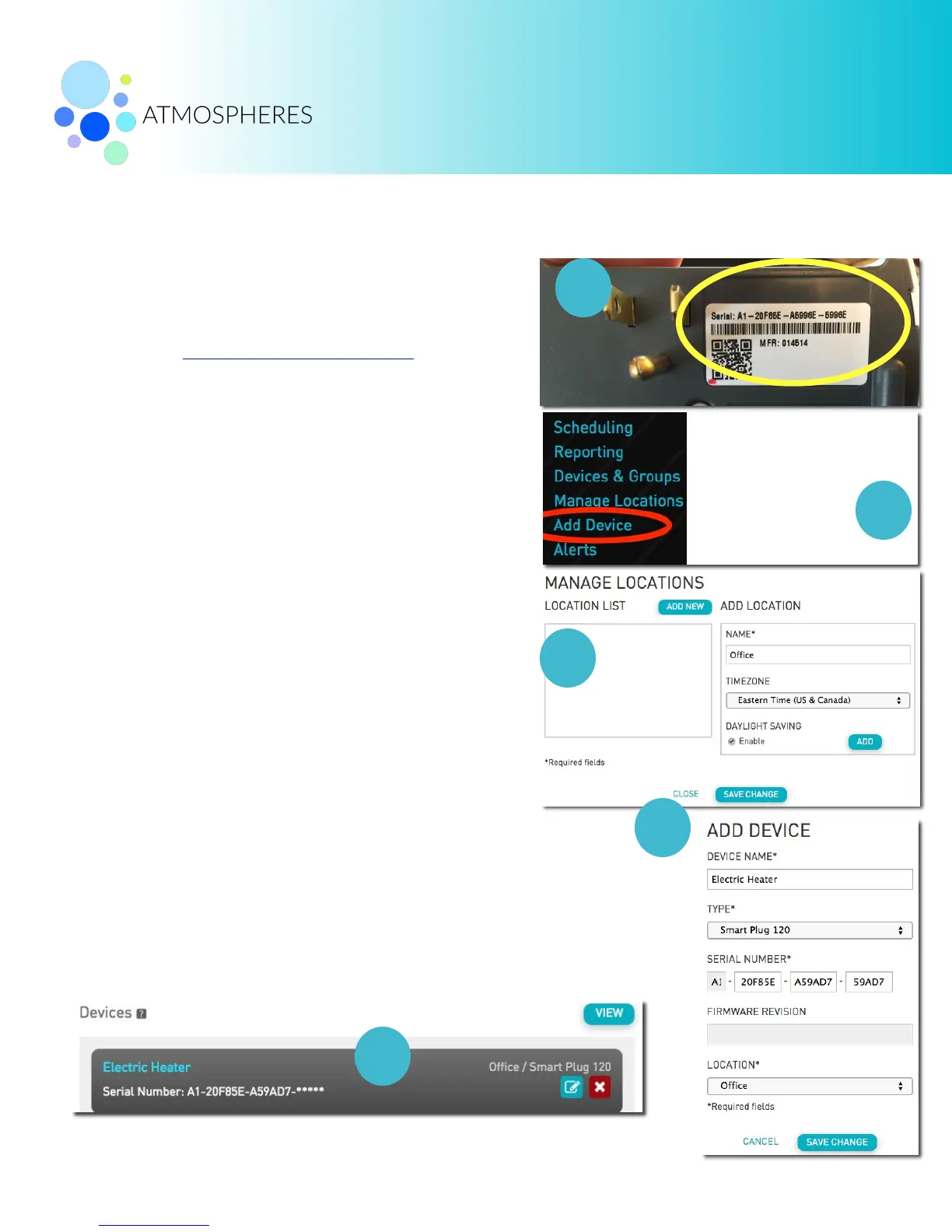
1. Look on the back of your BOSS Smart Plug.
Write down or take a picture of the serial
number on the back of the plug.
2. Login to account.bosscontrols.com
3. Click on Add Device. A Manage Locations pop-
up window will appear if this is your first plug.
a. Enter Location Name, Select Timezone, and
Enable Daylight Saving. Note: If you select
the wrong timezone for your Smart Plug you
will have to delete the Smart Plug from your
account and re-install the plug to change the
timezone.
b. Click Add. Click Save Change. Click Close.
4. An ADD DEVICE pop-up window will appear
(first Smart Plug only). Otherwise click Add
Device from the Home Dashboard menu.
a. Enter in Device Name (Water Fountain,
Electric Heater, Window AC, etc.) Select
Plug Type. Enter Serial Number. Select
Location.
b. Click Save Change.
5. If your Smart Plug has been successfully added you will be
returned to the Devices and Groups page and you will see your
Smart Plug in your devices list.
6. Your Smart Plug must now be connected to your network.!


 To Next Page
 Loading...