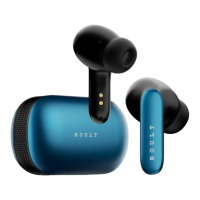
Know your Z40 Gaming
Product specification
How to use your Z40 Gaming?
How to download & connect to ‘Boult Amp’ App
Opening the Case
All LEDs will glow continuously for 2 sec
Case LED indicator glows for 2s then do a RGB running cycle for 9s
and goes off
LED Functions
Touch Controls
The Touch Area (Multi-Functional Touch Panel) is located in the
upper part of the earbuds handle.
Indicator
Light
Case Indicator
RGB Light
Multifunctional
Touch
Z40 Gaming
Product Name – TWS Bluetooth Headset
Model – Boult Audio AirBass
Bluetooth Range - ~10m/33ft (without any obstacles)
Earbuds Charging Time – 60 mins
Frequency Range - 20Hz - 20KHz
Technology - HFP/HSP/A2Dp/AVRCP
Input - DC5V = 1A
Charging Case
Earbuds
Type C Charging Cable
Manual
Extra pair of ear tips
Warranty Card
Wearing Earbuds
The earbud marked with L is worn on the left ear and the earbud
marked with R is worn on the right ear.
Install the ‘Boult Amp’ App from the Play Store or App Store
Your earbuds are now connected; get the most out of your
earbuds with available features on the App
Take the earbuds out of the charging case
In the Boult Amp App click on "Add Device" and search for your
Boult earbuds
Select the pairing name “Boult Audio AirBass” and complete the
pairing process
If a pop-up doesn't appear, select "go to settings" from the
App screen and select "Boult Audio Airbass" to connect your
earbuds
.
.
.
.
.
Charing the Case
LED indicator breathes red until charging and glows green
once fully charged
Closing the Case
Case LED indicator does a RGB running cycle for 9s then
becomes steady and goes off

 Need help?

 To Next Page
 General