Answer the Call
Tap the MFB once
Voice Assistant
Long Press the MFB for 2s
Play/Pause
Tap the MFB once
Volume -
Triple Tap the left MFB
Volume +
Triple Tap the right MFB
Previous Track
Double Tap the left MFB
Next Track
Double Tap the right MFB
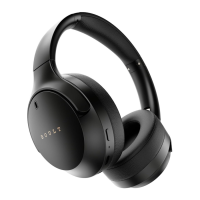
You will hear ‘power on’ when the headset powers on.
You will hear ‘power off’ when the headset powers off.
You will hear ‘connected’ when the headset is paired.
You will hear ‘low battery’ when the headset is in low power status
You will hear ‘gaming mode’ when the headset is in gaming mode.
Maintenance Instructions
Warranty is valid/invalid only basis of the below criteria:
The product should be purchased through legal and formal
channels to be applicable for warranty.
Damaging the product intentionally/unintentionally,
or due to natural disasters, etc. is not covered in the warranty.
.
.
.
.
.
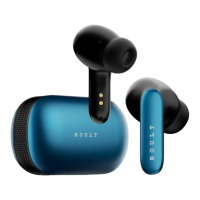
Open the charging case, and take out the earbuds, the earbuds LEDs
will start flashing automatically until paired with a device.
Activate Bluetooth on the device, turn on Bluetooth, search for
pairing name “Boult Audio Airbass” and click on it.
Single Mode: When on dual mode, put one earbud into the charging
case. Only take one earbud out of the charging case and connect it.
LEDs will blink in red thrice, take a gap of 1s and repeat this
for 3 times
When the buds are connected
Music Mode: Both earbuds’ LEDs blink once in 5 sec
Gaming Mode: Both earbuds’ LEDs will breathe once in 2 sec
Low Case Battery (30%):
Power ON:
Auto: Open the charging case and take out the earbuds to
Power ON.
Manually: Tap and hold the multifunction button (MFB) for 3
seconds.
Power OFF
Auto: Place both the earbuds in the charging case, close the lid.
Manually: Hold MFB for 5 seconds.
Power ON/OFF:
End Call/Reject
Double Tap the MFB
Game/Music Mode
Tap the MFB four times
Bluetooth Lost:
Turn off mobile phone's Bluetooth, earbuds will enter pairing
mode and can pair with other devices. If the connection range
is exceeded, the earbuds will enter back into connection mode.
If there’s no connection within 5 minutes, the earbuds will turn off.
Reset
If your earbuds fail to pair, or only one works, reset them.
Delete all “Boult Audio Airbass” Bluetooth records on the
phone and turn off Bluetooth.
Put earbuds in the charging case and then take out to
pairing modes, tap L&R 5 times simultaneously, hear “DU”
prompt voice to clear all pairing.
Put earbuds back into the charging case.
To disconnect from either of the devices, go to the Bluetooth
settings of the respective device and press disconnect/forget.
1.
2.
3.
Voice Prompts
Connect the Z40 Gaming with your first device. Once your Z40
Gaming is paired with the first device, turn off the Bluetooth of your
first device.
Now turn on the Bluetooth of your second device and follow the
same steps to connect to your Z40 Gaming Bluetooth earbuds.
Once Z40 Gaming is connected to your new device, turn on
Bluetooth of the first device.
You will hear a sound again “connected” which means both your
devices are now connected to the Z40 Gaming earbuds.
You can now enjoy music and take calls from both of your
connected devices on your Z40 Gaming earbuds.
.
.
.
.
.
Dual Device Connectivity:


 To Previous Page
 Loading...