25
Android Function
2. Pen
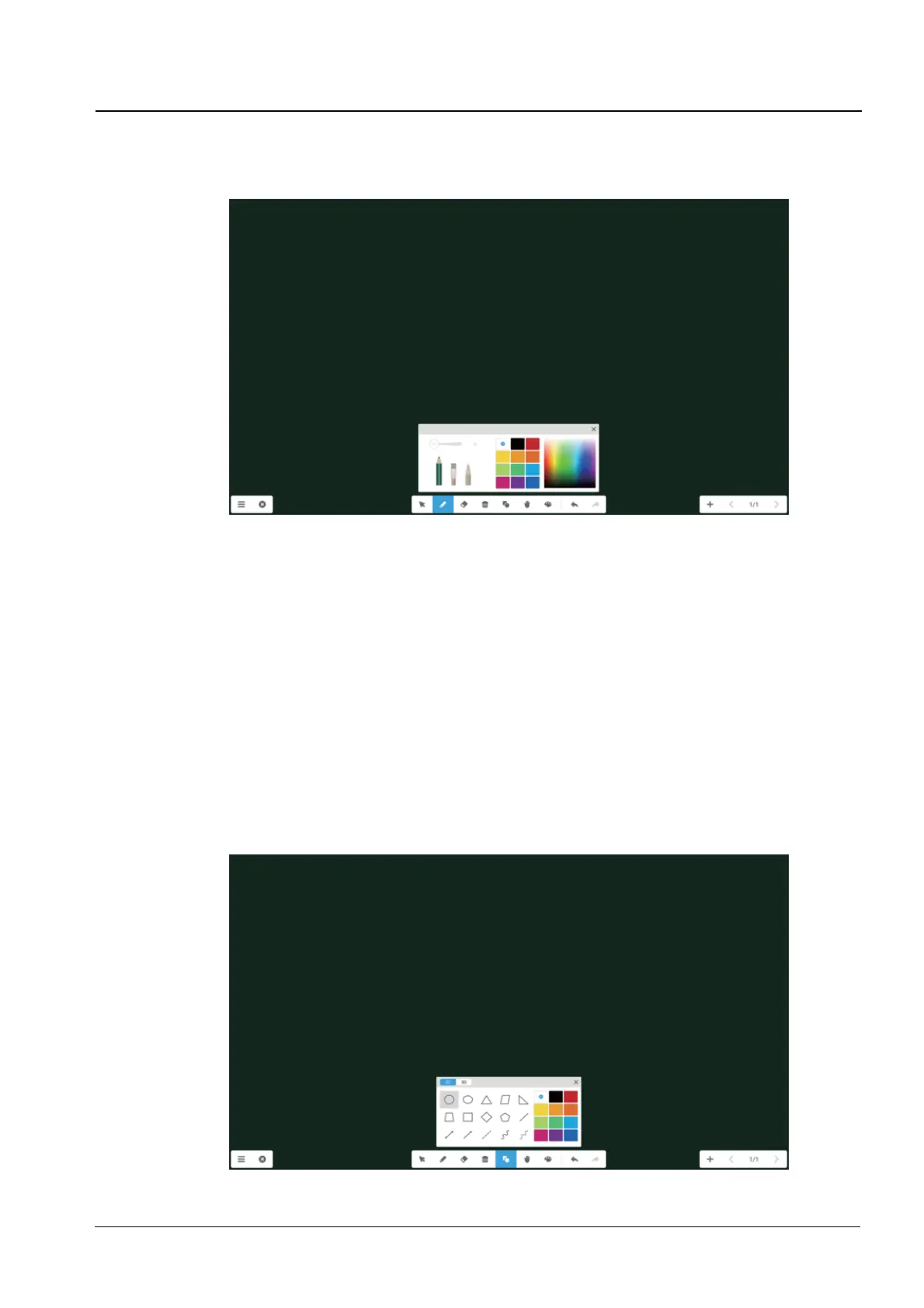
Click the pen button to pop out the pen setting window. After setting the handwriting size and color,
the handwriting will appear on the place you need to write when you slide.
(1) Pen. Including pencil and a row of brushes. Pencil is set by default.
(2) Handwriting size. Slide the handwriting size slide bar to change the handwriting size.
(3) Handwriting color. Click the color of the color disk on the right side to change the handwriting
color as required.
3. Eraser
To select the eraser. Select by circling the object you need to erase.
4. Delete
To clean the whole screen.
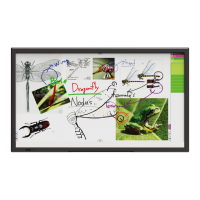
5. Shapes
Click the button to pop out the 3d shape window by default. You can click the 2d or 3d button to
change the shape type.


 To Next Page