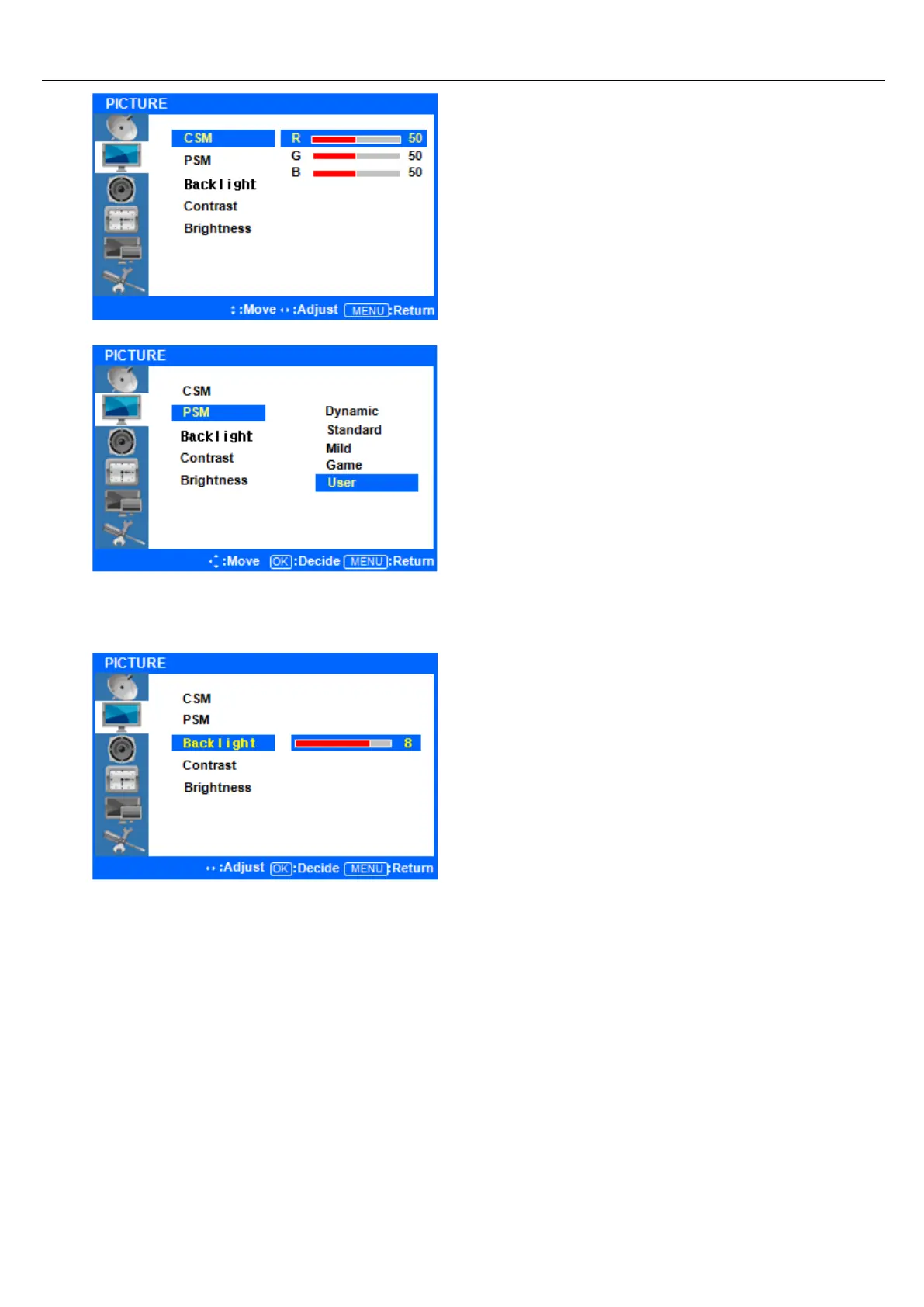
Press the ▲/▼ buttons to highlight the Red, Green
or Blue level. Next, press the ENTER button to select
one of them.
Once selected, press the ◁/▷ buttons to adjust
the Red, Green, or Blue level.
Press ◁ or the Menu button to move or go back
to the previous menu options.
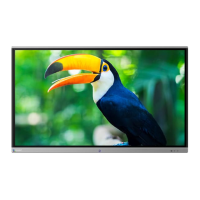
Press the ▲/▼ buttons to highlight PSM (Picture
Status Mode), and press the ENTER button to see
the available options.
Press the ▲/▼ buttons to select highlight either
Dynamic/Standard/Mild/Game/User, and press
ENTER to select one. User is the default setting.
Press ◁ or the Menu Button to move or go back
to the previous menu options.
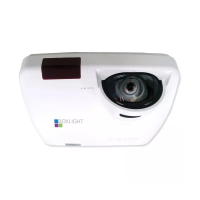
Press the ▲/▼ buttons to highlight Backlight, and
press the ENTER button to change the setting.
Note that the backlight value is related to power
consumption. If you set your backlight at a higher
level, you may be using more energy.
◆ Contrast and Brightness Adjustment
Press ◁ or the Menu Button to move or go back
to the previous menu options.
Press the ▲/▼ buttons to highlight Contrast or
Brightness, and press the ENTER button to change
either of their settings.
Press the ◁/▷ buttons to adjust both the Contrast
and Brightness levels.
After finishing, press the [Exit] Button to exit the
OSD MENU.


 To Next Page