5. UNDERSTANDING THE VIEW MODES WITH GAME
CONTROLLER
FPV MODE
Step 1) Tap the [ ] icon to enter the TASK page.
4. BREEZE CONNECTION
Power on your Breeze on a flat and stable surface and wait for it
to complete initialization. When the LED indicator blinks blue
rapidly, Breeze has entered the “Wi-Fi” bind mode.
METHOD 1: If you are using an iPhone, select Settings >
Wi-Fi ;If you are using an Android smart phone, select Settings
> Wireless and networks > Wi-Fi. Select the network:
BreezeXXXXXX and enter the Password: 1234567890.
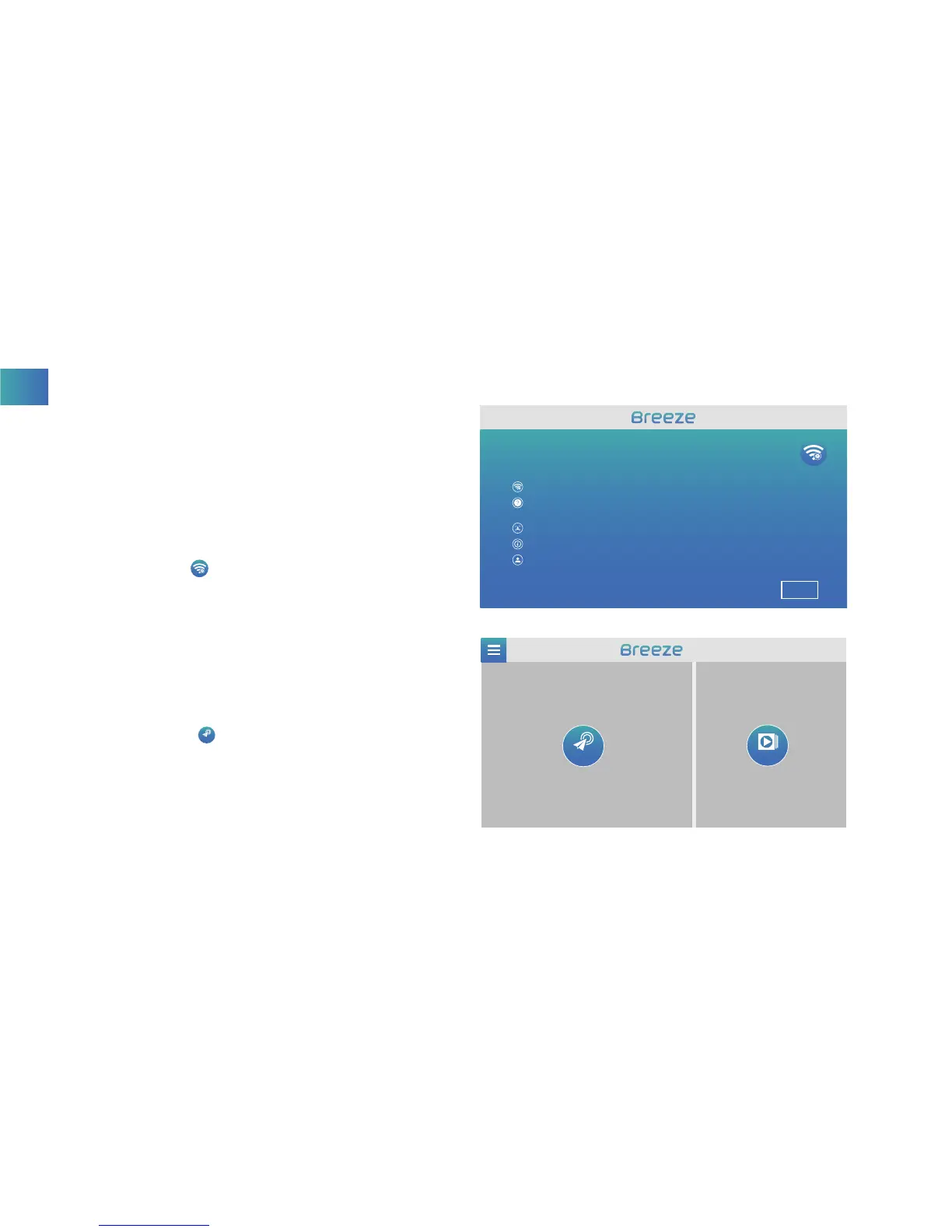
METHOD 2: Tap [ ] icon in the upper right corner and you
can connect the Wi-Fi network directly. Select the network:
BreezeXXXXXX and enter the Password: 1234567890.
TASKS
WELCOME TO YOUR BREEZE
TO GET STARTED:
Connect your device to Breeze via Wi-Fi.
First time drone flyers should start with the “SELFIE” task mode, the easiest to use.
Complete user registration in the app to get more personalized customer care and
product updates.
Review the in-app tutorials before using task modes.For more tutorials, go to
https://yuneec.com.
Always have your Breeze updated with the latest firmware.
NEXT
TASKS
GALLERY
EN



 To Next Page