EasyManua.ls Logo

Broadcom BCM94321MC - User Manual

Broadcom BCM94321MC
18 pages
Print Icon
To Next Page IconTo Next Page
Loading...
Introduction: Broadcom BCM94321MC PCI-E Mini Card User's Guide
Before you begin
Things you should know
BCM94321MC network
Before you begin
Obtain the following information from your network administrator (if you are a home user, obtain this information from the person that
installed your wireless access point):
Network names (SSID) of the specific wireless networks that you want to connect to.
WEP (Wired Equivalent Privacy) key information (if any) for the networks you want to connect to.
For Microsoft® Windows® networking, your customer name and workgroup name.
For your network account, your user name and password.
Your IP address (if not using a DHCP server)
Things you should know
When you start your computer, your Broadcom BCM94321MC PCI-E Mini card detects certain wireless networks that are
within range. Before you can connect to these and other wireless networks, you must configure a profile for each network using the
information you obtained from your network administrator.
WEP is a security protocol for wireless local area networks (defined in the IEEE 802.11g standard) that encrypts data sent over radio
waves. The use of the WEP key is optional and can be enabled or disabled. If the network you are connecting to has enabled WEP, you
must also enable WEP in the network profile and set the WEP key to match the WEP key used by the network. Otherwise, you cannot
connect to the network.
Broadcom BCM94321MC network
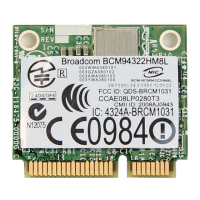
The Broadcom BCM94321MC solution allows you to make a wireless connection to a network, as illustrated below.
Question and Answer IconNeed help?

Do you have a question about the Broadcom BCM94321MC and is the answer not in the manual?

Overview

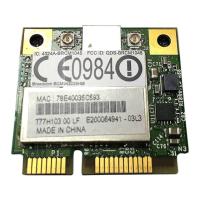
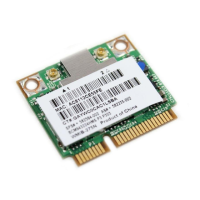
The Broadcom BCM94321MC PCI-E Mini Card is a wireless network adapter designed to provide wireless connectivity to a network. It is part of the Broadcom AirForce™ 54g™ and Intensi-fi™ Wireless Network Adapter family, offering users the ability to manage wireless networks, connect to available networks, and monitor network performance.

Function Description:

The primary function of the Broadcom BCM94321MC is to enable a computer to connect to wireless local area networks (WLANs). It acts as an interface between the computer and a wireless network, allowing for data transmission over radio waves. The device supports the IEEE 802.11g standard, which includes the Wired Equivalent Privacy (WEP) security protocol for encrypting data.

Important Technical Specifications:

While specific detailed technical specifications like frequency ranges for operation are mentioned in the regulatory sections, the core technical aspects include:

  • Wireless Standard: IEEE 802.11g, with mentions of IEEE 802.11a, IEEE 802.11b, and IEEE 802.11n in the context of AP Band symbols and connection types.
  • Security Protocol Support: WEP (Wired Equivalent Privacy) for data encryption. The use of WEP keys is optional but necessary if the network employs it.
  • Authentication Methods: Supports EAP-FAST authentication, including automatic addition of trusted servers, auto-provisioning, and A-ID group changes. It also allows for importing Protected Access Credentials (PACs).
  • Operating Frequencies (EU/France):
    • 2.4GHz band (2400-2483.5 MHz): Indoor use with a maximum Equivalent Isotropically Radiated Power (EIRP) of 100 mW. Outdoor use with a maximum EIRP of 100 mW for 2400-2454 MHz and 10 mW for 2454-2483 MHz.
    • 5GHz band (5150-5350 MHz) for 802.11a: Indoor use only, requiring DFS (Dynamic Frequency Selection) and TPC (Transmit Power Control) to be enabled.
  • Regulatory Compliance: FCC Part 15 Class B digital device, Industry Canada RSS 210, and EU R&TTE Directive 1999/5/EC (EN 300 328, EN 301 893, EN 301 489-17, EN 60950, EN 50385).
  • RF Exposure: Requires a minimum separation distance of 20 cm between the antenna and all persons for mobile configurations to comply with FCC and Health Canada RF exposure limits.
  • Software/Driver Versions: The Information tab of the utility displays software version, driver version, and supplicant version (e.g., Software version: 4.80.9.2, Driver version: 4.80.9.1, Supplicant version: 4.80.9.2 as of Apr 24, 2006).
  • Hardware Details: Displays board information (e.g., Dell Wireless 1350 WLAN PC Card Rev 4.1), chipset (e.g., BCM4306/BCM2050), and MAC address.
  • Location Details: Shows the country for which the driver is installed (e.g., United States) and supported channels (e.g., 1, 2, 3, 4, 5, 6, 7, 8, 9, 10, 11).

Usage Features:

The Broadcom Wireless Utility provides a comprehensive interface for managing wireless connections:
  • Network Management:
    • Profile Creation: Users can create network connection profiles for basic, advanced, or ad hoc networks using a wizard or the utility's advanced settings.
    • Profile Editing/Removal: Existing profiles can be edited or removed.
    • Preferred Network Order: The order of preferred network connections can be adjusted.
    • Direct Connection: Connect to any listed network without changing its order in the list.
    • Profile Locking/Unlocking: Connection profiles can be locked or unlocked (requires system or administrator rights).
    • WPN File Management: Save wireless network connection profiles as WPN files and import them.
  • Radio Control: Enable or disable the wireless radio.
  • Utility Icon Management: Show or hide the utility icon in the notification area.
  • Network Status Monitoring (Link Status Tab):
    • Displays connection status (e.g., Connected), encryption type (e.g., TKIP), network name (SSID), connection type (e.g., Infrastructure), speed (e.g., 54.0 Mbps), channel, streams, AP MAC address, Gateway IP address, Client MAC address, Client IP address, Client IPv6 address, and capabilities.
    • Signal & Noise History: Visual representation of signal and noise levels over time, with options to display both, noise only, or signal only.
    • Utility Icon Signal Strength: The appearance of the utility icon indicates signal strength (very good/excellent, weak, no signal, or radio disabled).
  • Network Statistics (Statistics Tab):
    • Current Statistics: Displays network name (SSID), connection time, packets sent/received, and sent/received/total packets lost.
    • Accumulated Statistics: Shows total packets sent/received and sent/received packets lost over time.
  • Site Monitoring (Site Monitor Tab):
    • Basic Site Monitor: Lists wireless routers/APs and ad hoc networks within range, showing network name, security, 802.11 standard, speed, channel, and signal strength. Users can sort the list by various characteristics.
    • Network Information: View detailed information about a particular network by clicking on its entry.
    • Nonbroadcasting Networks: Search for and view information about nonbroadcasting networks.
    • Activity Log: Save the activity log to a file.
    • Scan Interval Adjustment: Customize the time interval between network scans.
  • Cisco Compatible Extensions:
    • Manually add or delete trusted servers.
    • Enable/disable manual acceptance or rejection of auto-provisioning and A-ID group changes.
    • Import or remove EAP-FAST PACs (Protected Access Credentials).
  • Information Tab: Provides details about software, hardware, and location.

Maintenance Features:

  • Diagnostics (Diagnostics Tab):
    • Self-Tests: Run various tests (e.g., Control Registers, SPROM Format Validation, Memory, Interrupt, DMA and Loopback, LED) to determine if the wireless network adapter is functioning properly.
    • Test Information: Obtain information about individual tests before running them and view test results afterward.
    • Network Connection During Tests: The network connection is temporarily lost during tests but automatically reestablished upon completion.
    • Event Log: View a log of wireless network events, including user session initiation, connection/disconnection, authentication mode, driver status, supplicant status, new device availability, wireless state machine initialization, and utility management status.
  • Troubleshooting: The utility icons and status indicators provide visual cues for troubleshooting, directing users to "Troubleshooting" for suggested actions when signal strength is weak, no signal is received, or the radio is disabled.
  • Technical Support: If diagnostic tests fail, users are directed to http://www.broadcom.com/ for technical support.

Broadcom BCM94321MC Specifications

General IconGeneral
BrandBroadcom
ModelBCM94321MC
CategoryPCI Card
LanguageEnglish

Related product manuals