6
712984_INS0411_Bluetooth Keyboard_Wx4.75”H_Output:100%_Prints:1/1,Blk
SYNCING THE BLUETOOTH
®
TO YOUR iPad 2 Tablet
1. Power on your iPad 2 Tablet.
2. Slide the On/Off switch on the Bluetooth
®
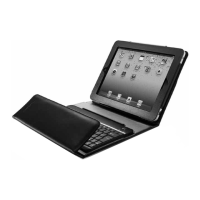
Keyboard Case to “on”.
Both the Bluetooth
®
LED and the power LED illuminators will light up
for a few seconds and then shut off.
3. Press the Connect button on the Bluetooth
®
Keyboard Case. The Power LED
will illuminate and the Bluetooth
®
LED will flash.
4. Select the “Settings” icon on your iPad 2 Tablet’s screen.
5. Locate and select “Bluetooth” in your iPad 2 Tablet’s “General” menu.
6. Under “Devices” on your iPad 2 Tablet, select the Bluetooth
®
Keyboard Case.
7. The iPad 2 Tablet will now prompt you to enter your computer Bluetooth
®
password
and press either the Return or Enter key using the Bluetooth
®
Keyboard Case.
8. The iPad 2 Tablet screen should now show the Bluetooth
®
Keyboard Case has
connected successfully.
9. The Power LED will remain illuminated while the keyboard is powered on.
10. Slide the On/Off switch to “off” when you are done using the keyboard.
11. If your iPad 2 Tablet goes into standby mode, the Bluetooth
®
Keyboard Case
should still be synced. If you power-off your iPad 2 Tablet you may need to
re-sync. If you use the Bluetooth
®
Keyboard Case with a new iPad 2 Tablet,
or it doesn’t connect properly, follow the steps above to re-sync.
Note: The Bluetooth
®
Keyboard Case will automatically go into standby mode
after 15 minutes of non-use in order to preserve battery life. Just press any key
to reactivate the keyboard.


 To Next Page