817873_INS_Scanner Mouse
Size:5”Wx4.75”H_Output:100%_Prints:1/1,Blk
22
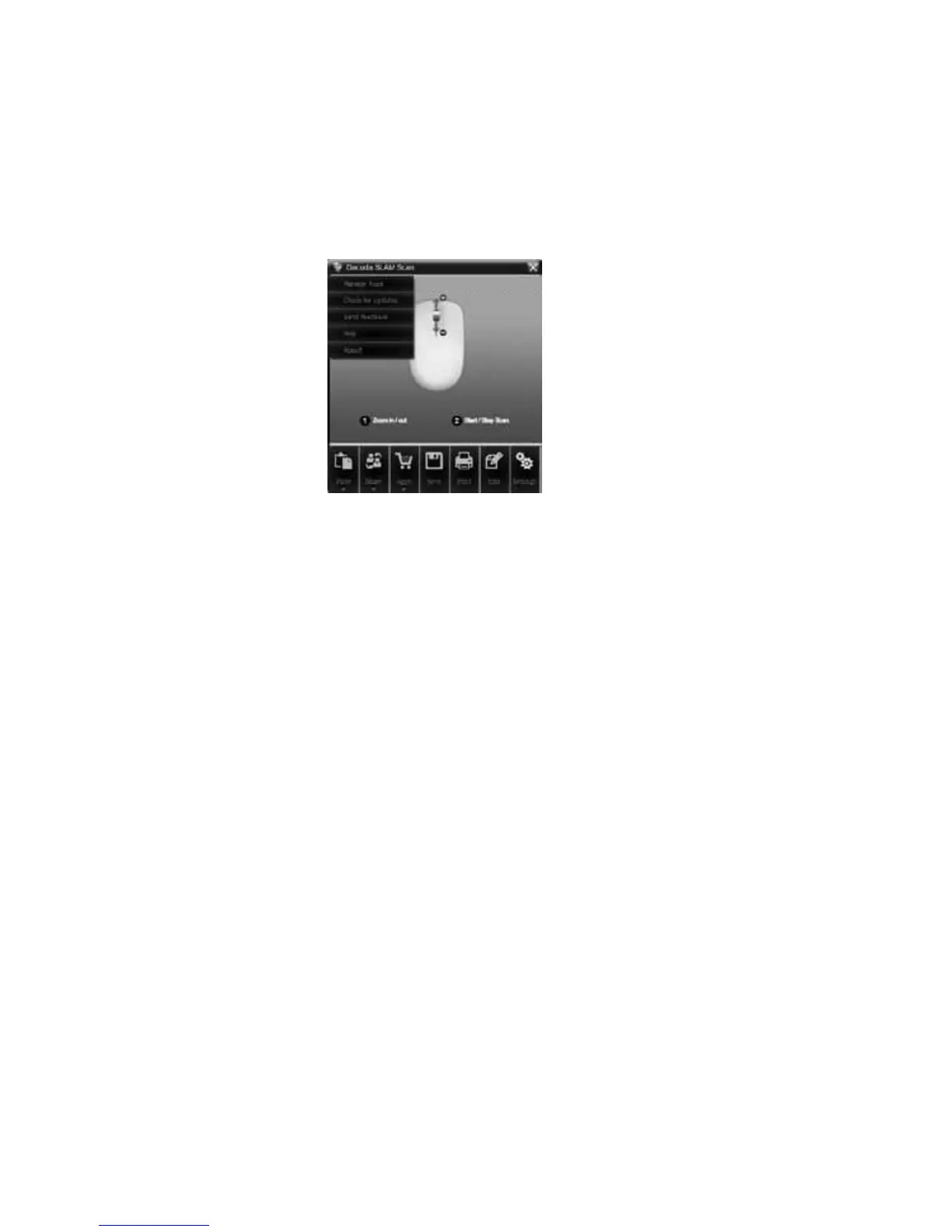
SETTINGS
Manage extensions: Manage application programs to add convenience to
the scan software.
• You can view, add, or remove the settings for your e-mail, Facebook, Flickr
and Twitter.
• If you want to sign out of Twitter, Facebook or Flickr and use another application,
click the desired application to display its button at the bottom right of the
window. Click the button to log out from the account.
Check for updates: If you wish to update manually, click Update to check the current
version and whether there are available updates. If there are updates available click
the Update icon to obtain the newest version.
Send feedback: You can send comments any time you encounter a problem while
using the software and/or hardware.
Help: If you need assistance with the product and/or the software, click Help to
open the detailed owners manual.
About: Shows the information on the software version, license and open source code.



 To Next Page