SCANNING
1. Place the scanner mouse on the desired document or photo, then press the
Smart Scan button on the left side of the mouse.
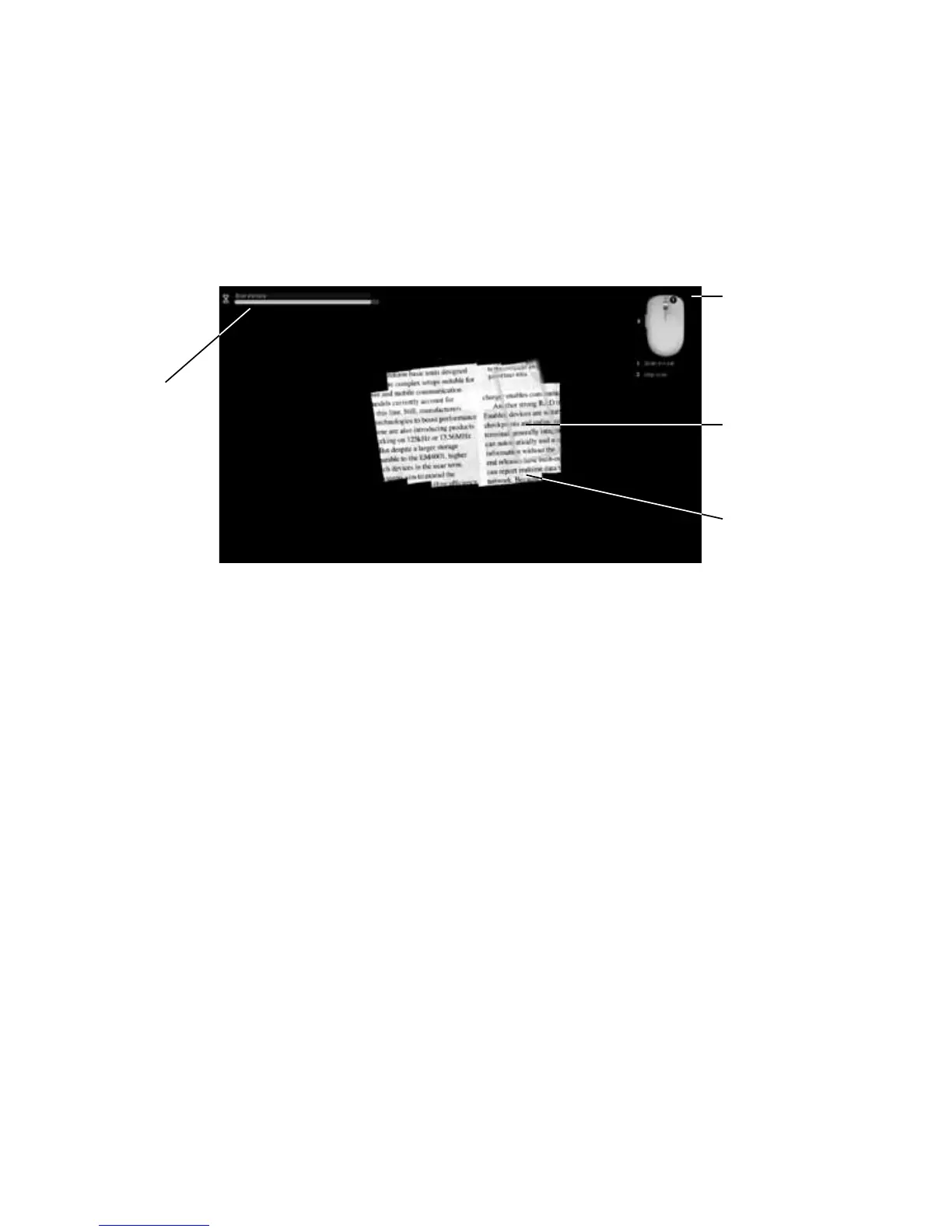
2. Once the scan program starts, your screen turns black and the image under
where the mouse is positioned is displayed.
3. Move the scanner mouse side to side to scan the desired area of the document.
Notes:
• Do not move the document once you have started scanning.
• Keep Scanner Mouse flat on the document–picking it up will pause scan.
• Scan the entire document in one pass. Re-scanning areas (especially with
high resolution settings) will fill the memory more quickly.
Function
description/
mouse wheel,
stop scan
Scan Window
Scan Image
Remaining
available
memory
display
9



 To Next Page